The .htaccess file is a hidden text file within your hosting account that can be very powerful. It is designed so that you can modify it to change the behavior of your website that normally would take higher access beyond your account. It acts as a liaison between your domain and the server and can perform many functions.
The server has a specific time setting. This is usually based on the servers physical location, for example, if the datacenter that houses the server is located in California, the server will most likely be set to the Pacific Time. Some sites may cater to specific areas of the world and wish to use the timezone for that area. PHP has configuration files that can do this, but what about other tiles such as HTML or Log files? That is where the htaccess comes into play. Below are instructions for changing the base timezone in your local htaccess file.
When using PHP 5.3 or newer, you may be required to set the timezone in the php.ini file, which is explained in our guide titled Setting the timezone for php in the php.ini file.
Changing your Default Timezone:
- Log into your cPanel.
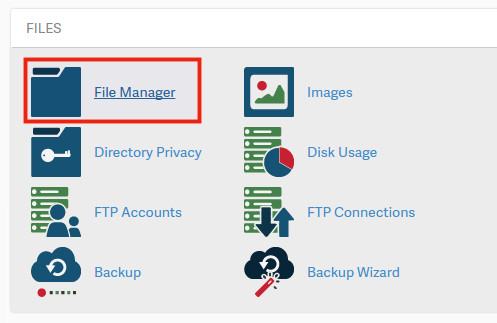
- Find the Files category and click on the File Manager icon.
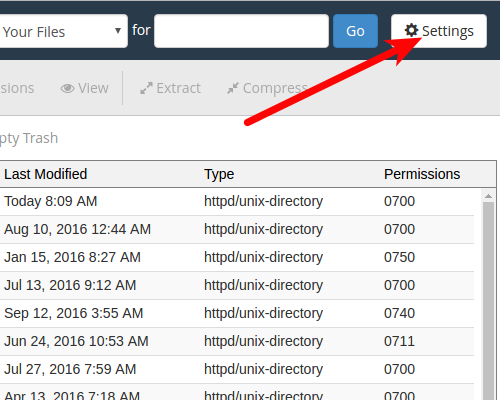
- Click Settings at the top right corner.
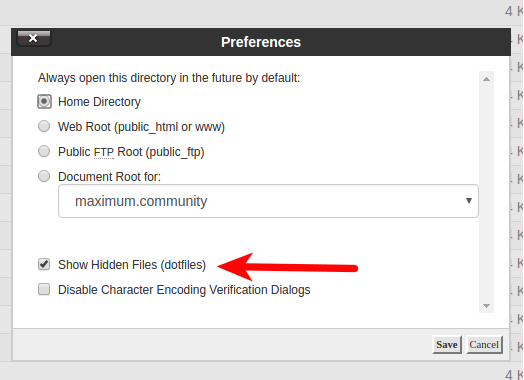
- Select the Document Root for your domain and be sure the checkbox next to Show Hidden Files is checked. Click the Save button.
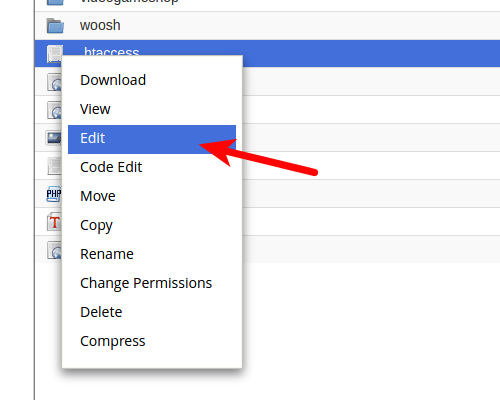
- Look for the .htaccess file and right click on it. This brings up a menu. Find and click on the Edit option.
- Now that you are in the htaccess editor, paste the following code at the top of the page to configure your account. In this example, we are setting the timezone to Eastern Standard Time.
#Adjust default time zone
SetEnv TZ America/Washington - Be sure to hit the Save Changes button in the upper right corner to save your new htaccess configuration.




Congratulations, now you know how to change your default timezone in the .htaccess file!