

Many customers at some point request to either force www or non-www version of their site to display in their visitor’s browser. For example, you can have www.example.com or simply example.com display in an address bar. While this difference won’t affect how visitors find your site, it can be a matter of aesthetic preference. This article will guide you through how to force www or non-www in your .htaccess file. You can access the .htaccess file through the cPanel File Manager.
Force www or non-www in your .htaccess file in cPanel
- First, log into your cPanel.
- Once logged into cPanel, Find the Files category and click on the File Manager icon.
- Next, click Settings at the top right corner.
- In the Settings Menu, choose the document root (or folder) for the domain you are working with and be sure the checkbox next to Show Hidden Files is checked. Click the Save button.
- Look for the .htaccess file and right click on it. This brings up a menu. Find and click on the Edit option.
- You are now in the text editor. Place either selection of code in the file and click on the Save Changes button at the top right corner of the screen. Be sure to replace ‘example.com‘ with your actual domain name. NOTE: do not place both selections of code in the file as it will cause an error. Below are examples of code that you can use to implement the desired change to the website.
How to Force www on Your Domain
A search engine such as Google interprets example.com and www.example.com as essentially two separate websites. It is recommended that users pick one version they’d like search engines to display. By using a 301 redirect, users can specify which domain name is displayed on their site.
If you have a number of links on the web where people are linking to your site as example.com, but you would prefer your visitors end up at www.example.com instead, you can force this version of your domain with these rules:
RewriteEngine On
RewriteCond %{HTTP_HOST} ^example.com [NC]
RewriteRule ^(.*)$ https://www.example.com/$1 [R=301,L]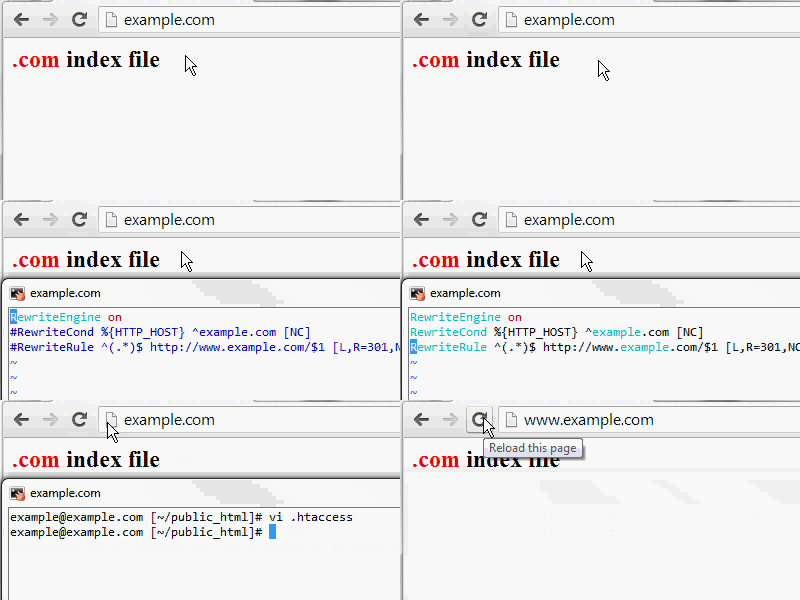
How to Force Non-www on Your Domain
If you have a lot of links on the web where people are linking to your site as www.example.com, but you would prefer your visitors end up at example.com instead, you can force this version of your domain with these rules:
RewriteEngine On
RewriteCond %{HTTP_HOST} ^www\.example.com [NC]
RewriteRule ^(.*)$ https://example.com/$1 [R=301,L]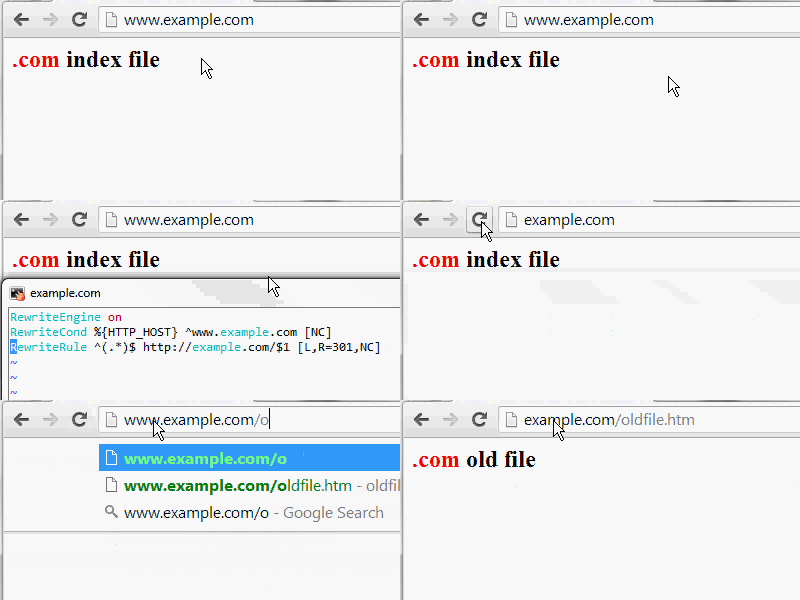
Congratulations, you have successfully forced www or non-www! Now when you type in your domain name with either www in front or not, it should display as you have set it in the .htaccess file.