There are two methods for viewing PHP errors that occur while running your website. You can either display errors directly on your website (viewable from any web browser) or enable error logging to write the errors to a specified file (viewable inside a text file). This article will cover how to turn display_errors On and Off, adjust error reporting settings, configure error logging, and use the ini_set() function to help troubleshoot PHP errors with your website.
- Editing the php.ini to Display Errors
- php.ini Error Reporting Settings
- Turning Error Logging On
- Using int_set() to Display Errors
- Maintain Your Log Files
Editing the php.ini to Display Errors
While your site is live, the php.ini file should have display_errors disabled for security reasons. However, for the development environment, display_errors can be enabled for troubleshooting. Displaying errors should be disabled while the site is live, to protect sensitive information and not interfere with the format of your website pages. When display_errors is On, your site’s pages will display any PHP errors encountered when loading your website in a browser. This section will explain how to control error reporting and turn display_errors On and Off.
- Log into your cPanel.
- Go to the File Manager. Select the home directory for your website (by default: public_html) and click Go.
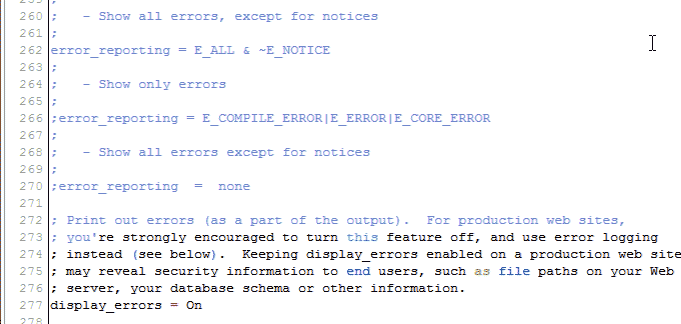
- Find the “Error handling and logging” section in the php.ini. In order to display or log errors, you need to enable error_reporting by removing the ( ; ) from in front to the line. You can disable error_reporting by adding a ( ; ) in front of the line. Refer to the code below: Error reporting disabled:
; - Show all errors, except for notices ; ;error_reporting = E_ALL & ~E_NOTICE ;
Error reporting enabled to specifically report all errors, but not notices:
; - Show all errors, except for notices ; error_reporting = E_ALL & ~E_NOTICE ;
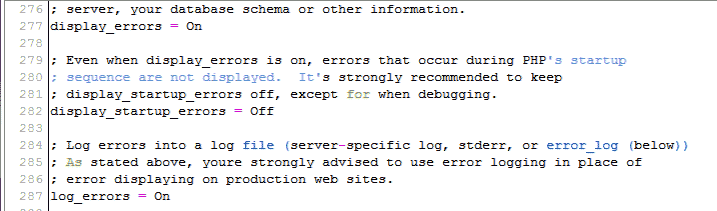
Next you can set the display_errors variable to On or Off to either show the errors on your website or not. Look for the display_errors line in the php.ini file and set it to On to display errors or Off to turn not display errors. The code looks like the following:Display errors:
display_errors = On
Do not display errors:
display_errors = Off

php.ini Error Reporting Settings
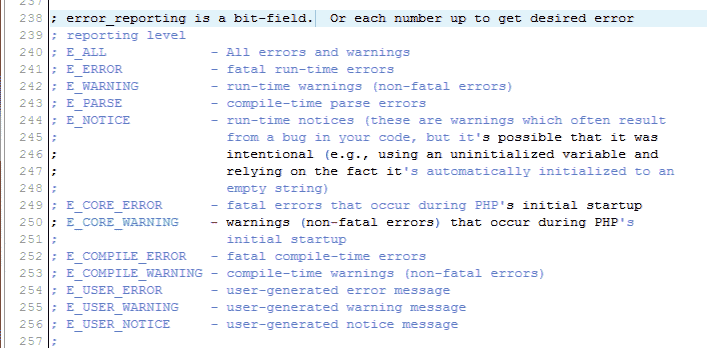
PHP has a list of different error reporting settings within the php.ini file itself. For example, if you want to display only warnings you can change the error_reporting line to the following:
error_reporting = E_WARNING
The following table was created from the settings found in a standard php.ini file. Refer to the following table for the available options.
| List of available options taken from php.ini | Description |
|---|---|
| E_ALL | All errors and warnings |
| E_ERROR | fatal run-time errors |
| E_WARNING | run-time warnings (non-fatal errors) |
| E_PARSE | compile-time parse errors |
| E_DEPRECATED | notices for the use of functions that will be retired in a future version |
| E_NOTICE | run-time notices (these are warnings which often result from a bug in your code, but it’s possible that it was intentional (e.g., using an uninitialized variable and relying on the fact it’s automatically initialized to an empty string) |
| E_CORE_ERROR | fatal errors that occur during PHP’s initial startup |
| E_CORE_WARNING | warnings (non-fatal errors) that occur during PHP’s initial startup |
| E_COMPILE_ERROR | fatal compile-time errors |
| E_COMPILE_WARNING | compile-time warnings (non-fatal errors) |
| E_USER_ERROR | user-generated error message |
| E_USER_WARNING | user-generated warning message |
| E_USER_NOTICE | user-generated notice message |
Turning Error Logging On
By default errors are written to the error_log, which is set to /dev/null. This means, error logging won’t occur. When errors are turned on, errors will be stored in a file in the directory the error occurs in. For example, if you have a PHP file called index.php in a subdirectory like public_html/wordpress, if you have any PHP errors while running that file’s scripts, the error log will be stored in that folder (public_html/wordpress). You can specify (in the php.ini) which file to store all errors in.
<IfModule mod_suphp.c> suPHP_ConfigPath /home/USERNAME/public_html </IfModule>
For more information on suPHP and DSO please see our article on Choosing the best PHP handler.
- Log into your cPanel.
- Go to the File Manager. Select the public_html directory and click Go.
- You can set the following line of code to On to log errors or Off to turn error logging off.
log_errors = On

Next you can save errors from any page in your files to a specific location by specifying the error_log. The example below uses a file named error_log This will place the error_log in the directory the error occurs in:
; Log errors to specified file. error_log = error_log
This will write all errors to the error_log file inside the public_html directory, regardless of what directory the errors were encountered in:
; Log errors to specified file. error_log = /home/userna5/public_html/error_log

Using int_set() to Display Errors
In the case you want errors to not display site wide and you want to check errors on a single page, you can use the ini_set() function to have errors displayed on a particular page. The basic syntax from php.net shows the function and its parameters is as follows:
string ini_set ( string $varname , string $newvalue )
This can be placed at the top of your PHP page, with the error_reporting variable in it, to allow error checking for that particular page. Below are the steps for how to do this.
- Log into your cPanel.
- Go to the File Manager. Select the public_html directory and click Go.
- Navigate to the PHP file you want to check errors for. Open the file in the code editor.
- In the file, add the following at the top.
ini_set('display_errors', '1');1 = On
0 = Off Save the page. Now your PHP page only will display errors.
Maintain Your Log Files
Now that you have enabled error logging, be sure to maintain your log files. If you are getting errors regularly, be sure to remove the logs periodically. You may do so by just removing the file from within the File Manager or through any other method that you prefer to manage your files. A large log file can sometimes cause issues by possibly filling your disk space or if on shared hosting with unlimited disk space, begin to impact other customers on the server.