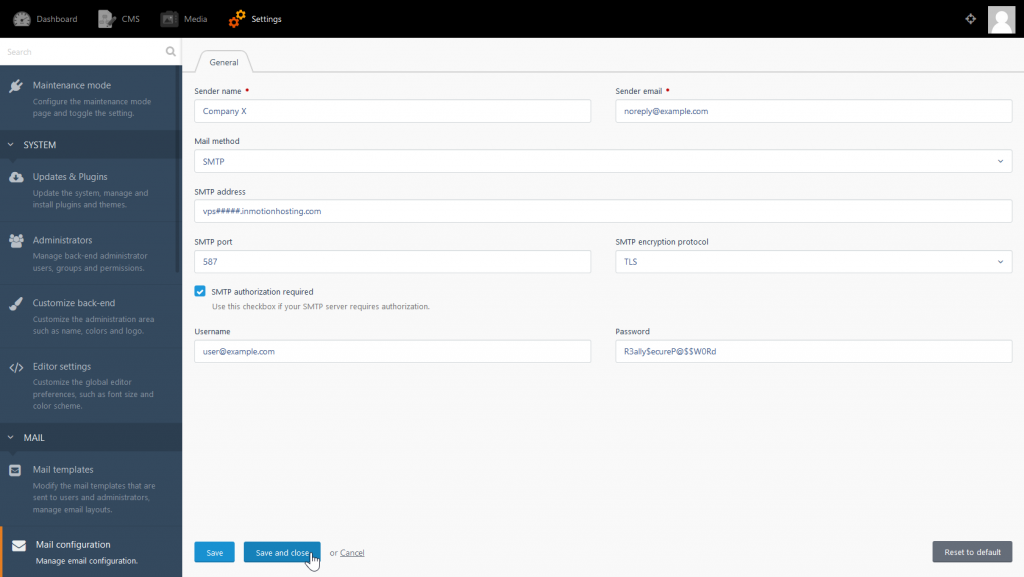
One of the first things you do after logging into OctoberCMS is configure your email settings. Yes, before you force SSL (HTTPS), install plugins, even edit the pages. Why? Setting this up allows you to receive emails from the CMS – the most important being to reset your password if you can’t login.
The other pre-configured mail template sends a welcome email to newly added administrators with the login URL and their login credentials.
Both are important for website maintenance and effective communication with other users. Below we’ll cover how to configure OctoberCMS mail settings with SMTP authentication.
Note: You can find your email configuration settings in your email app or cPanel > Email Accounts > Connect Devices.
octobercms-mail-configuration
Click Mail templates on the left.
Click the Password Reset template email.
At the bottom, click Send test message. If you receive the email, congratulations. If not, please check your settings against the screenshot or contact our 24/7 Live Technical Support for assistance. You’ll need mail configuration completed successfully if case you’re ever locked out of your OctoberCMS user account.
An example of how to configure mail in OctoberCMS
After mail settings are configured, you can move on to other important tasks. Edit the Mail branding for color design changes to sent emails. Edit the Mail templates section to modify templates, layouts, and specific functions within emails.
Follow our security guide to strengthen email authentication. For better security overall, check out our VPS Hosting plans with cPHulk, ClamAV Scanner, and more.
Summarize and Research with AI
Share on Social Media
InMotion Hosting ContributorContent Writer
InMotion Hosting contributors are highly knowledgeable individuals who create relevant content on new trends and troubleshooting techniques to help you achieve your online goals!
Get web hosting that grows with your business. Our all-in-one hosting platform gives you everything your website needs to scale - so you can focus on the next big thing for you and your business.