
Forcing usage of an SSL certificate, whether it’s AutoSSL, the free SSL that’s auto-enabled forever, or a purchased SSL, ensures visitors that there’s a secure connection with the website. It also assures them that you care about their security and privacy.
After installing an SSL certificate, you need to ensure OctoberCMS redirects all users to use it. Below we’ll cover how to force HTTPS in OctoberCMS with the RedirectToHTTPS plugin and general tips to improve overall web security.
Force HTTPS
- Log into OctoberCMS.
- Click Settings at the top.
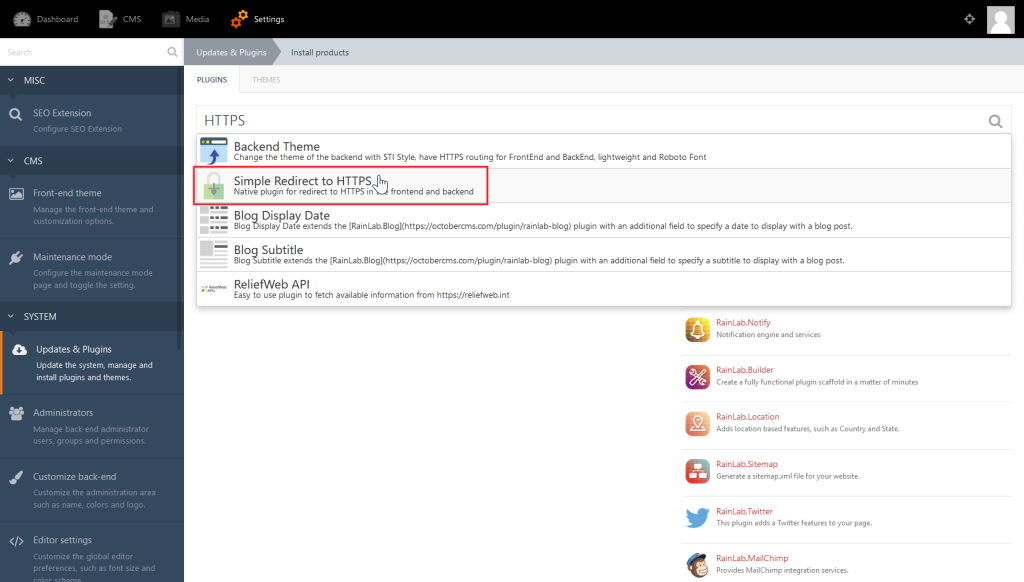
- Click Updates & Plugins.
- Click +Install plugins.
- Search for and click the RedirectToHTTPS plugin to install and activate it.
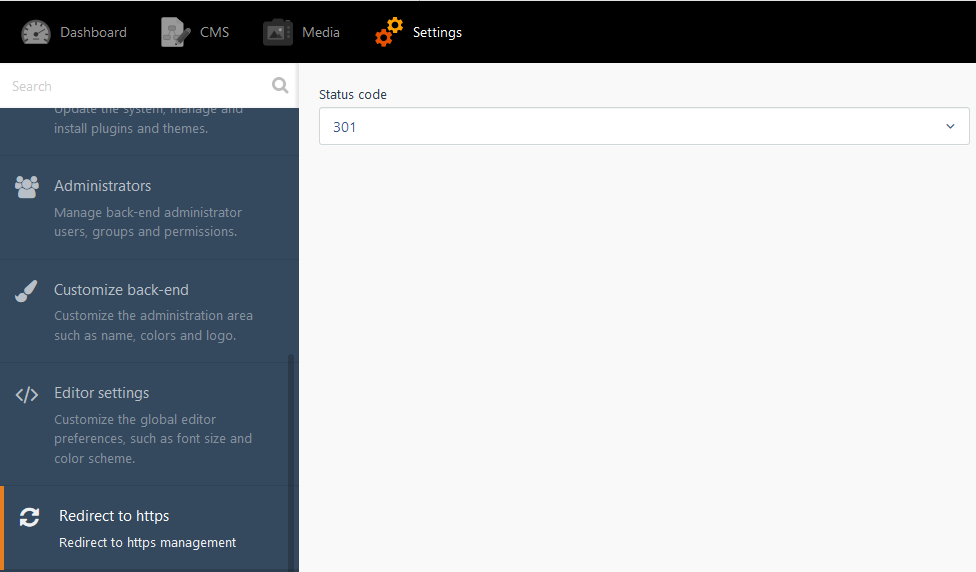
- Click Redirect to https on the left.
- Change the Status code from 302 to 301 and click Save at the bottom. You can read more about the difference between the two redirect options in our related article.
- Test your website by visiting your website, without “HTTPS://” in the URL, in a private browsing session.
That’s it! All visitors should now be able to type your domain in the browser and it will automatically redirect them to use the SSL (HTTPS). The plugin should also handle any mixed content errors caused by website images coded with HTTP instead of HTTPS. If you have any issues with the plugin or your SSL expires, remember that you can uninstall the plugin with just a few clicks. There are no configuration settings for RedirectToHTTPS.
If you want to go a step further than forcing HTTPS from your server, force HTTPS at the browser level with HTTP Strict Transport Security (HSTS) within your .htaccess file or Cloudflare.
Are you still working on your website? Enable Maintenance mode in OctoberCMS to ensure visitors only see essential info on your brand until you’re ready.
Are you working on improving overall web security? Keep improving with our email authentication guide, or check our VPS Hosting for more access to security configurations defined to your needs.
Come back soon for more articles on improving your OctoberCMS website.