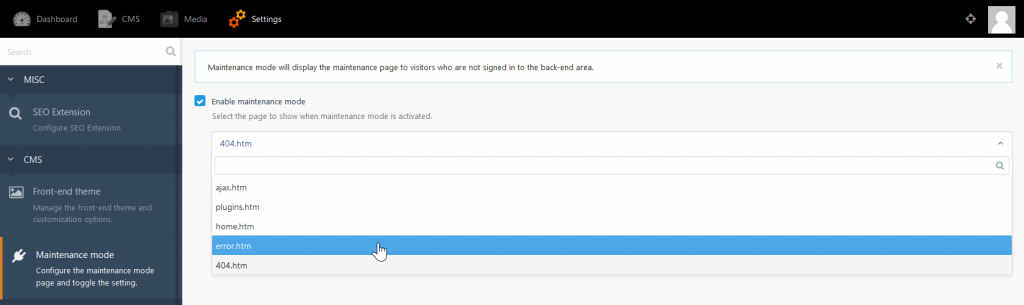
Enable Maintenance Mode in OctoberCMS InMotion Hosting ContributorUpdated on August 16, 2021 1 Minute Read After installing OctoberCMS, you may not want everyone viewing your work while you play with a new website. In many cases, it’s better to replace your website with a webpage showing important info instead of broken functions such as contact info, social media links, and what’s coming soon and when. Enable Maintenance Mode Log into OctoberCMS.Click Settings at the top.Click Maintenance mode.Check Enable maintenance mode and choose a created page from the drop down menu below.If you prefer to use another webpage than the default options, you can create a page from the CMS section. While in maintenance mode, you should force SSL encryption to your website. Check out our Shared Hosting if you’re looking for web hosting with responsive 24/7 Live Support. Learn more about October CMS in the support center: How to install plugins in October CMSHow to uninstall plugins in October CMS Share this Article InMotion Hosting Contributor Content Writer InMotion Hosting contributors are highly knowledgeable individuals who create relevant content on new trends and troubleshooting techniques to help you achieve your online goals! More Articles by InMotion Hosting Related Articles Intro to Migrating your WordPress Site Data Migrating your WordPress Database Migrating WordPress Files Configuring WordPress After a Migration Testing your WordPress website after Migration How to Move WordPress from a Subfolder to the Root Directory What to expect during a mass server migration Move Your WordPress Site to a New Server Moving Websites Built with Older Technology into WordPress How to Export Your WordPress Sites