
Your Payment Card Industry (PCI) scan flagged “FTP clear text authentication,” or you want to stop your passwords from crossing the internet unencrypted. This guide shows you how to disable plain text FTP authentication on a VPS or Dedicated server, and what to do instead if you only have cPanel.
FTP (File Transfer Protocol) sends your username and password as readable text, so anyone on the same network (open WiFi, for example) can capture them. If you have root access to WebHost Manager (WHM) on a VPS or Dedicated server, start with the next section. If you only have cPanel (Shared, Reseller, or no root access), skip to If You Only Have cPanel.
Important: The WHM settings in this article apply to every account on the server. Log in to WHM as root to change them. See How to Obtain Root Access to Your Server with InMotion Hosting if you do not have root access yet.
Require TLS to Disable Plain Text FTP Authentication in WHM
This setting keeps FTP running but refuses logins that are not encrypted with Transport Layer Security (TLS). FTP clients that support FTP over TLS keep working.
- Log in to WHM as root.
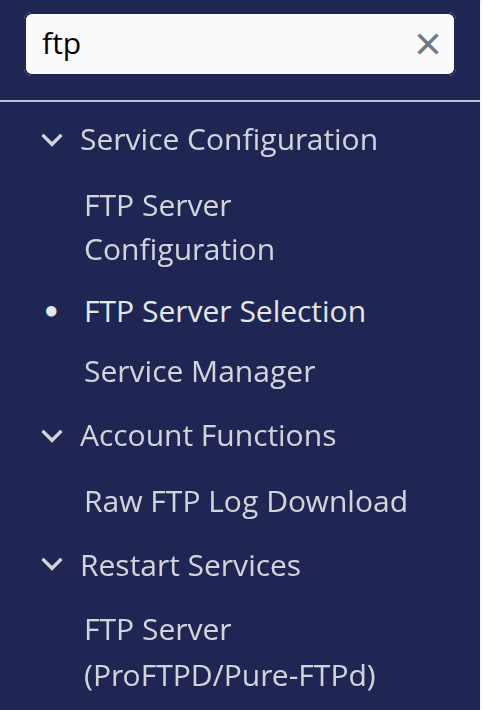
- In the Search Tools box at the top of the left menu, type ftp. Under Service Configuration, click FTP Server Configuration.
- Open the TLS Encryption Support drop-down.
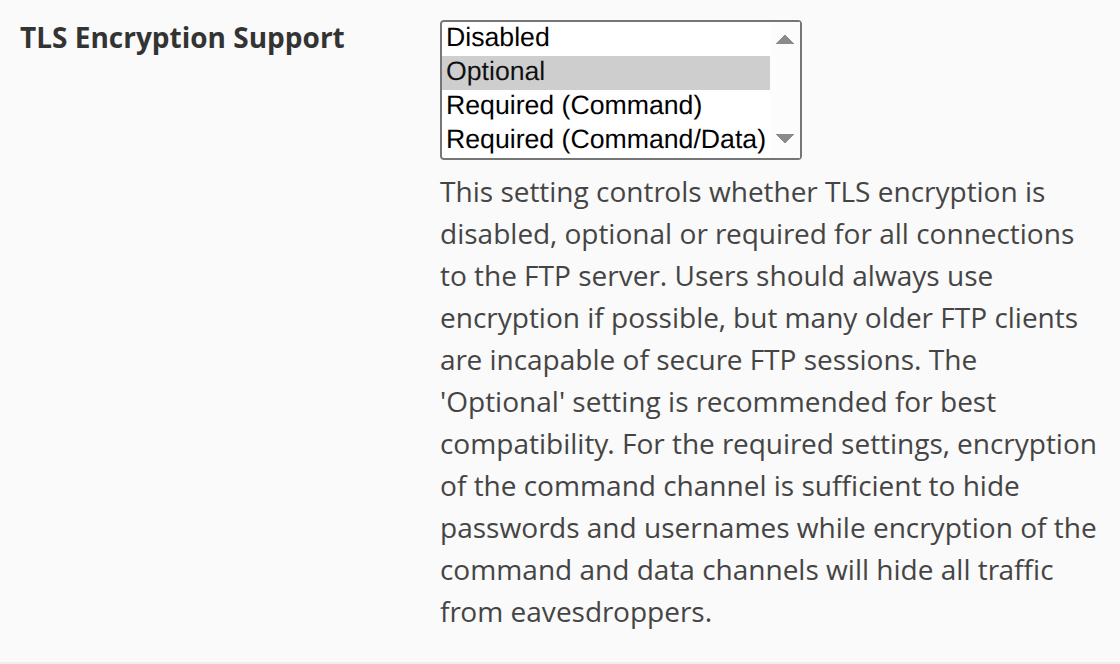
- Select Required (Command) or Required (Command/Data). Both stop plain text logins; the difference is explained below.
- Scroll to the bottom of the page and click Save.
The two “required” options differ in what they encrypt:
- Required (Command) encrypts the login and the commands, so usernames and passwords never travel in plain text.
- Required (Command/Data) also encrypts the file transfers themselves, which hides all FTP traffic. It is the stricter choice.
The “FTP clear text authentication” scan finding is about unencrypted logins, so either required option addresses it. Choose Required (Command/Data) if you also want the files you transfer encrypted.
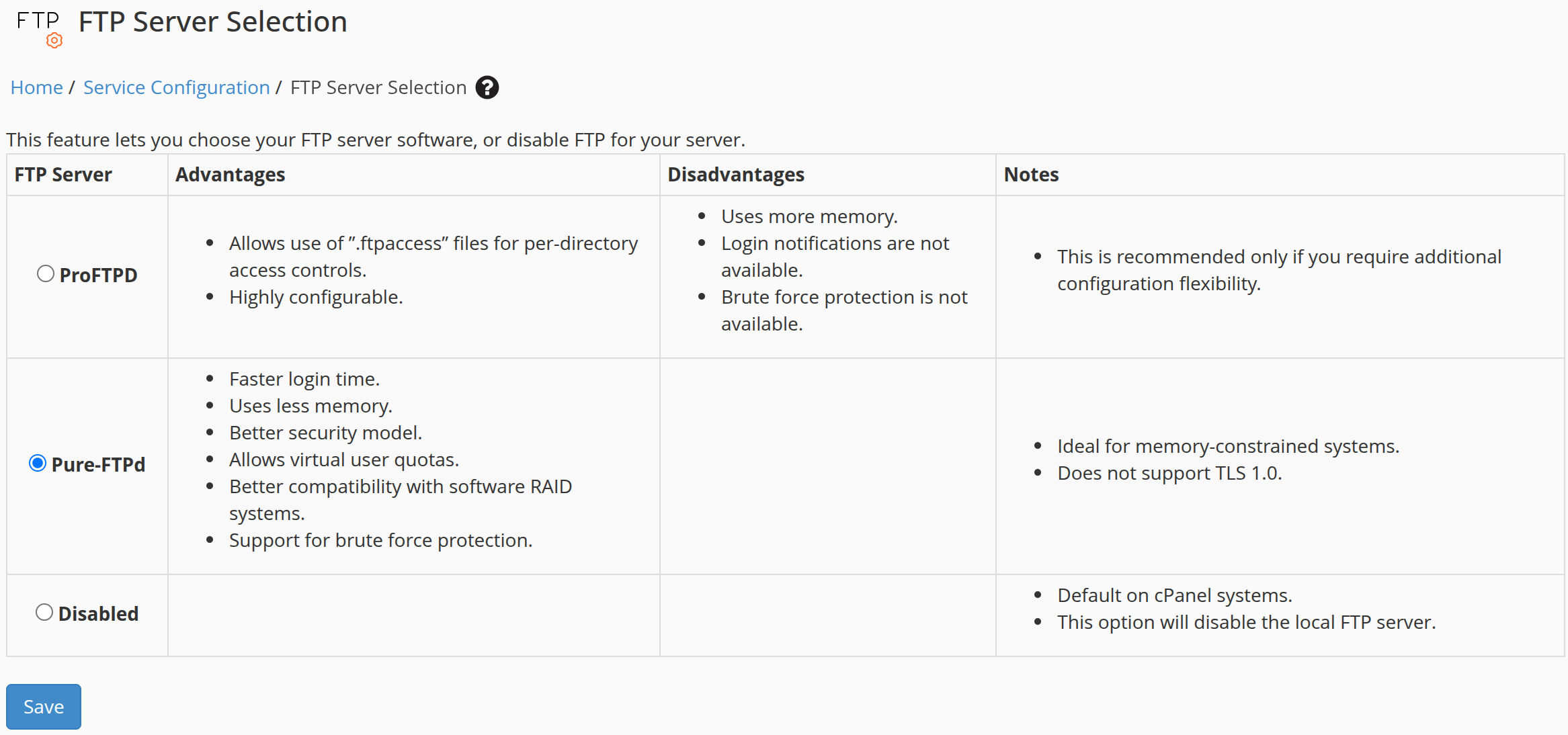
Note: These four options appear when your server runs Pure-FTPd. If your server runs ProFTPD, the TLS Encryption Support drop-down lists only Optional and Required. Select Required, which encrypts both commands and data. The FTP Server Selection page shows which FTP server your server runs.
Note: After you require TLS, FTP clients that connect with plain FTP can no longer log in. Set your client to require explicit FTP over TLS (in FileZilla, the Require explicit FTP over TLS encryption option), or switch to SFTP.
To remove FTP completely and use only SFTP, the next section shows how.
Turn Off FTP Entirely in WHM (SFTP Only)
Disabling the FTP server removes plain text logins altogether. Secure File Transfer Protocol (SFTP) runs over Secure Shell (SSH), a separate service, so cPanel users with SSH access can still transfer files.
Warning: This turns off the FTP server for every account on the server. Nobody can connect with FTP or FTPS until you turn it back on. FTP accounts created in cPanel lose file access completely, because FTP accounts cannot connect with SFTP.
- Log in to WHM as root.
- In the Search Tools box, type ftp, then click FTP Server Selection under Service Configuration.
- In the FTP Server column, select Disabled.
- Click Save.
Connect with SFTP from now on. See Connecting with SCP and SFTP for client settings. If only a few accounts need to lose FTP, the next section is a lighter option.
Block FTP for Specific cPanel Users
If the /etc/ftpusers file exists, cPanel & WHM denies FTP access to every cPanel username listed in it. Blocking a cPanel account also blocks the FTP accounts it owns. The file must exist before cPanel can use it.
- Connect to your server as root with SSH. See How to Obtain Root Access to Your Server with InMotion Hosting if you need help.
- Create the file if it does not exist yet. If it already exists, this command leaves its contents unchanged:
touch /etc/ftpusers- Open the file in an editor:
nano /etc/ftpusers- Add each cPanel username on its own line, with no domain name, then save the file.
Those accounts, and the FTP accounts they own, can no longer log in with FTP. The cPanel users can still connect with SFTP if they have SSH access. If you do not have root access, the next section covers what you can do from cPanel.
If You Only Have cPanel
cPanel has no setting that forces FTP encryption, because that choice is server-wide and lives in WHM. You can still protect your own logins in three ways.
- Use SFTP. It encrypts everything and connects over SSH with your cPanel username, so SSH must be enabled on your account first. FTP accounts cannot use SFTP. On Shared and Reseller hosting, SFTP uses port 2222. Follow the SFTP Setup Guide for Shared Hosting Using FileZilla or Connecting with SCP and SFTP.
- Or use explicit FTP over TLS (FTPS). In your FTP client, set the encryption option to require explicit FTP over TLS before you connect (in FileZilla, Require explicit FTP over TLS). If the connection fails, use SFTP instead.
- Delete FTP accounts you no longer use. In cPanel, search for FTP Accounts, then delete the unused ones. See How to Create/Delete an FTP Account in cPanel.
Note: On Shared Hosting, you cannot change the server-wide FTP settings yourself. If a PCI scan still flags plain text FTP on your Shared account, contact Technical Support.
Conclusion
You can now stop plain text FTP logins on your plan: require TLS or turn off FTP in WHM, block FTP for specific users, or move your own connections to SFTP or FTPS. After you change the setting, re-run your scan. If it still fails, see How to Pass PCI Compliance Scans for the other common findings.