
SFTP (SSH File Transfer Protocol) provides a secure method for transferring files to your InMotion Hosting Shared Hosting account. Unlike standard FTP, SFTP uses SSH key authentication instead of your cPanel login credentials, offering stronger security for your file transfers.
This guide walks you through generating SSH access keys and configuring FileZilla to connect via SFTP.
Generate SSH Access Keys in cPanel
Before connecting with SFTP, you must create public and private SSH keys through cPanel. If you already have keys configured for SSH access on your shared or reseller server, you can use those same keys for SFTP.
To generate new keys:
- Log in to your cPanel account.
- Under Security, click SSH Access.
- Click Manage SSH Keys, then Generate a New Key.
- Enter a strong password, confirm it, and click Generate Key.
- Return to Manage SSH Keys and click Manage next to your new public key.
- Click Authorize to enable the key for connections.
After authorizing your public key, download your private key in PPK format:
- Under Private Keys, click View/Download next to your key.
- Scroll to Convert the key to PPK format.
- Enter your passphrase and click Download Key.
Configure FileZilla for SFTP
Setting up FileZilla for SFTP requires two steps: adding your private key file and creating a connection profile.
PPK File Version Compatibility
When cPanel converts your key to PPK format, it may generate either PPK version 2 or version 3, depending on your server’s cPanel version. According to the FileZilla documentation, FileZilla version 3.55.0 and later supports PPK v3 keys. If you use an older FileZilla version and encounter issues loading your key file, you have two options: update FileZilla to the latest version, or use a different FTP client such as WinSCP or Cyberduck.
Add Your Private Key File
- Open FileZilla.
- From the top menu, click Edit, then Settings.
- In the Settings window, click SFTP in the left sidebar.
- Click Add key file in the right panel.
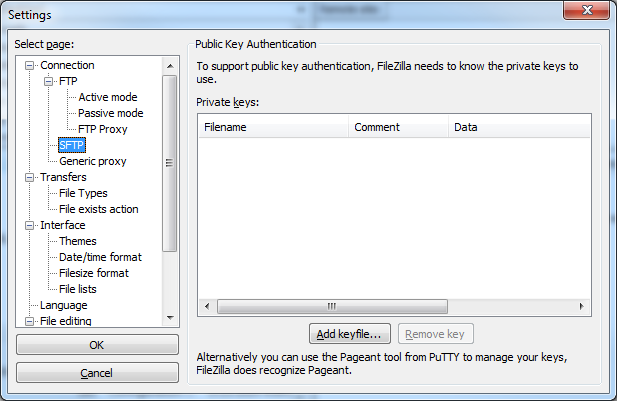
- Navigate to your downloaded PPK file and click Open.
- Verify the key appears in the list and click OK to save.
Create the SFTP Connection Profile
- Click File, then Site Manager.
- Click New Site and give your connection a recognizable name.
- Enter the following settings:
• Host: Your domain name (example.com) or server IP
• Port: 2222
• Protocol: SFTP
• Logon Type: Key file
• User: Your cPanel username
• Key file: Browse to your PPK file - Click Connect to establish the SFTP connection.
FileZilla may prompt you to accept the server’s host key on your first connection. Click OK to add it to your trusted hosts.
Troubleshooting Common Issues
Connection Timeout Errors
Verify you are using port 2222, not the standard SSH port 22. Shared and Reseller servers require port 2222 for SSH and SFTP connections.
Authentication Failures
Confirm your public key is authorized in cPanel under SSH Access > Manage SSH Keys. The key status should show “authorized” rather than “not authorized.”
Key File Not Loading
If FileZilla silently fails when adding your key, the file may be in an incompatible format. Update FileZilla to the latest version or regenerate your key using PPK version 2 format through PuTTYgen.
Password Prompts Appearing
If FileZilla keeps asking for a password despite having your key configured, verify the Logon Type is set to “Key file” rather than “Ask for password” or “Interactive.”
Why Use SFTP Instead of FTP?
SFTP encrypts both your credentials and file data during transfer, making it the preferred method for secure file management. For websites handling sensitive information or requiring PCI compliance, when you fail PCI compliance for FTP being open, you can use SFTP or SCP to connect to your server.
Standard FTP transmits data in plain text, which creates security vulnerabilities on shared networks. SFTP eliminates this risk by tunneling all communication through an encrypted SSH connection.
Next Steps
After establishing your SFTP connection, you can upload, download, and manage files in your hosting account securely. For additional file transfer options, explore these resources:
If you encounter connection issues or need help with SSH key generation, InMotion Hosting’s support team is available 24/7 to assist.