
If you are using a shared hosting or reseller hosting account, this guide shows you how to connect to an individual cPanel account via SSH using a client such as PuTTY.
- How to Connect to your Server with SSH (Video)
- How to Generate an SSH Key
- How to Authorize an SSH Key
- Convert and Download the SSH Key
- SSH using PuTTY
- For Basic Terminal Emulators
Video: How to Connect to your Server with SSH
How to Generate an SSH Key
Note for Reseller Customers: Before following this guide, make sure you have enabled SSH for the cPanel user that you are using to SSH with.
- Login to the cPanel that you want to connect to using SSH.
- Under Security click SSH Access.
- Click Manage SSH Keys.
- Then click Generate a New Key.
- Type in a strong password, then click in the field below it and type the password again.
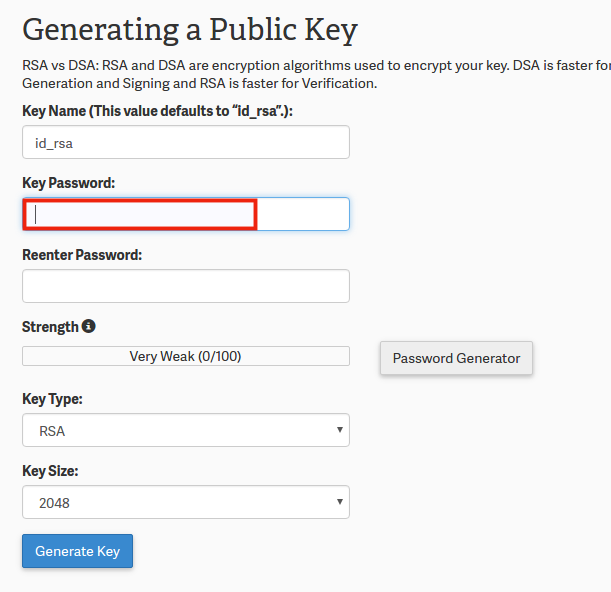
- Click Generate Key, then you will see a Key Generation Complete! message.
How to Authorize an SSH Key
Once you have generated the SSH Key, it needs to be Authorized.
- Login to the cPanel that you want to connect to using SSH.
- Under Security click SSH Access.
- Click Manage SSH Keys.
- On the next screen, locate the key you just created under the Public Keys section. Click Manage (under the Actions column) next to your new key.
- You will see a message stating:”The key with the name “id_dsa” is currently “not authorized” for use when connecting to this account.Click Authorize. You will then see a message stating:The key “id_dsa.pub” has been authorized.
Convert and Download the SSH Key
- Login to the cPanel that you want to connect to using SSH.
- Under Security click SSH Access.
- Click Manage SSH Keys.
- Under Private Keys click View/Download next to the Private key you want to use.
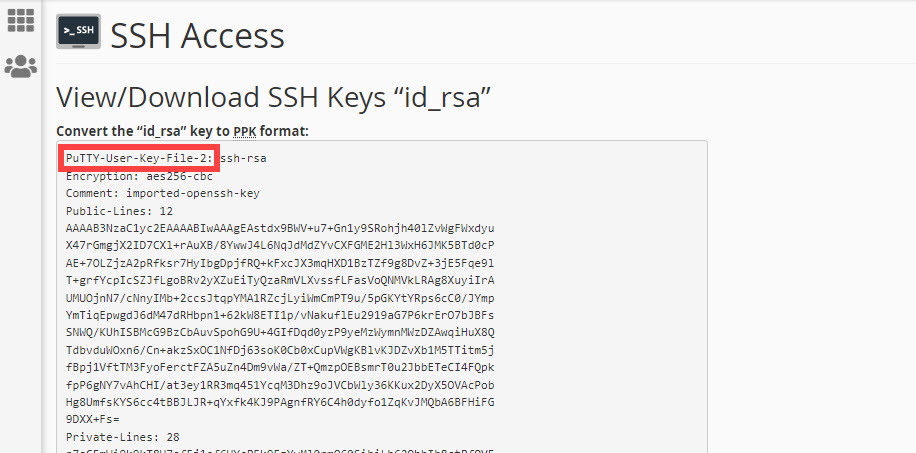
- On the next screen, scroll down to the Convert the “id_dsa” key to PPK format: section. Enter the passphrase used to generate the SSH key in the Enter the passphrase to unlock the “id_dsa” key for conversion: field.
- Click Download Key.
Note: If you have converted the key to PPK format using cPanel, make sure to review the PuTTy-User-Key-File version that it has been converted to. You will see it in the first line when you convert the key (as per the screenshot below). Some FTP clients are unable to use the PuTTy_user-Key-File-3 version. The version that is converted will vary based on the cPanel version that you are using. Build 94 and older will use the older formats (version 1 and 2). FileZilla is noted for not supporting version 3 of the PPK file. You can use another FTP client to avoid this issue.
SSH Using PuTTY
- Open PuTTY, under Connection click SSH, then Auth.
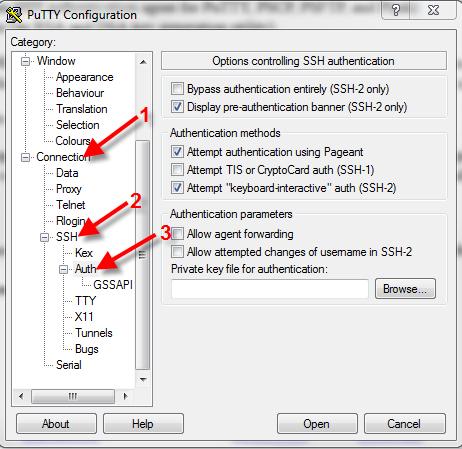
- Click Browse under Private key file for authentication, then select the private key you downloaded in the last section. Click Open.
- Click Session and under port enter: 2222
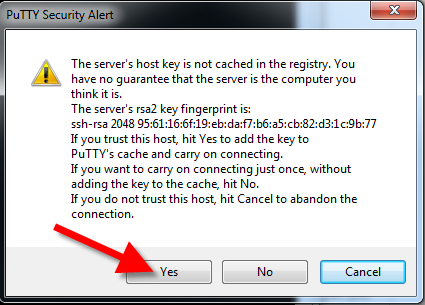
- For the Host Name, enter your domain name or shared IP address, then click Open to connect. If you see a PuTTY Security Alert, click Yes.
- You will see “Login As“. Enter your cPanel username and then hit Enter.
- Enter the password for your key file and hit Enter. For security reasons, PuTTY will not show anything when you type your password, this is normal. You will then be logged into your account via SSH.


Congratulations, now you know how to connect to a Shared server or Reseller cPanel account using SSH!
For Basic Terminal Emulators
If you are not using PuTTY, and you wish to SSH into your server from any terminal editor, all you need to do is download your keys (as seen above) and use the private key in your terminal emulator, as follows:
ssh -p 2222 -i path/to/private_key [email protected]Make sure to substitute the proper path to your private key and use your proper cPanel username and shared IP address.
If you don’t want to type all of those options into your terminal every time you connect, you can use a local SSH configuration file to simplify it. You just need to create a file called “config” in the local .ssh directory (.ssh/config). Once you have done that, you can name the connection and associate values with it, as in the example below:
Host imh
        User userna5
	Hostname example.com
	Port 2222
	IdentityFile ~/.ssh/id_rsa
If you were to use the example above, replacing the example values with your own real values, you would only need to type the following at the terminal prompt:
ssh imh
And you will be instantly connected to your server over SSH.
I’m trying to use macOS terminal and it gives me this error:
ssh pcsupport.com.mx
Load key “key.ppk”: invalid format
user@host: Permission denied (publickey).
Hello, it appears that there may be an issue with the credentials. Please reach out to our Technical Support team directly at https://inmotionhosting.com to troubleshoot this further.