
OctoberCMS has many native features to improve your site such as secure email notifications. There is also a long list of plugins to help you achieve your goals without having to edit code. You can preview plugins information at OctoberCMS.com before installing within your dashboard.
While you’re looking to improve your website, check out our Nginx-powered WordPress Hosting for higher performance without unneeded features.
Install Plugins
1. Log into OctoberCMS.
2. Click Settings at the top.
3. Click Updates & Plugins.
4. Click +Install plugins.
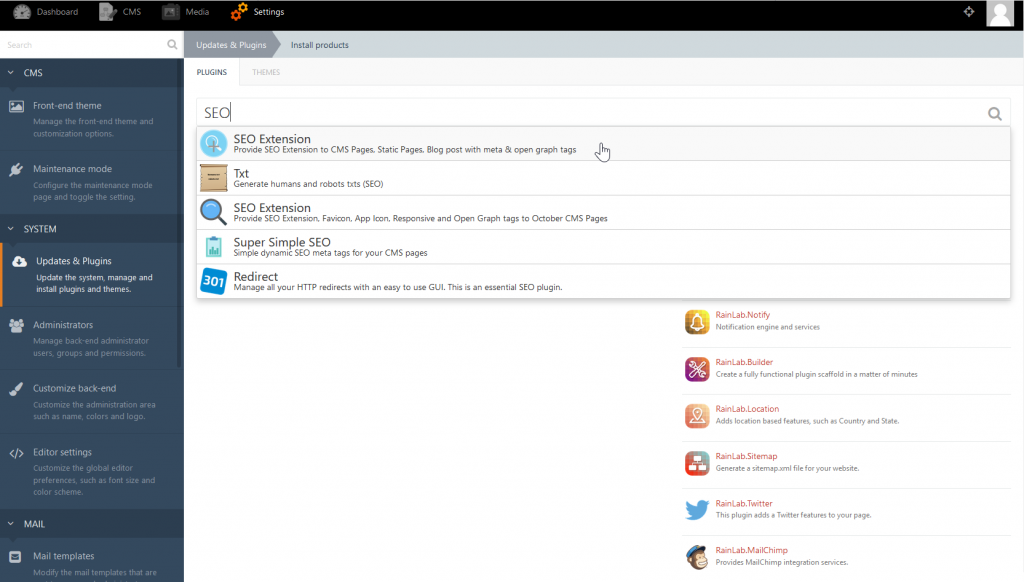
5. Search the plugins with the search bar. Click a plugin in the menu to install it.
6. Click Installed plugins.
7. Click on the plugin name for documentation.
We recommend starting with RedirectToHTTPS.
Follow this guide if you need to enable maintenance mode in OctoberCMS to work on these updates.
Check out our VPS Hosting plans for better performance and security.