
Grav includes built-in caching configured in the user/config/system.yaml file and stored in /cache folder. Below we cover how to clear the Grav site cache using the Admin plugin and SSH.
Admin Plugin
- Log into Grav.
- Select Clear Cache in the upper-right.
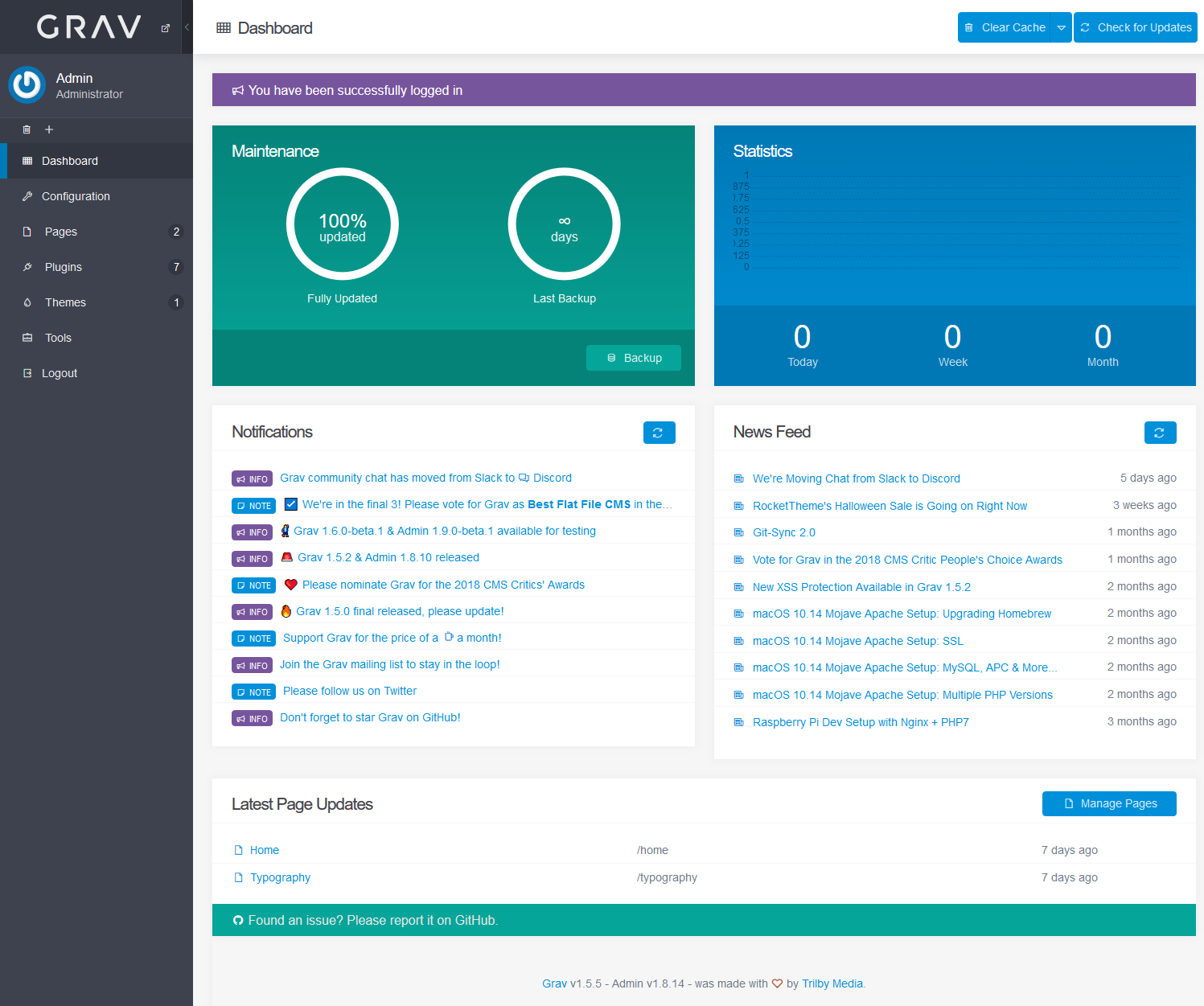
Select the arrow to only clear Assets, Images, Cache, or Tmp cache.
SSH
- Login SSH.
- Type cd [path-to-grav-folder] to navigate to your Grav directory.
- Type bin/grav clear-cache to clear the cache.
     Clearing cache
     Cleared: /home/[path-to-grav]/cache/twig/*     Cleared: /home/[path-to-grav]/cache/doctrine/*     Cleared: /home/[path-to-grav]/cache/compiled/*     Cleared: /home/[path-to-grav]/images/*
     Touched: /home/[pathtograv]/user/config/system.yaml
Other options to add after the command include:
–all,
–assets-only for CSS and Jquery
–cache-only for core changes
–images-only - Check your website in a web browser. You may stiil need to clear your browser cache.
Learn more about Grav in our Support Center.