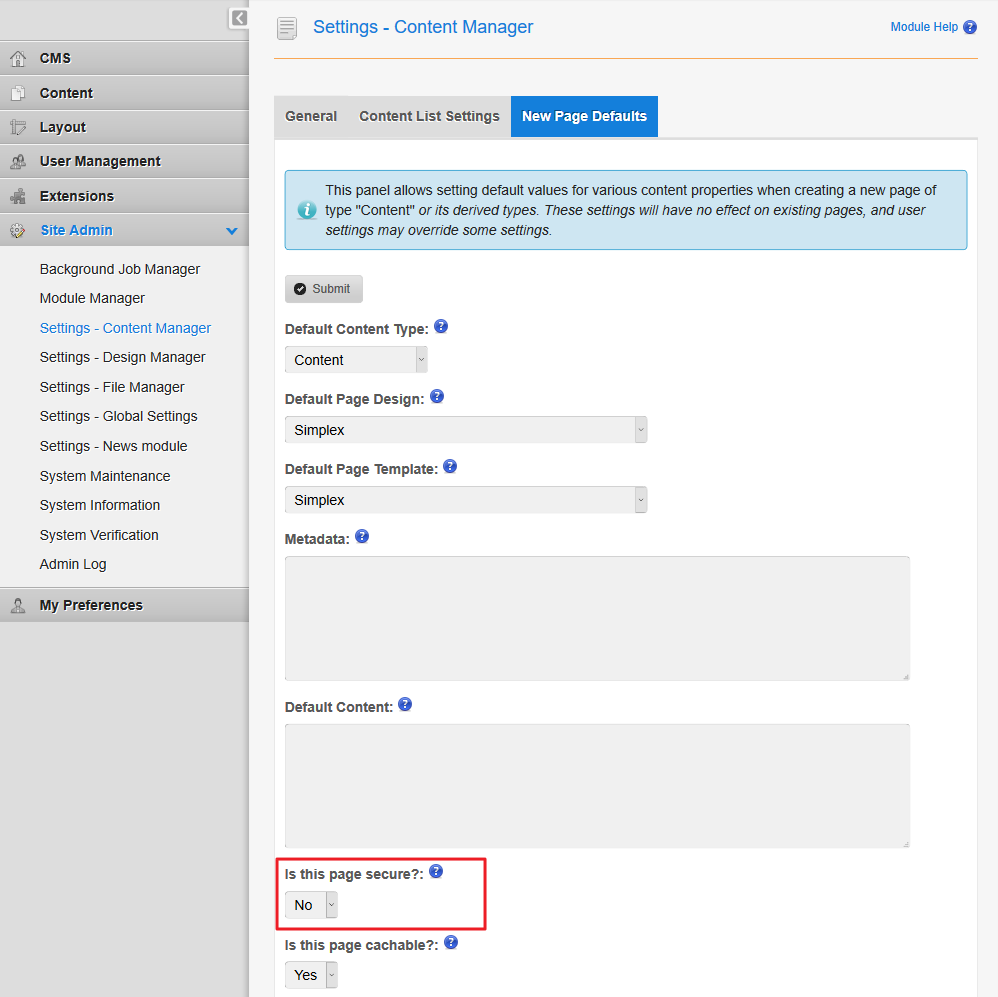
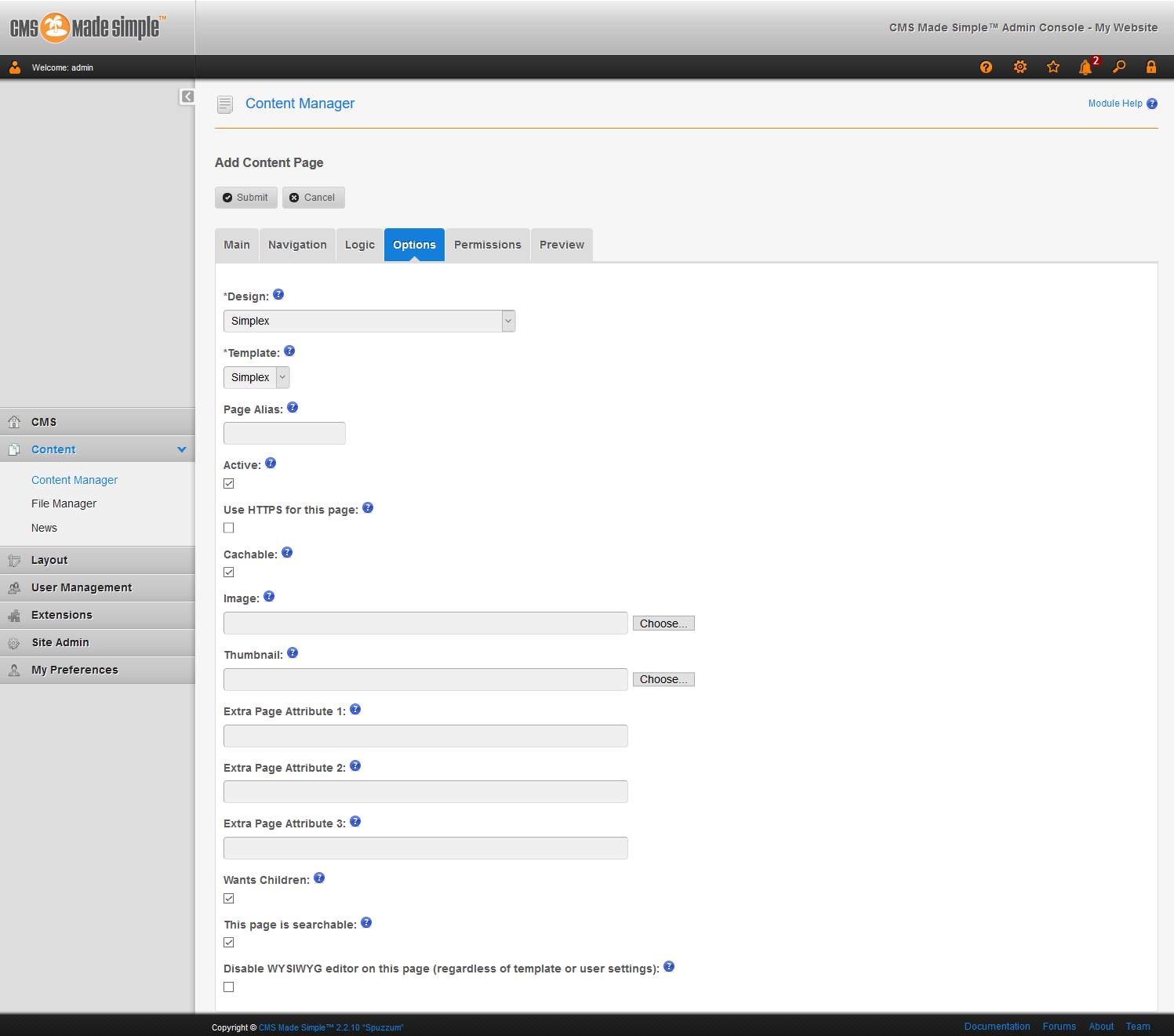
Force HTTPS in CMS Made Simple Updated on August 16, 2021 by InMotion Hosting Contributor 0 Minutes, 34 Seconds to Read Security should always be a priority. Get started the right way with strong passwords and installing a free or paid SSL certificate on your domain. Below we cover how to set CMS Made Simple to always force HTTPS by default. Force HTTPS Log into CMS Made Simple. On the left, click Site Admin, then Settings – Content Manager. Click New Page Defaults. Under Is this page secure?:, select Yes. Force HTTPS for a Page On a content page, click Options. Check the box to Use HTTPS for this page. To find more ways to enhance your website, check your system information. Learn more about CMS Made Simple and web server security and in our Support Center. Share this Article InMotion Hosting Contributor Content Writer InMotion Hosting contributors are highly knowledgeable individuals who create relevant content on new trends and troubleshooting techniques to help you achieve your online goals! More Articles by InMotion Hosting Related Articles Troubleshooting SSL Connection Errors: How to Fix HTTPS Issues What Is SSL and Why Does It Matter for Your Website? How to Tell If a Website Is Secure: 2026 Browser Guide How to Enable cPanel AutoSSL via Account Management Panel (AMP) and WHM How to Manage AutoSSL Certificates in cPanel How to Run and Read a Traceroute: Troubleshooting Website Connectivity What Are Meta Tags? Guide to SEO Meta Tags & Best Practices Meta Descriptions and SEO Install Let’s Encrypt Free SSL Certificate on Ubuntu with Certbot How to Set Up a 301 Permanent Redirect via .htaccess & cPanel