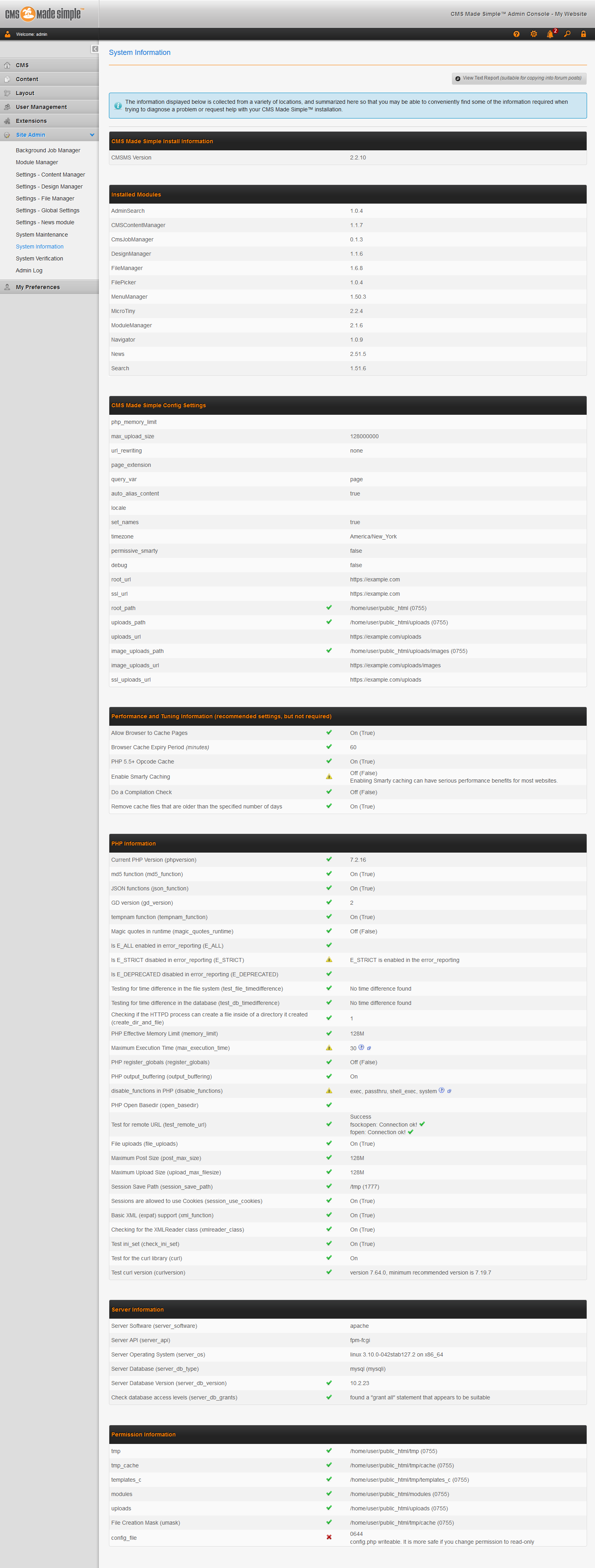
View System Information in CMS Made Simple Updated on May 26, 2022 by InMotion Hosting Contributor 0 Minutes, 29 Seconds to Read If you need to troubleshoot any PHP, server, or server settings in CMS Made Simple, you can view all settings natively within your account dashboard. Below we cover how to view system information in CMS Made Simple. Need more speed, security, and customization in your web hosting? Check out our VPS Hosting. View System Information Log into CMS Made Simple. On the left, click Site Admin, then System Information. Click View Text Report (suitable for copying into forum posts) if you need an easy to copy format. Learn more about CMS Made Simple in our Support Center. Share this Article InMotion Hosting Contributor Content Writer InMotion Hosting contributors are highly knowledgeable individuals who create relevant content on new trends and troubleshooting techniques to help you achieve your online goals! More Articles by InMotion Hosting Related Articles How to Create a Local Dev Server with Vagrant AWStats: View Statistics About Your Website Traffic MySQL Error 1064: You Have an Error in Your SQL Syntax MySQL Error 1044 Access Denied Troubleshooting: Fixing the “localhost Refused to Connect” Error HTTP Error Codes: What They Mean and How to Fix Them How to Fix the 504 Gateway Timeout Error 500 Internal Server Error How To Create a PHP Redirect (301, 302, and Dynamic Redirect Examples) Connect to SFTP for Shared Hosting Accounts Using FileZilla