
A visitor clicks the link to your 40-page installation guide and the PDF opens in a browser tab. They read two pages, close the tab, and the file is gone. Nothing was saved, and if they want it later they have to find your site again.
Agencies hit this when delivering brand assets to clients. Ecommerce stores hit it when a paid download opens in a preview pane instead of landing in the customer’s Downloads folder. The fix is a couple of lines in your .htaccess file, and it does not require root access.
What “Forcing a Download” Actually Changes
Your browser decides what to do with a file based on the headers the server sends with it. A file served as application/pdf gets handed to the built-in PDF viewer. A file served as something the browser cannot render gets pushed to a save dialog instead.
Two directives control this behavior, and they work differently:
AddTyperewrites the MIME type so the browser no longer recognizes the file as something it can display (Apache mod_mime documentation).Header set Content-Dispositionleaves the MIME type alone and sends an explicit instruction to save the file (MDN Content-Disposition reference).
The second one is the purpose-built mechanism. The first one is the workaround that has been circulating since 2012 and still works.
Before You Edit Anything
The .htaccess file lives in the document root of the site it affects, usually public_html or a subdirectory under it. It can also sit in a cPanel user’s home directory, where its rules apply recursively to everything below.
It is a hidden file, so File Manager will not display it until you turn on hidden files.
Copy the current contents somewhere safe before you change anything. A single malformed directive returns a 500 Internal Server Error across the whole site, and recovery is much faster when you can paste the old version back.
Method 1: Change the MIME type with AddType
Add this near the top of your .htaccess file, listing the extensions you want to force:
AddType application/octet-stream .pdf .mov .mp4 .avi .xls .zipOne line handles every extension you list. The older cPanel walkthrough on our support site showed a separate line per file type, which works but adds clutter for no benefit.
Understand the tradeoff before you use this. AddType applies to every file with that extension in the directory and everything beneath it. Force .pdf at the document root and your inline product spec sheets, your embedded menu, and your invoice previews all start downloading too. For a site with a single downloads folder that is fine. For a content-heavy site it usually is not.
Method 2: Send a Content-Disposition header
This method keeps MIME types intact and only changes how the browser handles delivery:
<FilesMatch "\.(pdf|mov|mp4|avi|xls|zip)$">
    Header set Content-Disposition "attachment"
</FilesMatch>
Header comes from mod_headers, which is enabled on standard Apache builds (Apache mod_headers documentation). If adding this returns a 500 error, the module is not available on your server and you should fall back to Method 1.
Scope it to One Folder
The cleaner approach for most sites is to skip the site-wide rule entirely. Create a dedicated directory, put your downloadable assets there, and place a .htaccess file inside that folder containing only the FilesMatch block above.
Now /downloads/pricing.pdf saves to disk and /resources/pricing.pdf still opens in the browser. Same file type, two behaviors, no conflict.
Editing .htaccess in cPanel File Manager
- Log into your cPanel.
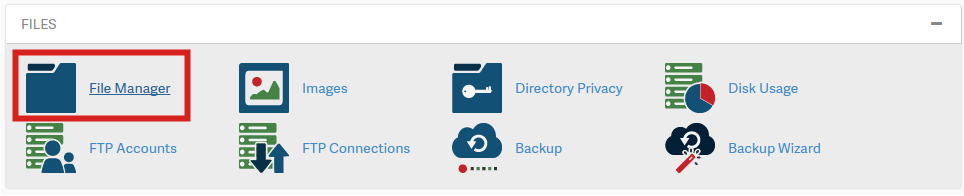
- Click on the File Manager icon.
- Enable hidden files if you have not already, then navigate to the directory you want the rule to cover.
- Right-click
.htaccessand choose Edit. Confirm the encoding prompt if one appears.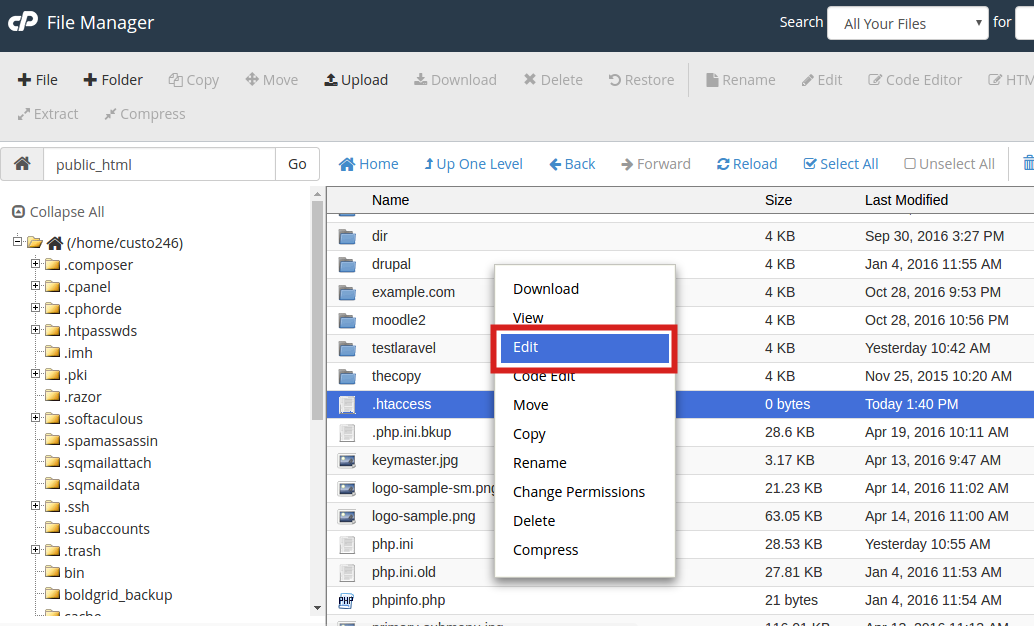
- Paste your directive block. Placement near the top of the file keeps it away from rules that other applications manage.
- Click Save Changes.
Test in a private browsing window. Regular windows serve cached copies of the file with the old headers, which makes a working rule look broken.
WordPress Sites: Stay Outside the WordPress Block
Open a WordPress .htaccess file and you will find a section wrapped in # BEGIN WordPress and # END WordPress. WordPress owns that space. It rewrites everything between those markers when permalink settings are saved, and several caching and security plugins maintain their own marked blocks the same way (WordPress developer documentation on .htaccess).
Put your download rules above the # BEGIN WordPress line. Rules placed inside the block survive until the next permalink save, then vanish, and the resulting bug report is genuinely difficult to trace back to its cause.
That is the only part of this process WordPress changes. File location, syntax, and cPanel steps are identical to any other site.
When the Rule Does Not Take Effect
The file still opens inline. Browser cache, almost always. Test in a private window or append a query string to the URL.
You get a 500 error immediately after saving. A typo in the directive, or mod_headers is unavailable. Restore your backup, then add the rule back one line at a time.
The rule works on some files and not others. Check that the extension in your rule matches the real file extension, including files uploaded with uppercase extensions.
A CDN sits in front of your site. Cloudflare and similar services cache response headers along with the file. Purge the cached asset after changing the rule.
Nothing in your .htaccess file seems to apply. Some stacks serve static files through NGINX before Apache sees the request, and NGINX does not read .htaccess at all. In that case the header has to be set in the server configuration rather than in your account.
Where This Fits With Your Hosting
The reason .htaccess exists is that shared environments do not hand out root access to the main Apache configuration. It passes a defined subset of directives through at the directory level, which covers download behavior, redirects, caching headers, access control, and more.
That is enough for most sites. On InMotion Hosting shared plans, every method above works from File Manager without a support ticket.
Once you are serving large media libraries, gated downloads at volume, or bandwidth-heavy assets to a growing audience, the constraint stops being configuration access and starts being throughput. That is the point where VPS hosting or a dedicated server becomes the practical answer, with full control over the server configuration and dedicated resources behind it.