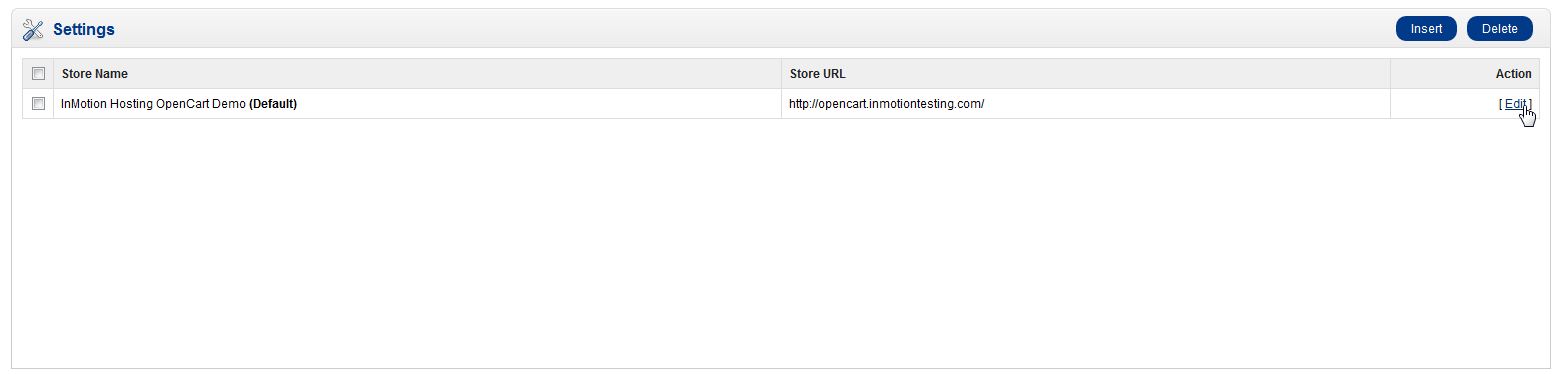
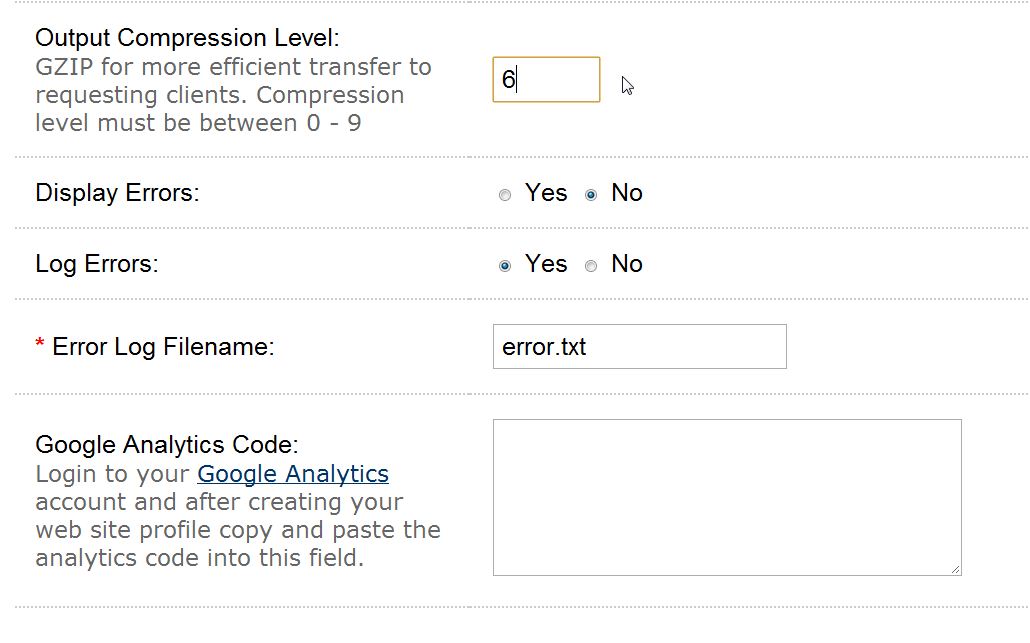
Enabling GZIP compression in OpenCart 1.5 Carrie SmahaUpdated on August 16, 2021 1 Minute Read OpenCart comes with the ability to enable GZIP compression. GZIP compression helps your pages load faster by compressing them when they are sent to the web browser to be rendered. When using the Google Page Speed tool, they recommend using compression. GZIP compression can be enabled through your OpenCart dashboard. We do not recommend using compression unless you are on a VPS or dedicated server since enabling GZIP compression increases your server resource usage. Log into your OpenCart Dashboard Go to System > Settings Select your store by clicking “Edit” next to it Go to the “Server” Tab Go to “Output Compression Level” and set the value between 0-9 (typically 4 – 6 is recommended) Click “Save” If you need further assistance please feel free to ask a question on our support center. Share this Article Carrie Smaha Senior Manager Marketing Operations Carrie Smaha is a Senior Marketing Operations leader with over 20 years of experience in digital strategy, web development, and IT project management. She specializes in go-to-market programs and SaaS solutions for WordPress and VPS Hosting, working closely with technical teams and customers to deliver high-performance, scalable platforms. At InMotion Hosting, she drives product marketing initiatives that blend strategic insight with technical depth. More Articles by Carrie Related Articles Editing the Information Pages in the Footer of OpenCart My OpenCart 3 Contact Form Won’t Send Emails Resetting your OpenCart Admin Password with the Forgot Password link Using Free Cloudflare for SSL on OpenCart 1.5 Adding your store logo to your OpenCart 1.5 website Changing your Admin Password in OpenCart 1.5 Restoring a Database Backup in OpenCart 1.5 Sending Emails to Customers through OpenCart 1.5 How to Enable SSL Connection in OpenCart 1.5 Creating a 404 error page for OpenCart