
You can customize your site further by editing the individual pages listed in the information section of the footer of your OpenCart site. By now, you should have already ;started to set up your categories for your products. The default installation of OpenCart already created 4 pages for your site (About Us, Delivery Information, Privacy Policy, and Terms and Conditions) and links to those can be found at the bottom of every page. You can edit each of these pages so your customers can learn more about your business. Editing these pages is easy to do through your dashboard.
Edit Footer Information:
- Log into your OpenCart Dashboard.
- Go to Catalog > Information
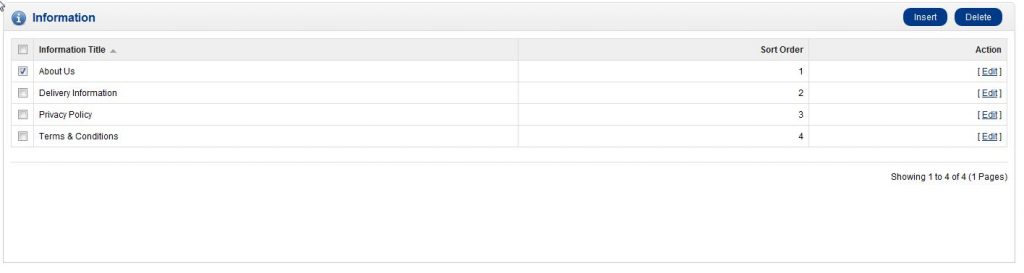
- Now you’ll see a list of the default pages. Select the page you wish to edit by checking the box next to it and click the “Edit” link in the far right.
- In the General Tab, type the title of the page and the description.
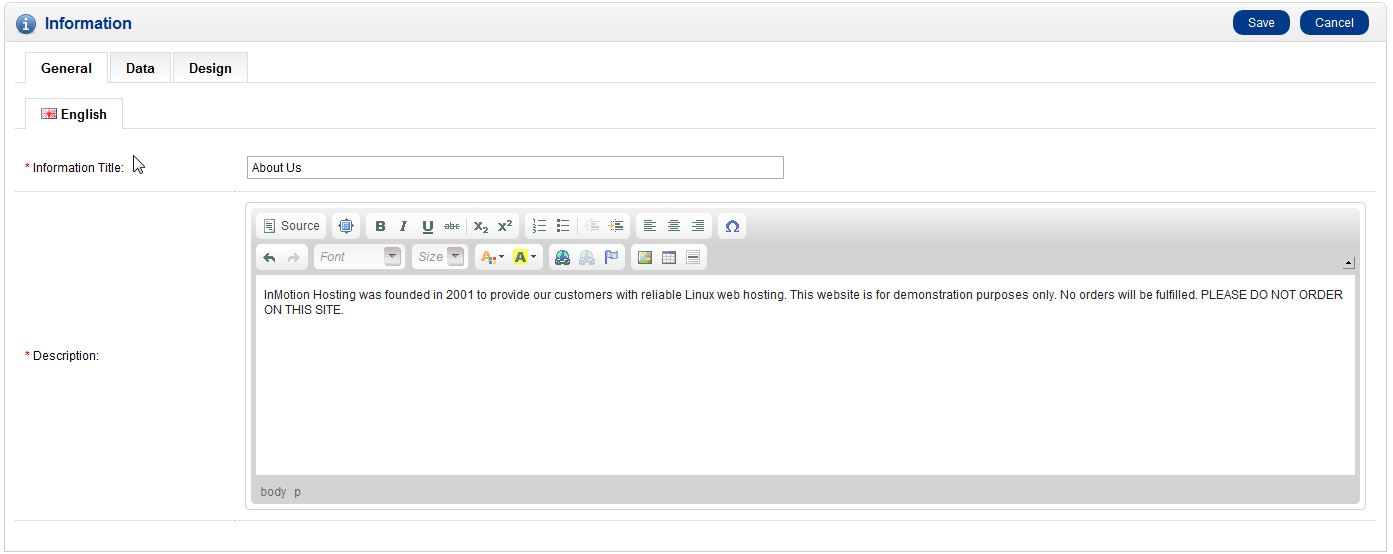
There are other tabs however, since the General Tab is the only tab that requires information, we’re just covering that specific tab.
- Click “Save” in the upper right corner of the page. Now, when you visit your website and click on the About Us page in the footer you should see the changes you’ve made.
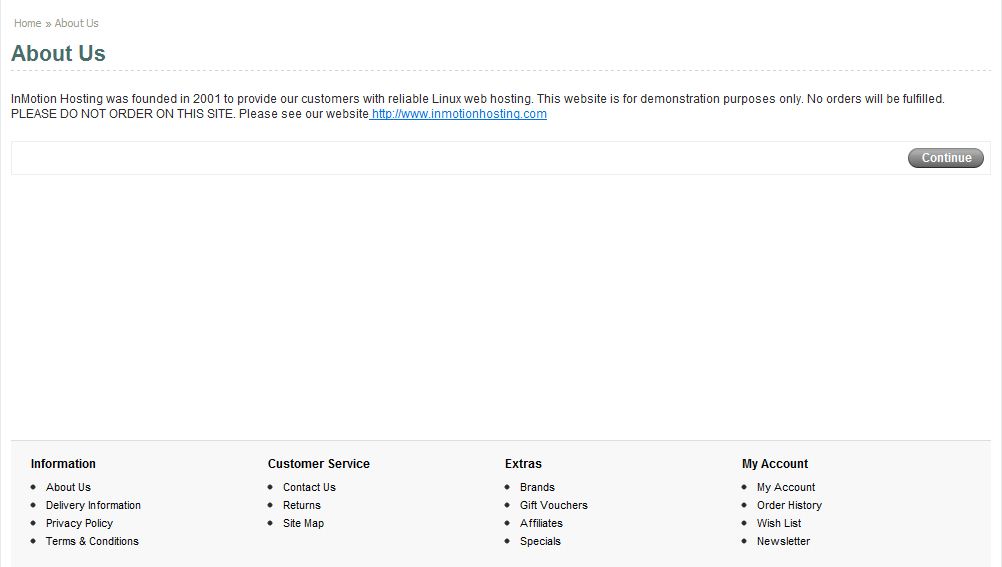
You can repeat these steps to edit all the pages within the Information Section of the footer.
Congratulations, now you know how to edit the info pages in the footer of OpenCart! If you need further assistance please feel free to submit a question to our support center.