
At times you may find it necessary to issue a store credit to your customers. OpenCart allows you to add store credit to a customer’s account through the dashboard. Allowing store credit instead of a refund for items that have been returned is a good use for this feature. Adding a credit to a customer’s account is accomplished through the OpenCart Dashboard.
Add Store Credit
- Log into the OpenCart Dashboard
- Go to Sales > Customer > Customer
- Select the customer you wish to add a credit for and click “Edit” in the right side column
- Go to the Transactions Tab
- Type in a description and the amount of the credit in the fields then select “Add Transaction”
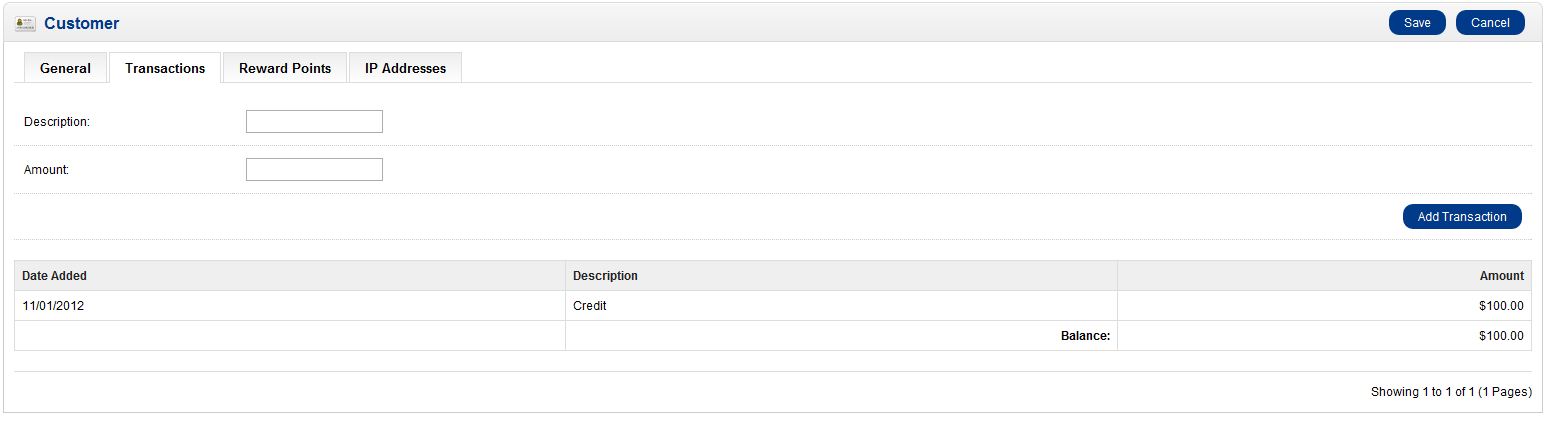
Now, when the customer logs into the store front and makes a purchase, the credit will be applied to the total balance of the order. If the credit is greater than the actual order amount, the total will remain zero and the credit will reflect the new balance. If the credit amount is less than the new order, the total amount will reflect the credit applied towards the order, and the balance will need to be paid.