One of the more common questions we get by new OpenCart users is how to create discounts and specials for products. The instructions below will guide you on how to make your own discounts and specials within your OpenCart website.
How to create discounts for your products
- Log into your OpenCart administrative interface.
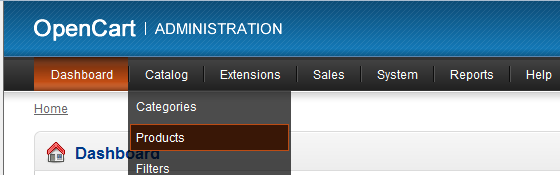
Hover over the Catalog option in the upper menu bar and click on Products from the dropdown.
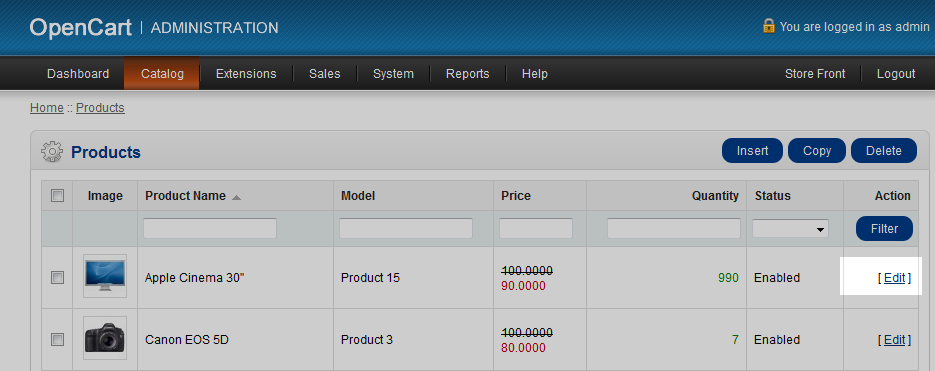
This brings you to a list of your products. Locate the product you want to create the discount for and click on the Edit link.
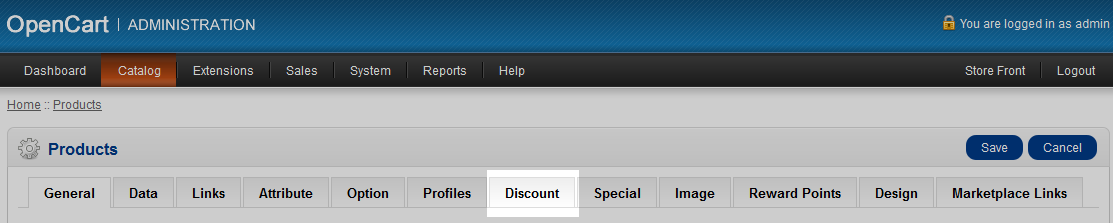
From the product edit page, find and click on the Discount tab.
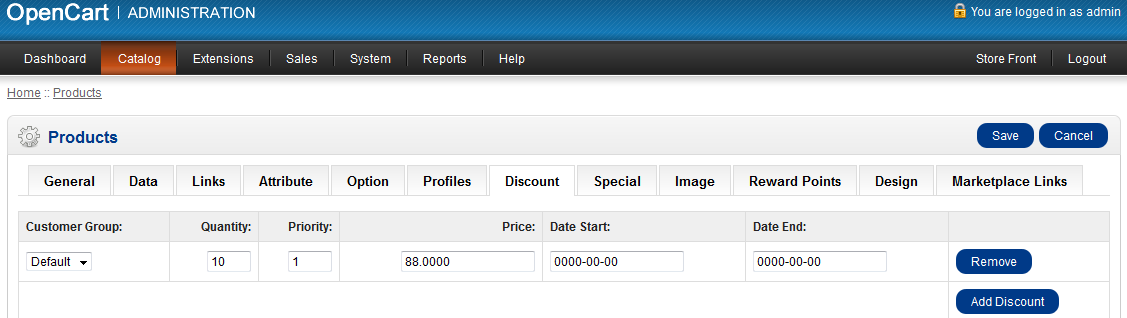
You are now on the Discount page. Click on the Add Discount button. Now you can add the data for your discount.
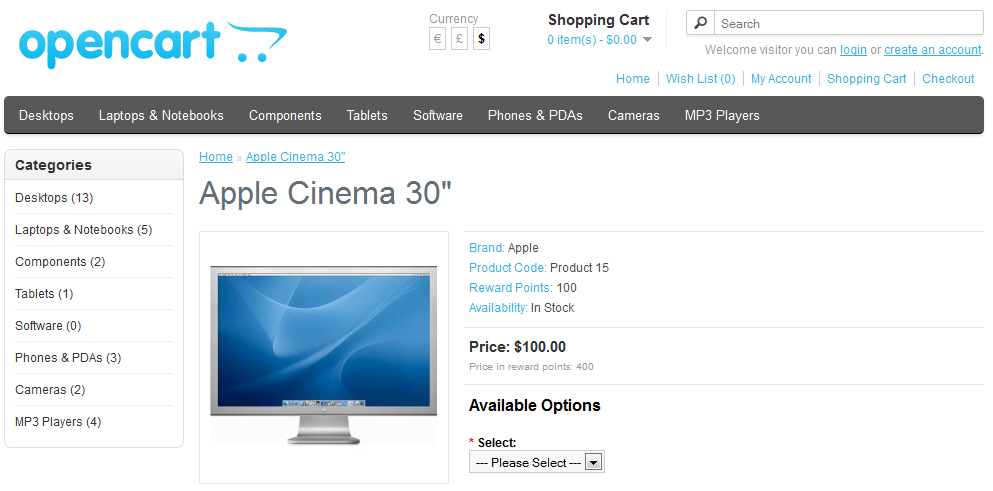
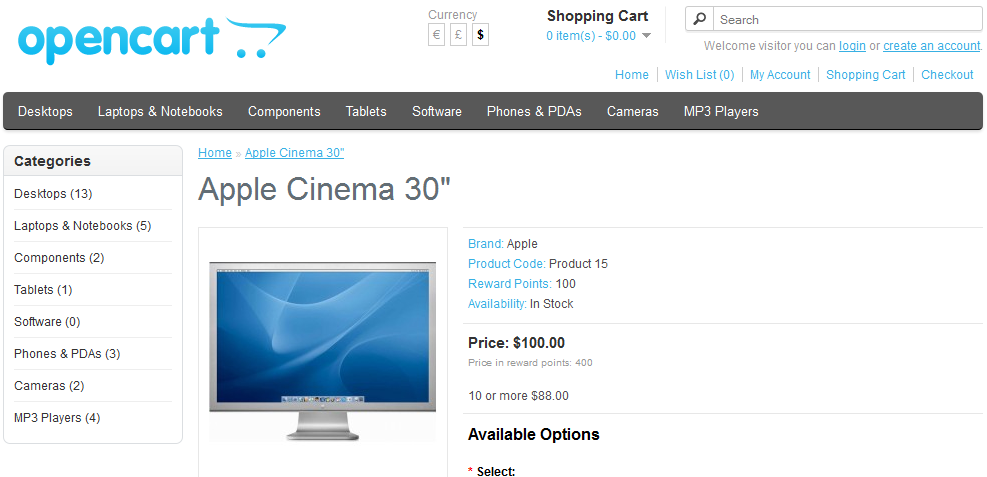
Customer Group Which customer group will be able to get this discount. If you have more than one customer group and want the discount to be available to everyone, you will need to make a separate discount for each group. Quantity The number of units the customer must purchase to get the discount. In our example, they must order 10 units to get them for $88.00 each. Priority Discounts will be listed in chronological order of the number of items needed. Priority will order how different discounts with the same number of items will display, although we cannot think of a reason this would ever occur. Price This is the discounted unit price the customer will receive. Date Start This is the start date for the discount. You may leave this blank for it to take immediate effect. Date End This is the date the discount will end. You may leave it blank for it to be a continuing discount. - Once you have entered the appropriate data, click on the Save button. Below is a screenshot comparison of how the product page displays with and without a discount.
Before After 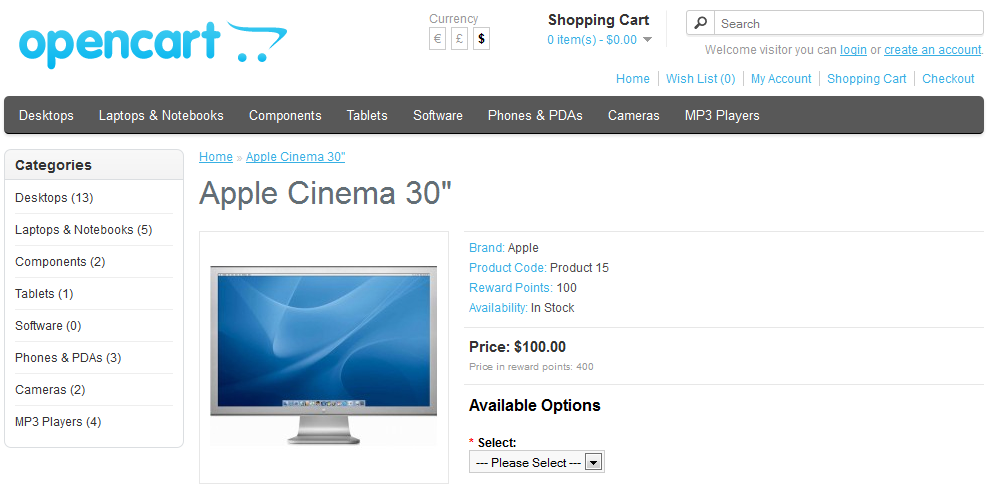






How to create specials for your products in OpenCart
- Log into your OpenCart administrative interface.
-
Hover over the Catalog option in the upper menu bar and click on Products from the dropdown.
-
This brings you to a list of your products. Locate the product you want to create the discount for and click on the Edit link.

From the product edit page, find and click on the Special tab.

This brings you to the Specials page. Click on the Add Special button to begin. This will open up data fields for you to fill out.
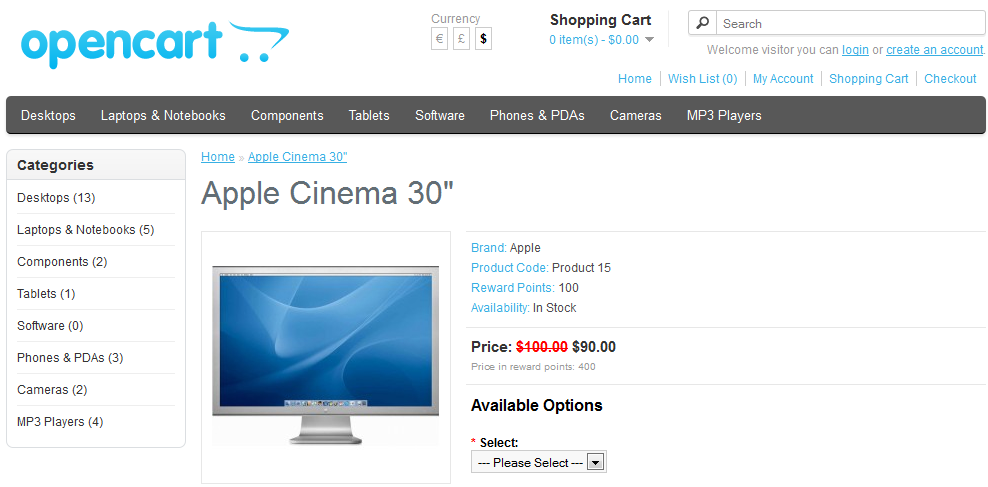
Customer Group Which customer group will be able to get this special. This is determined by the user data upon login. If you have more than one customer group and want the discount to be available to everyone, you will need to make a separate special for each group. Priority If you have more than one discount listed, the priority will determine which one is displayed on the product page. The special with the lowest priority number will be the one displayed. Price This is the price the unit will cost during the special. Date Start This is the start date for the special. You may leave this blank for it to take immediate effect. Date End This is the date the special will end. You may leave it blank for it to be a continuing special. - Once you have entered the appropriate data, click on the Save button. Below is a screenshot comparison of how the product page displays during and without a special.
Before After