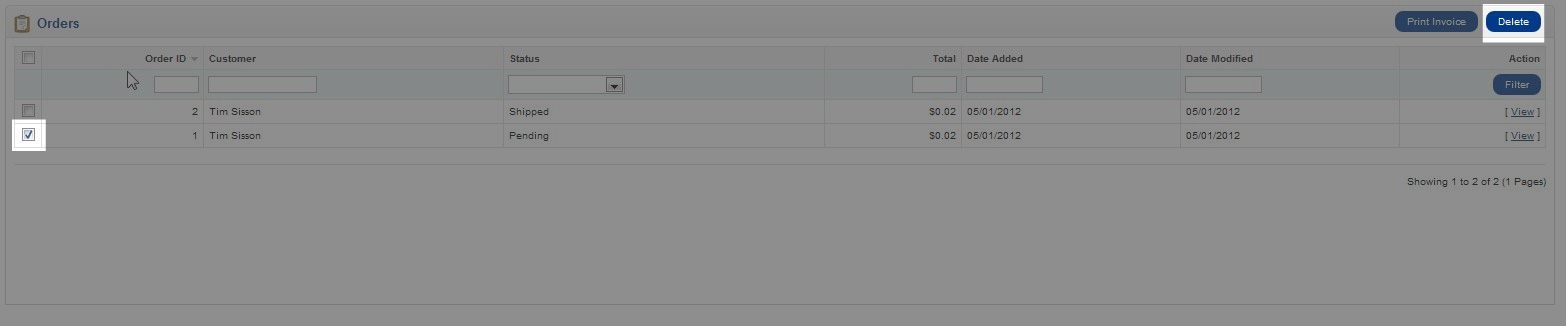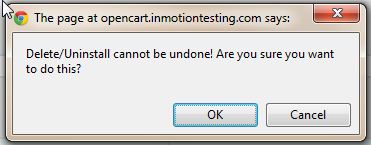
Deleting Orders in OpenCart Carrie SmahaUpdated on August 16, 2021 1 Minute Read Sometimes it may be necessary to delete an order within your OpenCart shopping cart. If you need to delete an order you can do this in the OpenCart Dashboard easily. You can also delete multiple orders at once if needed. Log into your OpenCart Dashboard Go to Sales > Orders Check the box next to the order(s) on the left hand side you wish to delete Click “Delete” in the upper right corner You’ll now see a popup asking you to confirm that you want to delete the order. Once the order is deleted it cannot be undone. If you are sure you want to delete the order, click “OK” If you need further assistance please feel free to ask a question on our support center website. Share this Article Carrie Smaha Senior Manager Marketing Operations Carrie Smaha is a digital strategy, web development, and SEO leader with 20 years of experience. She built her foundation in fast-paced agency environments before moving in-house to InMotion Hosting, where she leads go-to-market programs, agency initiatives, and technical product marketing that connects product capability to real customer decisions. More Articles by Carrie Related Articles Editing the Information Pages in the Footer of OpenCart My OpenCart 3 Contact Form Won’t Send Emails Resetting your OpenCart Admin Password with the Forgot Password link Using Free Cloudflare for SSL on OpenCart 1.5 Adding your store logo to your OpenCart 1.5 website Changing your Admin Password in OpenCart 1.5 Restoring a Database Backup in OpenCart 1.5 Sending Emails to Customers through OpenCart 1.5 How to Enable SSL Connection in OpenCart 1.5 Creating a 404 error page for OpenCart