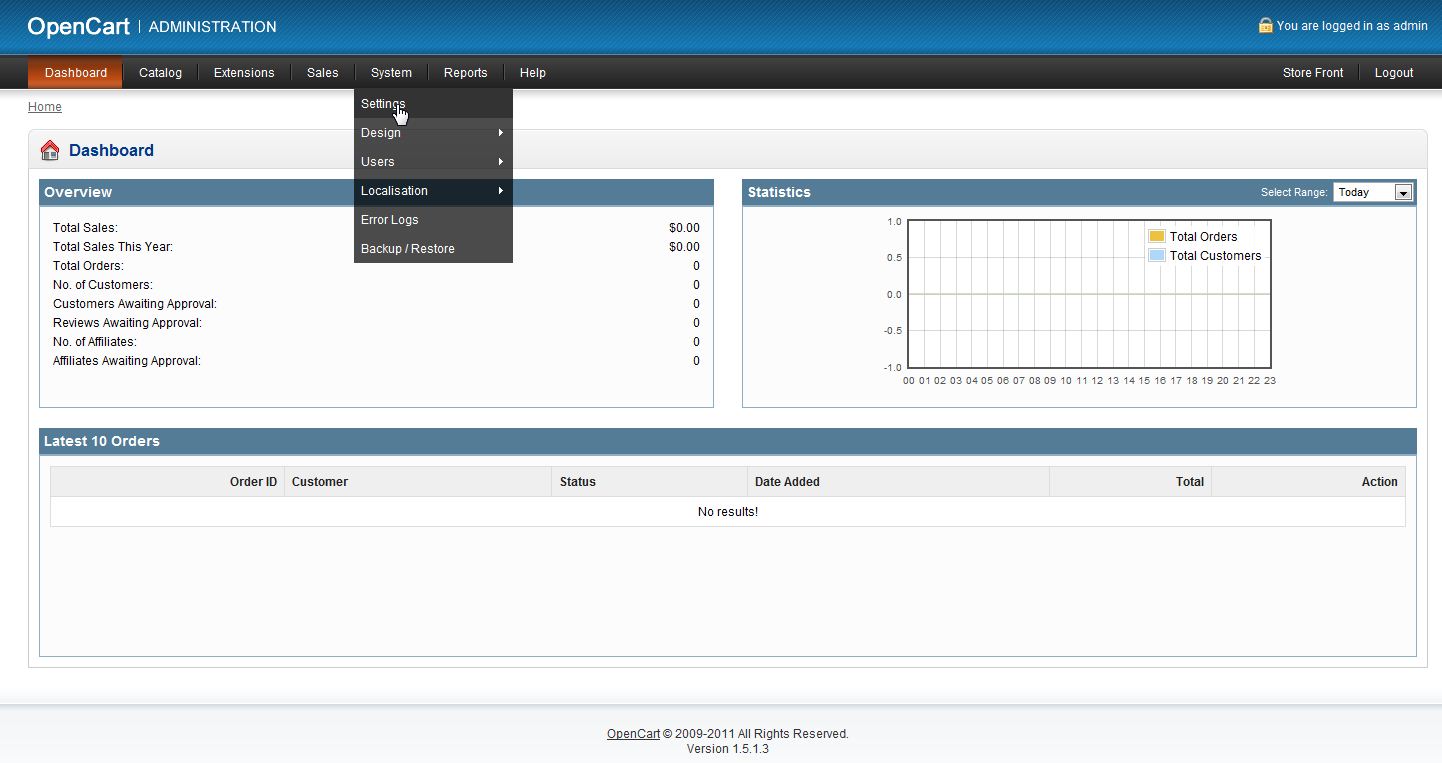
Once you have installed OpenCart, the next step is to configure the basic General Settings. These settings contain general information such as your store name, address, phone, and e-mail. Please see our article on installing OpenCart if you have not installed OpenCart and wish to do so.
How to configure Open Cart general settings
- Log into your OpenCart dashboard.
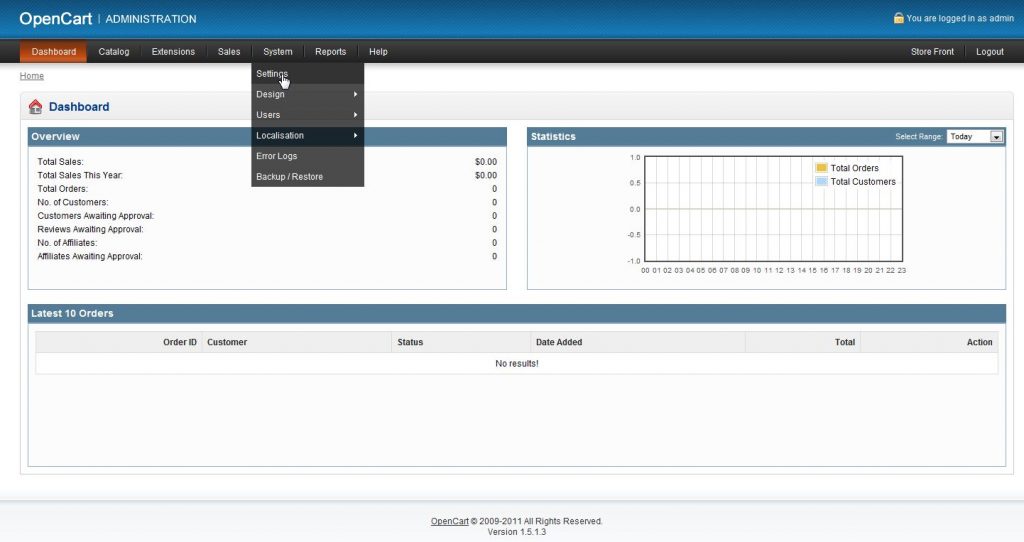
Hover over System from the upper menu bar and then click on the Settings option from the dropdown.
- Select your store by checking the box next to the Store Name and click the Edit option.
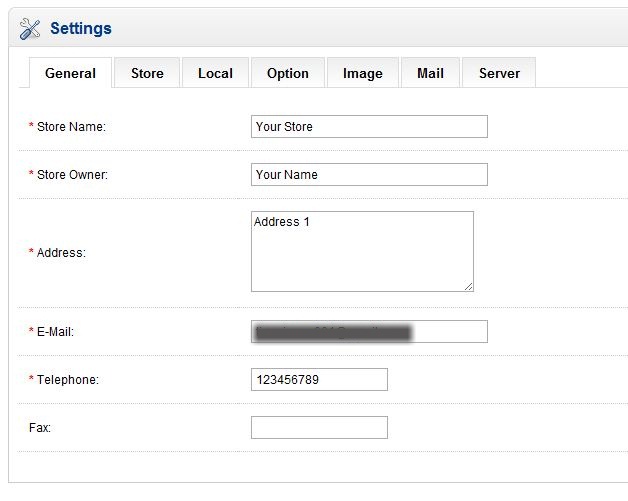
The Settings page will open. The General tab should already be selected by default. From here you are presented with the six general settings.
Store Name This is the name of your online store. Store Owner This is the name of the owner of the online store you created. Address This is the physical address of your store. E-Mail By default, it will have your admin email address you used during the installation process. You can change this to whatever you’d like. If you want the store to have a special email address you can set one up in cPanel. This is the email address that you will get notices for OpenCart. It will not display this address on the site. Telephone This is a contact phone number for your store. Fax If you have a fax number you wish to make public, fill in the field here.