
At this point in the tutorial, we’ve removed the default product categories and added new categories in OpenCart. We’ll want to remove the default products so we can begin adding our own. Removing the default products in OpenCart can be done via the Dashboard.
-
- Log into your OpenCart Dashboard
- Go to Catalog > Products
- To remove ALL current Products select the check box next to the image heading. If you want to delete a single product, then select the check box next to the product image.
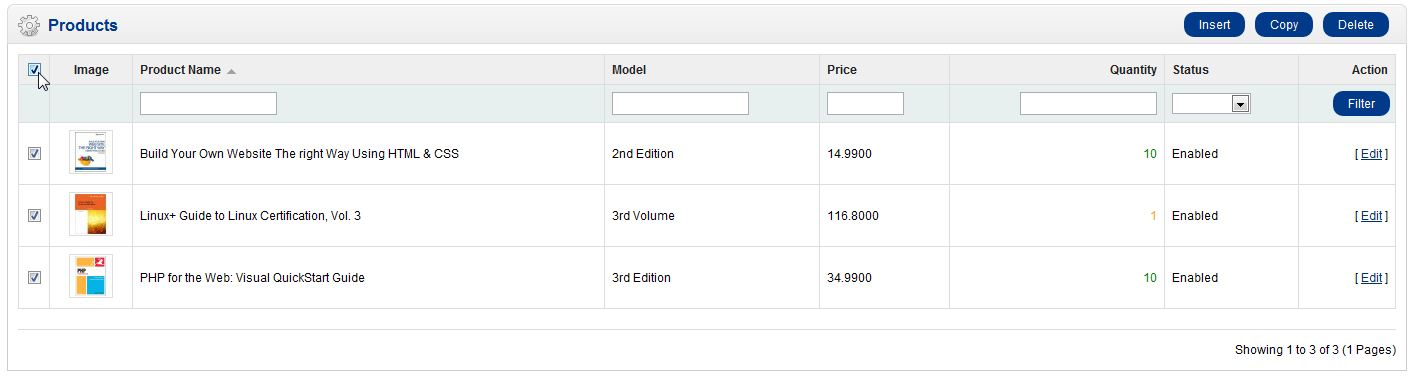
-
- Click “Delete” in the upper right corner.
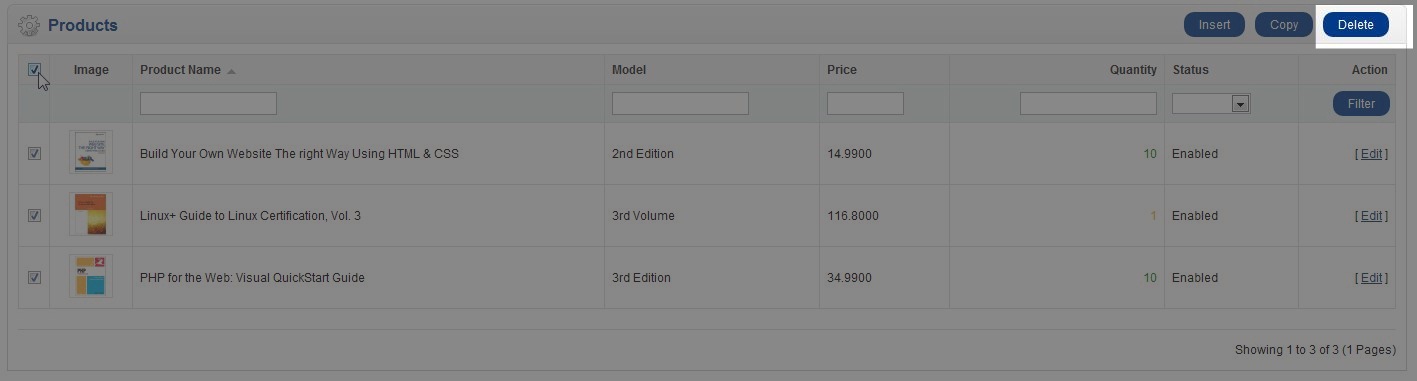
You have now removed all the default products from your shopping cart.
If you need further assistance please feel free to ask a question on our support center.
If you’re interested in learning more about hosting OpenCart, make sure to checkout our web hosting options at the InMotion OpenCart Hosting page.