
Once you have configured the payment gateway, you’ll want to test your site to be sure it is functioning properly. If you have not configured your payment gateway yet please review our article on setting up PayPal. The easiest way to test your OpenCart shopping cart is to process an order. You’ll want to do this prior to receiving “real” orders from customers to make sure the cart functions as it should.
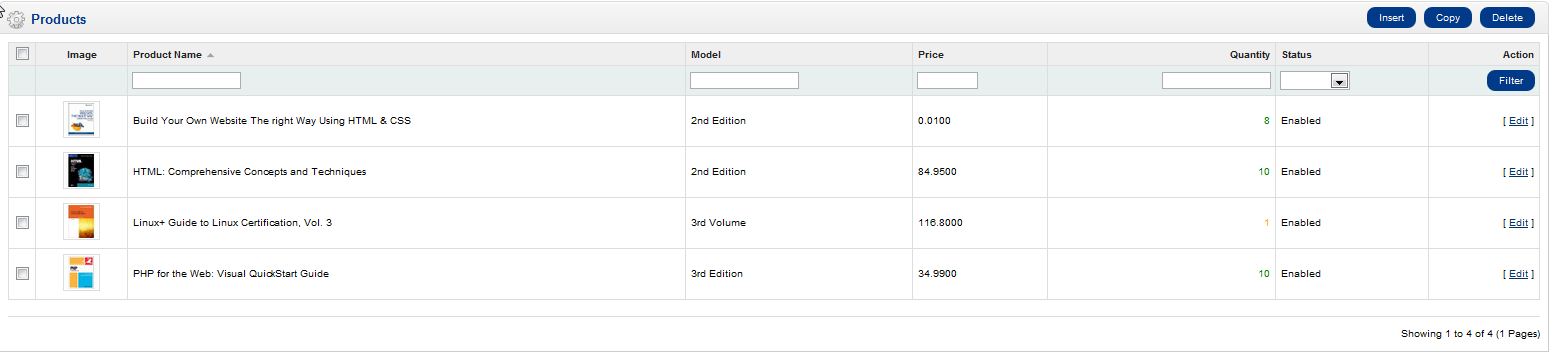
Changing a product to $0.01 is the first step in testing your OpenCart store. This will allow you to process an order for a minimal amount just for testing purposes.
Changing the Product Price
- Log into your OpenCart Dashboard
- Go to Catalog > Products
- Select the product you want to change the price on and click “Edit” in the right side column
- Click the “Data” tab
- Go to the 5th line from the top labeled “Price:” and update the price to 0.01
- Click “Save“
Don’t forget that once you are finished testing you will want to change the price back to it’s correct amount.
For more step-by-step guides and practical tips, visit our Drupal Education Channel.
To learn more about Inmotion’s web hosting options, click on OpenCart Hosting Accounts on InMotion Hosting.