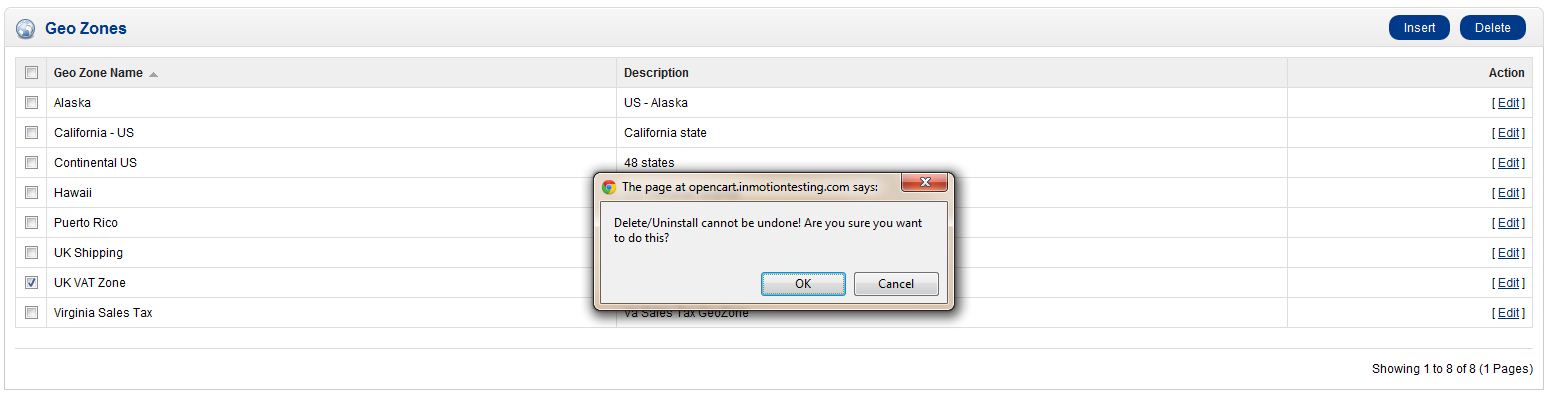
Removing a Geo Zone in OpenCart Carrie SmahaUpdated on August 16, 2021 1 Minute Read Previously we covered what Geo Zones are and why they are important to OpenCart. By default, OpenCart has two Geo Zones created. You can remove these through the OpenCart dashboard. How to Remove a Geo Zone Log into your OpenCart Dashboard Go to System > Localisation > Geo Zones Click the check box next to the Geo Zone you want to remove and click “Delete” in the upper right corner You’ll be asked to confirm the “Delete” in a popup. Click “Ok” to confirm removal of the Geo Zone You have now successfully removed the Geo Zone. If you need further assistance please feel free to ask a question on our support center website. To find more information on web hosting solutions for OpenCart, go to OpenCart Hosting by Inmotion. Share this Article Carrie Smaha Senior Manager Marketing Operations Carrie Smaha is a digital strategy, web development, and SEO leader with 20 years of experience. She built her foundation in fast-paced agency environments before moving in-house to InMotion Hosting, where she leads go-to-market programs, agency initiatives, and technical product marketing that connects product capability to real customer decisions. More Articles by Carrie Related Articles Editing the Information Pages in the Footer of OpenCart My OpenCart 3 Contact Form Won’t Send Emails Resetting your OpenCart Admin Password with the Forgot Password link Using Free Cloudflare for SSL on OpenCart 1.5 Adding your store logo to your OpenCart 1.5 website Changing your Admin Password in OpenCart 1.5 Restoring a Database Backup in OpenCart 1.5 Sending Emails to Customers through OpenCart 1.5 How to Enable SSL Connection in OpenCart 1.5 Creating a 404 error page for OpenCart