
OpenCart makes it easy for you to add a Google Site Map to your OpenCart store. You will already need to have a Google Webmaster Tools account set up. If you are unfamiliar with Webmaster Tools, please see our article. To retrieve the URL to your Google site map, you must first log into the OpenCart Dashboard.
- Log into your OpenCart Dashboard
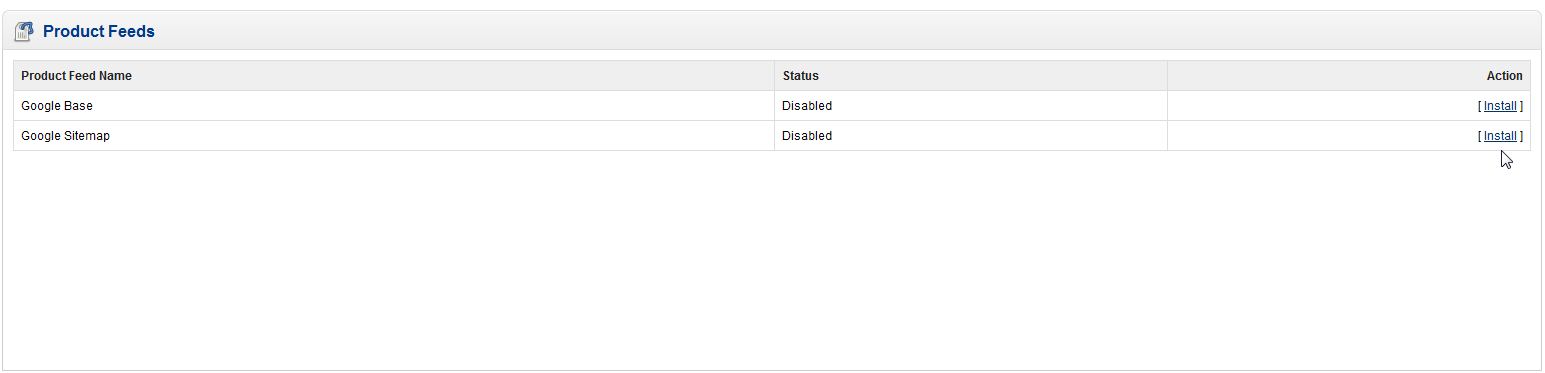
- Go to Extensions > Product Feeds
- Click on “Install” next to the “Google Site Map” product feed name
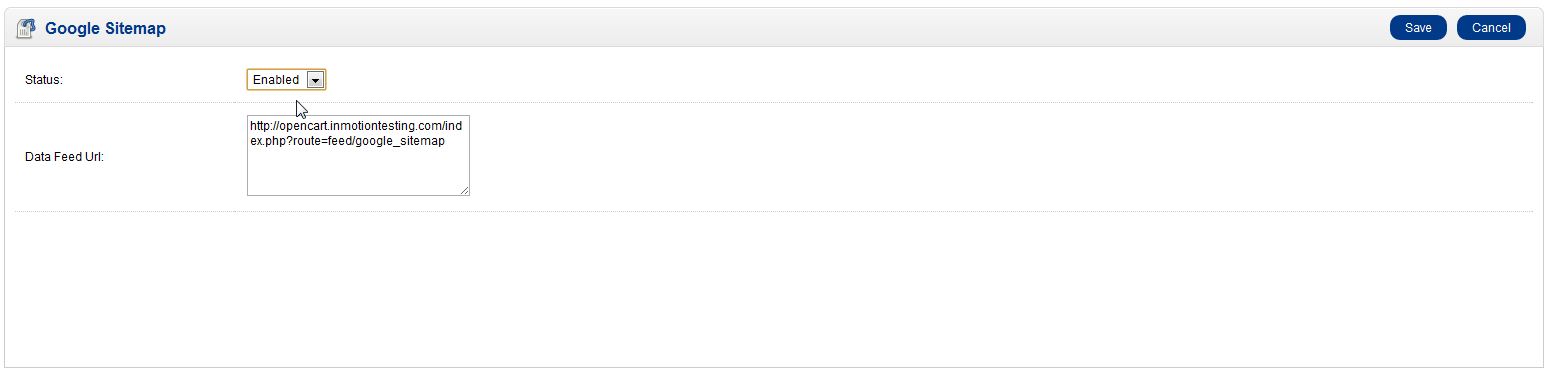
- Click “Edit” and then change the status to “Enabled”
- Copy the “Data Feed URL” and click “Save”
- Now log into your Google Webmaster Tools account
- Choose the site you have set up for your shopping cart in Webmaster Tools
- Click on “Site Configuration” in the left menu pane and then select “Sitemaps”
- Select the “Submit a Sitemap” button
- Paste the Google Site Map URL in the box. Be sure to remove the first part of the URL or it will not work. And Click “Submit Sitemap”


For more step-by-step guides and practical tips, visit our Drupal Education Channel.
To find out more on using InMotion’s web hosting accounts, go to OpenCart Hosting Accounts on InMotion Hosting.