When developing websites in PHP, it can be necessary to use two different versions of PHP. You can specify the type of PHP you want to use by making a different php.ini version and adding code to your .htaccess. This article will explain how to use copy the PHP version 5.2 php.ini file for your main domain and use it for a PHP version 5.2 on an addon domain or subfolder. For more information on using multiple versions of PHP on your server, click here.
Important! The whole cPanel account MUST be set to 5.3 and then you can only specify 5.2 in sub directories. Using 5.3 in a subfolder when the main cPanel is 5.2 DOES NOT work. The website will attempt to download the PHP script if you have the main account has 5.2 and try to specify 5.3 in (.htaccess) for a subfolder or addon domain.
Steps to change PHP version for an addon domain
- Login into your cPanel.
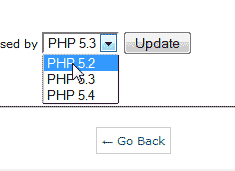
Change your PHP configuration to 5.2. For more information on changing your PHP version, please see How to change the PHP version your account uses.
- Go to the File Manager. Go to your public_html and click Go.
- Make a copy of your php.ini and rename it to php.ini-52.
- Change the PHP configuration back to 5.3 in cpanel.
- Copy the php.ini-52 to the addon domain directory or subfolder.
Rename it to php.ini.

Edit the copy of the .htaccess in the addon domain document root folder or the subfolder.
Add the following to the top of the file.
AddType application/x-httpd-php52 .php suphp_configpath /home/userna5/public_html/addondomain.com
Save the file.


Congratulations, the addon domain or subfolder will use PHP 5.2 and the main domain will use PHP 5.3. For more information on .htaccess see our .htaccess file reference.