The .htaccess file is a hidden text file within your hosting account that can be very powerful. It is designed so that you can modify it to change the behavior of your website that normally would take higher access beyond your account. It acts as a liaison between your domain and the server and can perform many functions.
You may want to restrict access to specific file types. There may be file types in your account that you do not wish for others to view. These can be files such as ini (initialization configuration) files, log files, the .htaccess file itself, .htpasswd (password) files, etc. By implementing some code in the .htaccess file, this will prevent any outsiders from taking a peek at information you do not want them to see.
Preventing access to multiple file types via htaccess
- First, you will need to log into your cPanel to access the htaccess file.
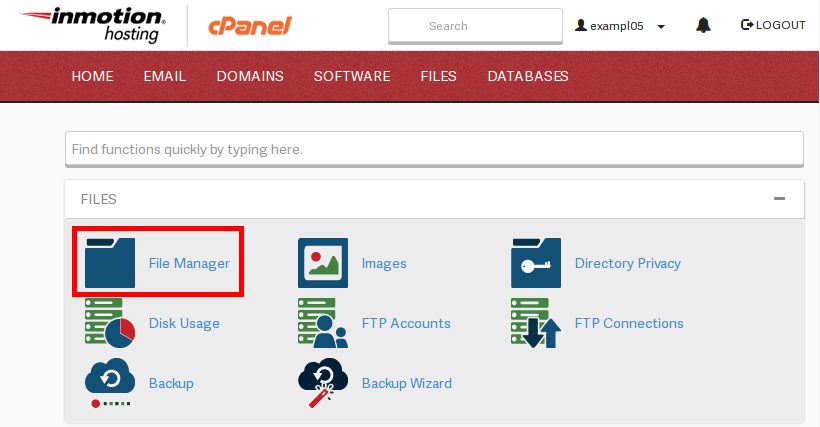 Find the Files category and click on the File Manager icon.
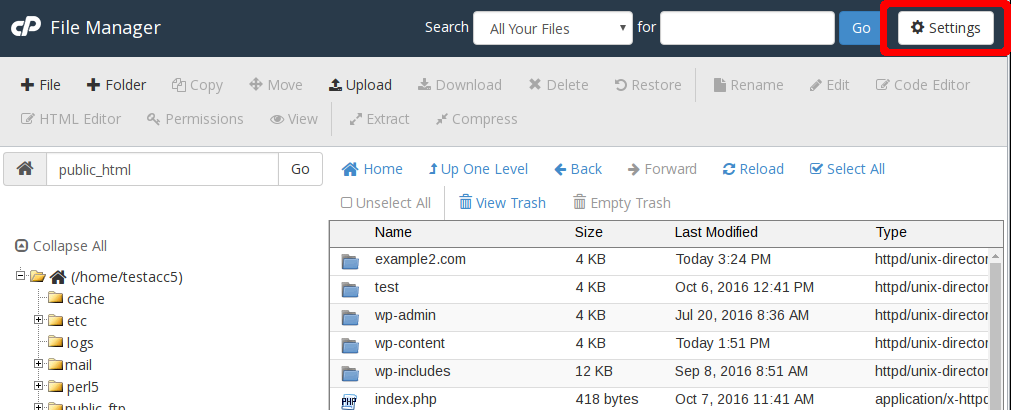 Once the File Manager has loaded, click on the button at the top-right that says Settings
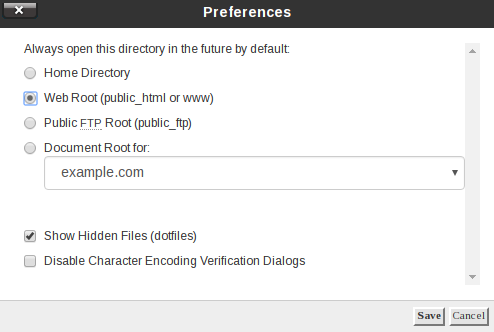 A popup box will appear. For the primary domain, click on the Web Root radio button. For addon domains, click on the dropdown and find your desired addon domain name. Be sure the checkbox next to Show Hidden Files is checked. Click the Go button to enter the File Manager.
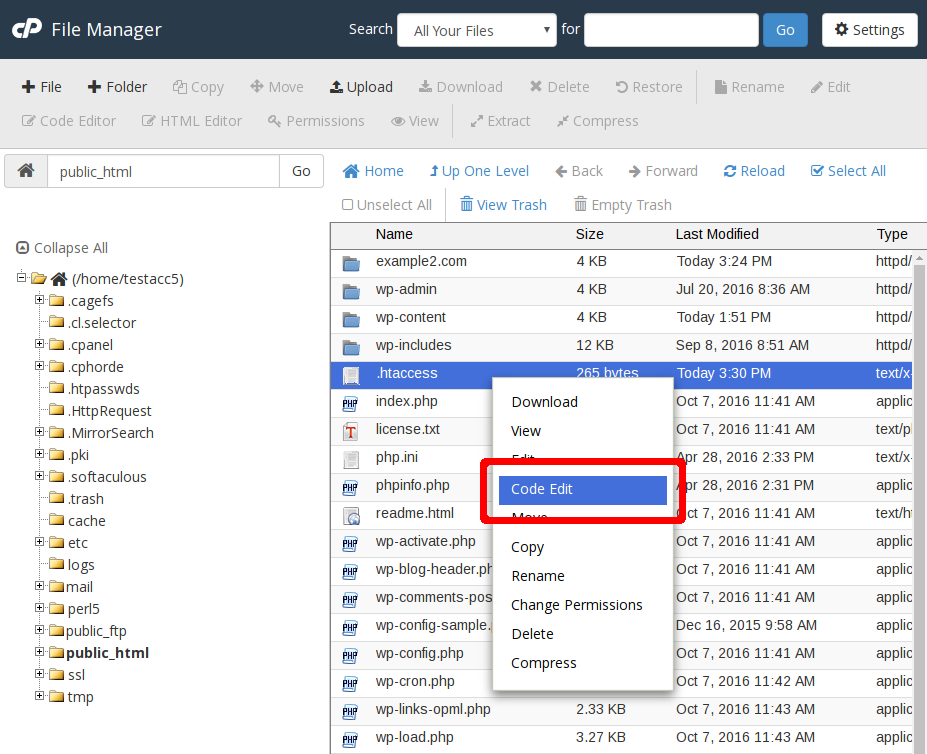 You should now be in the root folder of the domain you chose. Look for the .htaccess file and right click on it. This brings up a menu. Find and click on the Code Edit option. If you get a popup box, simply find and click the Code Edit button in the lower right corner to continue to the editor.
- You are now in the htaccess editor. Paste the following code in the file to prevent access to your selected file. In our example below, we decided to hide the file named filetohide.jpg. This can be a file of any type (html, jpg, php, etc.)
<FilesMatch ".(htaccess|htpasswd|ini|psd|log|sh)$">

Order Allow,Deny

Deny from all

</FilesMatch> - Be sure to hit the Save Changes button in the upper right corner to save your new htaccess configuration.


