
Anytime you use a Google Webmaster tools, you’ll need to verify ownership of the website to Google. Verification with Google does not affect PageRank or your website’s performance in any way. It does allow you to use Google’s products. Verifying ownership of a website is easy and you have more than one option on how to do so. There are many reasons to verify your site with Google and here’s a list of some of the more popular reasons:
Why should I verify my website with Google?
- So you can see the data Google has on your Webmaster tools account
- Tell Google when your website changes or updates
- Remove site pages from Google Search results
- Specify to Google how your website should be indexed
- Set a specific geographic region your website targets
- Request a crawl rate change
Add other site owners to share your website’s data
How to verify your website with Google by uploading a file
The easiest and quickest method to verifying your website with Google is uploading a file that they provide. The file can be easily uploaded via file manager in cPanel.
- Log into Google Webmaster Tools and download the file for HTML verification
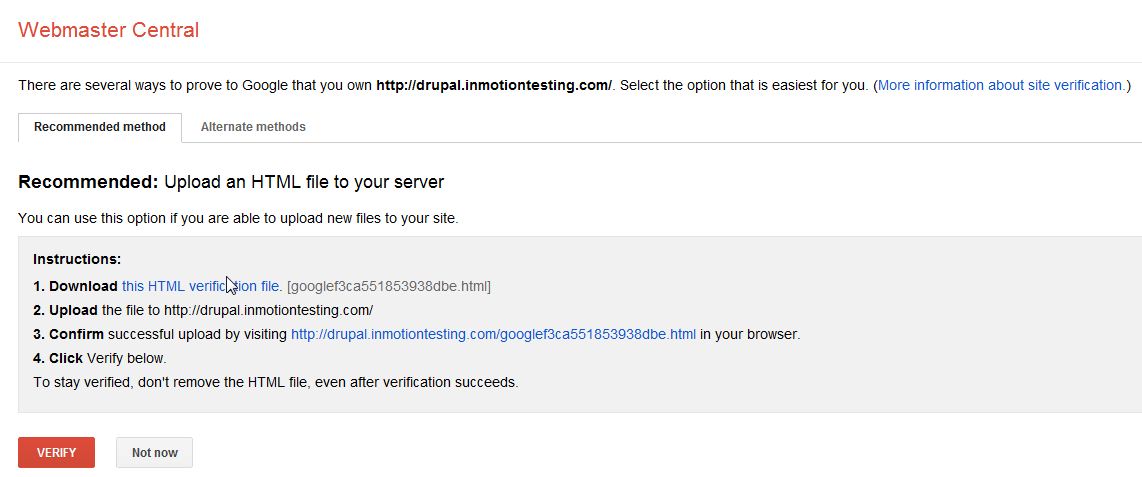
- Log into cPanel
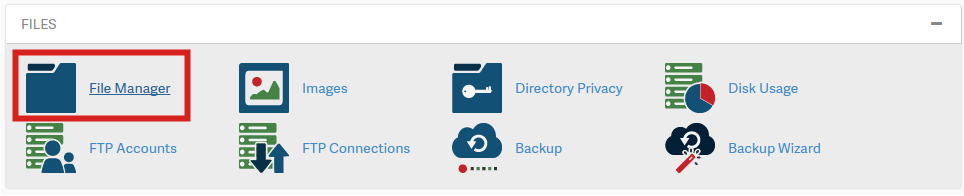
- Go to File Manager in the Files section.
- Go to the domains root folder (if this is your main domain it will be your public_html folder)
- Click “Upload” and upload the HTML file you downloaded from Google
- Once the file has uploaded. Go back to the page you downloaded the HTML file from in Google Webmaster Tools and click “Verify”

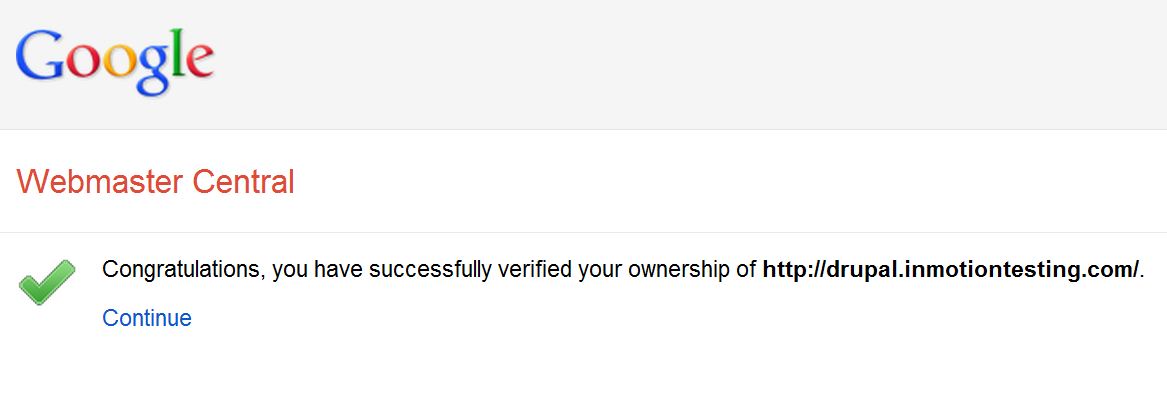
Important! If Google does not find your HTML file you may need to check your DNS. Your domain may not be pointing to our server or you may need to use a different method to verify.
If you need further assistance please feel free to ask a question on our support center.