When working within your PhpMyAdmin tool, you have the ability to create and run custom MySQL statements. This can be very helpful if you are performing things like a site move or creating a test site and need to change specific site information stored in the database. Follow the instructions below as we demonstrate how to use manual MySQL statements in your PhpMyAdmin tool.
Using mySQL statements in phpMyAdmin
- Log into your cPanel dashboard.
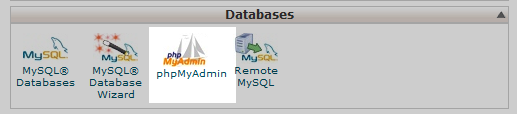
Once in the cpanel dashboard, find the Databases category and click on the phpMyAdmin tool.
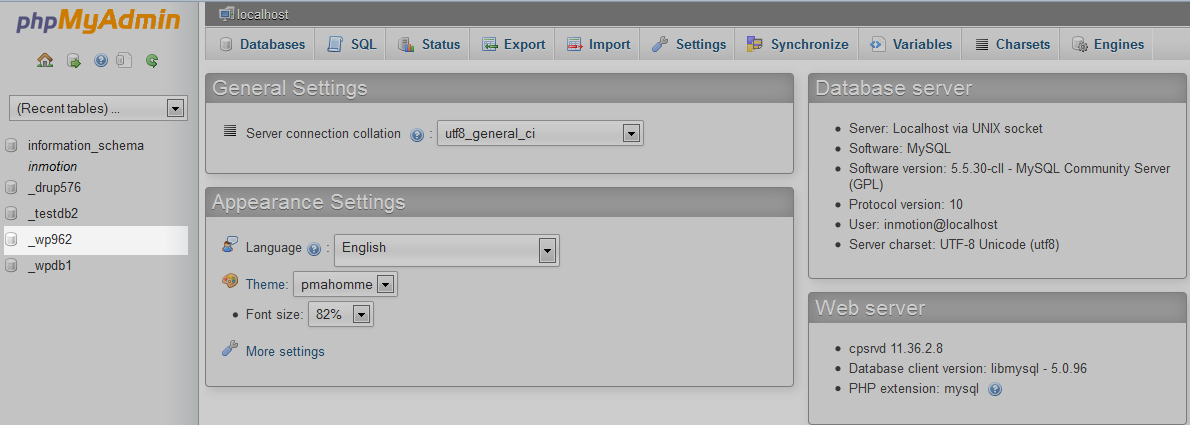
This leads you to the main page. From here, look to the left-hand sidebar and click on the name of the database you want to work with. Here, we selected the database named wp962, which is for a WordPress installation.
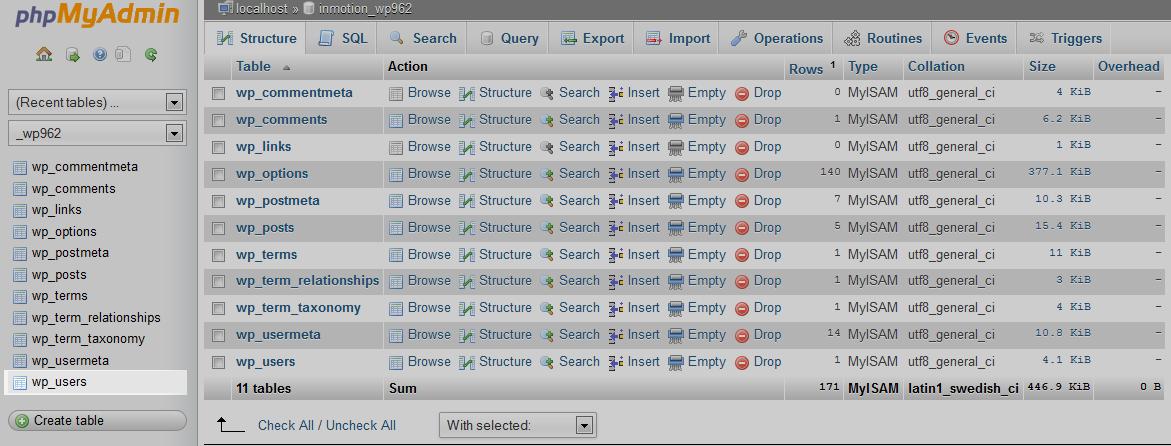
Next, you want to select the database table you will be working with. From the sidebar menu click on the name of the table you will be creating the statement for. For our example, we chose the wp_users table.

Once on the table page, look to the tabs in the upper part of the screen and select the SQL tab.
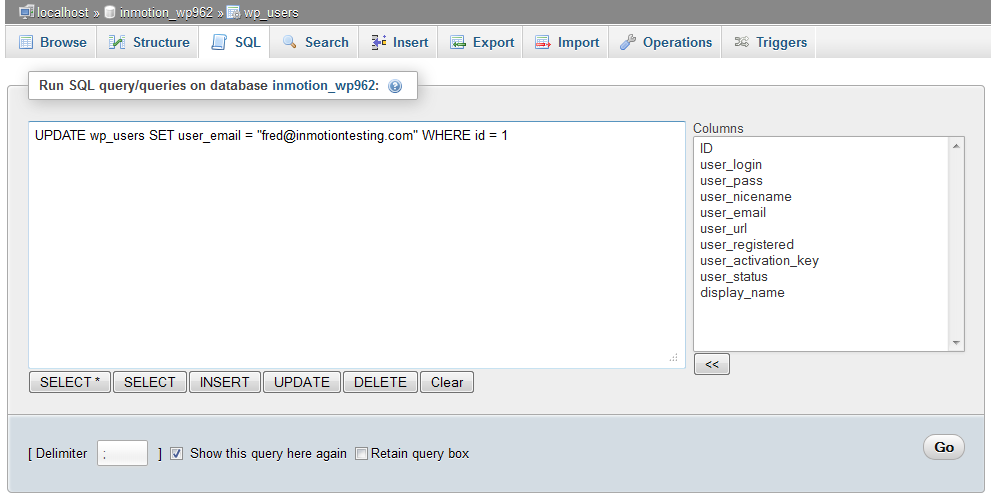
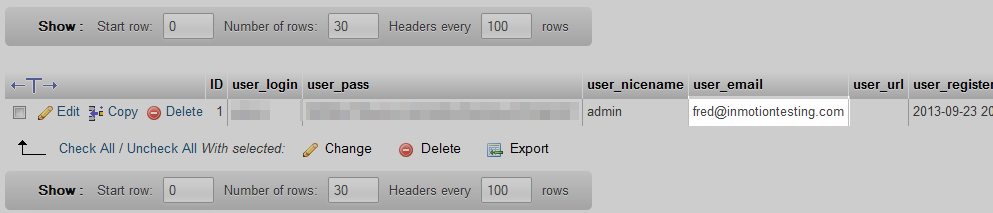
You are brought to an editor screen where you can enter your MySQL statement. Once the statement has been entered, click on the Go button in the lower right corner of the screen to run it. In our example, we simply changed the email address of the admin user. Below you can see that the database now has the new email address in the user_email field.
Before After