Your clients hand you their websites because they trust you to keep them running. A single corrupted database or a botched plugin update can undo that trust in an afternoon. For hosting resellers, backups are not a back-office chore. They are part of the product you sell, and your recovery plan is what separates a quiet five-minute fix from a frantic call to a client whose store went dark during a sale.
The 3-2-1 backup rule gives you a standard worth holding to: keep three copies of every site you manage, store them on two different types of media, and keep at least one copy off the server entirely. Miss any part of that and the gap tends to surface at the worst possible time, in front of the customer who is paying you specifically to prevent it. The steps below walk through how to build that redundancy into your reseller workflow.
Kinds of cPanel Backups
How to access the Backup settings:
- Log into cPanel
- Under Files choose Backup.

- You will be presented with a choice concerning which kind of backup you would like to take.
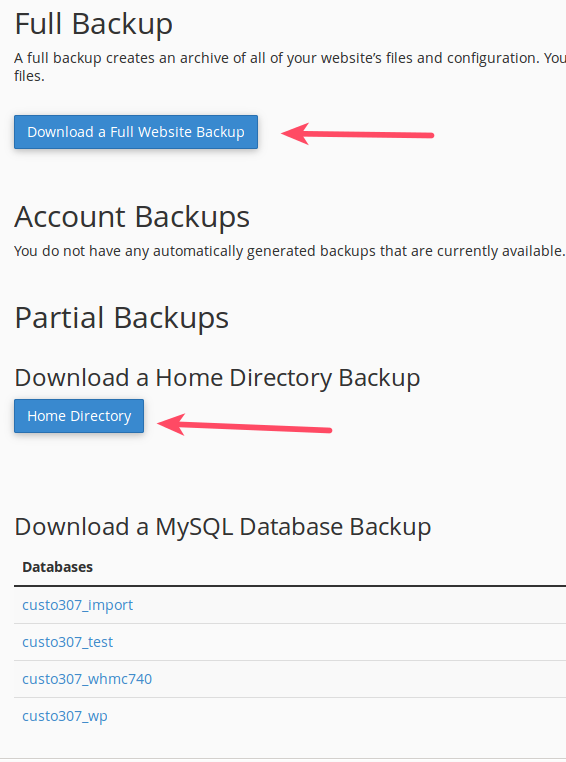
Full Backup Creates a single file with all files, emails, and databases. It requires the System Administration team to restore it. Partial Backup – Home Directory Creates a file with all folders and files located in the home directory. Includes emails. Partial Backup – MySQL Database Creates a backup file of selected database. Partial Backup – EmaiL Forwarders Creates a backup file of email forwarders. Partial Backup – EmaiL Filters Creates a backup file of email filters. - When you have made your selection click the blue button beneath the chosen backup. Read below for more information about these types of cPanel backups.
Full Backup

The full cPanel backup will create a backup of your entire cPanel account. This includes all of your website files, emails accounts, email messages, and databases. This type of backup creates a compressed file in the Home directory of your cPanel file manager. You must remove the file from the server after the backup completes. Restoring a full cPanel backup must be done by our support department.
In order to restore a full cPanel backup submit a verified ticket to Support.
Partial Backups
If a full cPanel backup is not required you can always save time and resources by running partial backups.
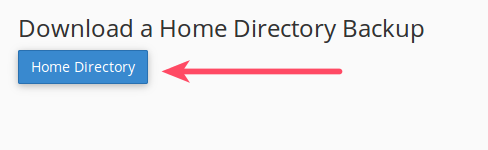
- Home Directory Backups — The Home Directory backup will save everything in the cPanel Home Directory. This includes the primary website files. Another benefit, Home Directory backups can be restored from within cPanel.
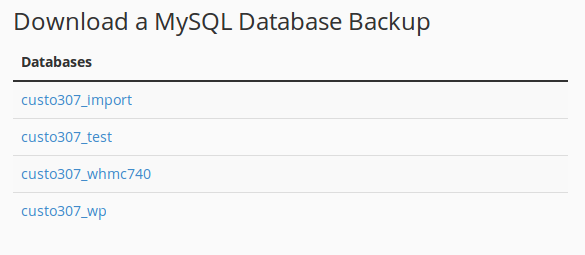
- MySQL Database Backup — Database backups are ideal for sites that utilize databases for storing content while the site’s core files remain unchanged for long periods of time. To download one of the databases as a backup you must click the database name and then the download will begin.
How to Restore Backups
Once you have saved your backups to a secure location you can restore them through cPanel when needed. Keep in mind, you can restore a Home Directory and a MySQL database backup anytime provided you have the backup.
- Log into cPanel
- Under Files choose Backup
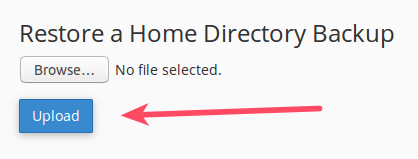
- To restore a Home Directory choose Restore a Home Directory Backup
- Click Browse to select your file from your computer
- Click Upload
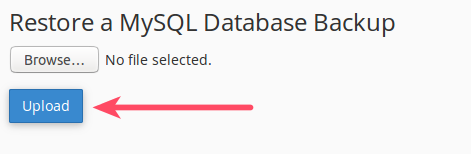
- To restore a MySQL database choose Restore a MySQL Database Backup
- Click Browse to select your file from your computer
- Click Upload