
Your website’s data is only as safe as your last backup. A corrupted database, a failed update, or an accidental file deletion can take a site offline in minutes, and without a recent backup, recovery can range from painful to impossible. Backup Manager automates that protection by running scheduled backups daily or weekly, storing copies at a secure, remote InMotion Hosting location so a server-level issue never takes your data down with it.
Before you cancel, consider what you’re removing. Backup Manager handles full-site backups, individual database snapshots, and folder-level backups on a schedule you control. Once it’s off, none of that runs automatically.
If you cancel Backup Manager, you are responsible for creating and maintaining your own backups. That means manually exporting databases through phpMyAdmin or cPanel, archiving your files via FTP or the File Manager, and storing those copies somewhere outside your hosting account. Skipping that step leaves your site unprotected from data loss caused by failed updates, malware, or human error.
If you’ve weighed that and still want to proceed, canceling your Backup Manager subscription is a quick process from your Account Management Panel (AMP).
How to Cancel Your InMotion Hosting Backup Manager Subscription
- Log into your AMP account.
- From the navigation bar, hover over Billing, then click on My Subscriptions.
- Locate the hosting subscription with the Backup Manager add-on subscription you wish to cancel.
- Click the red X to the right of the primary Backup Manager subscription. This will cancel Backup Manager and any additional storage blocks.
Note: If you only wish to cancel the Additional Storage block, then press the red X next to that line item.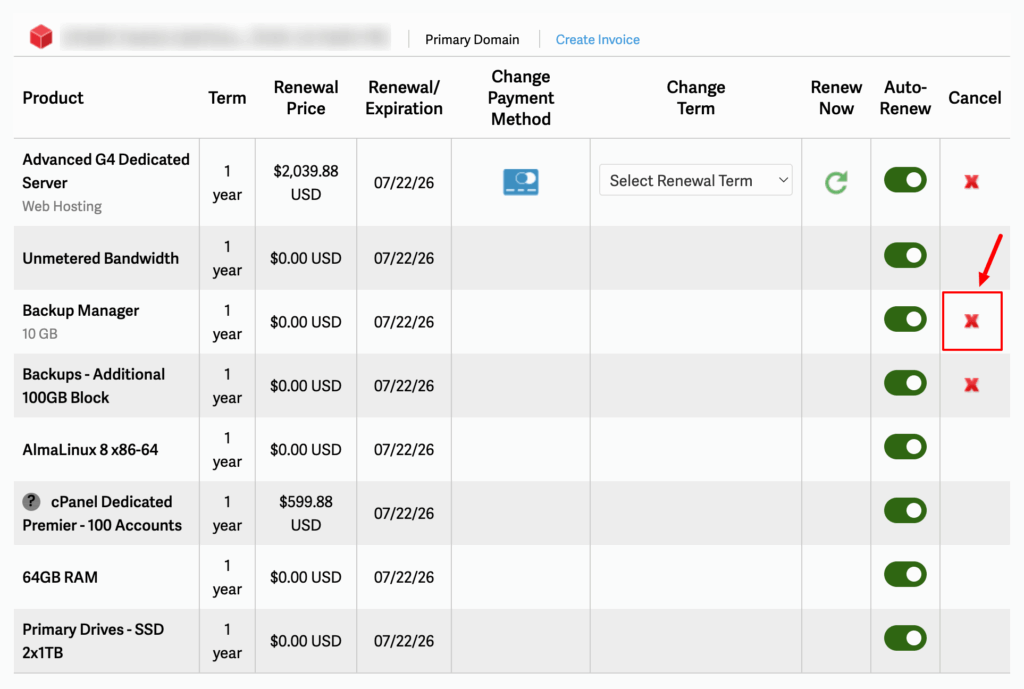
- On the Cancel Subscription screen, tick the checkbox next to I Agree to indicate acknowledgement that the subscription will expire at the end of the current term.
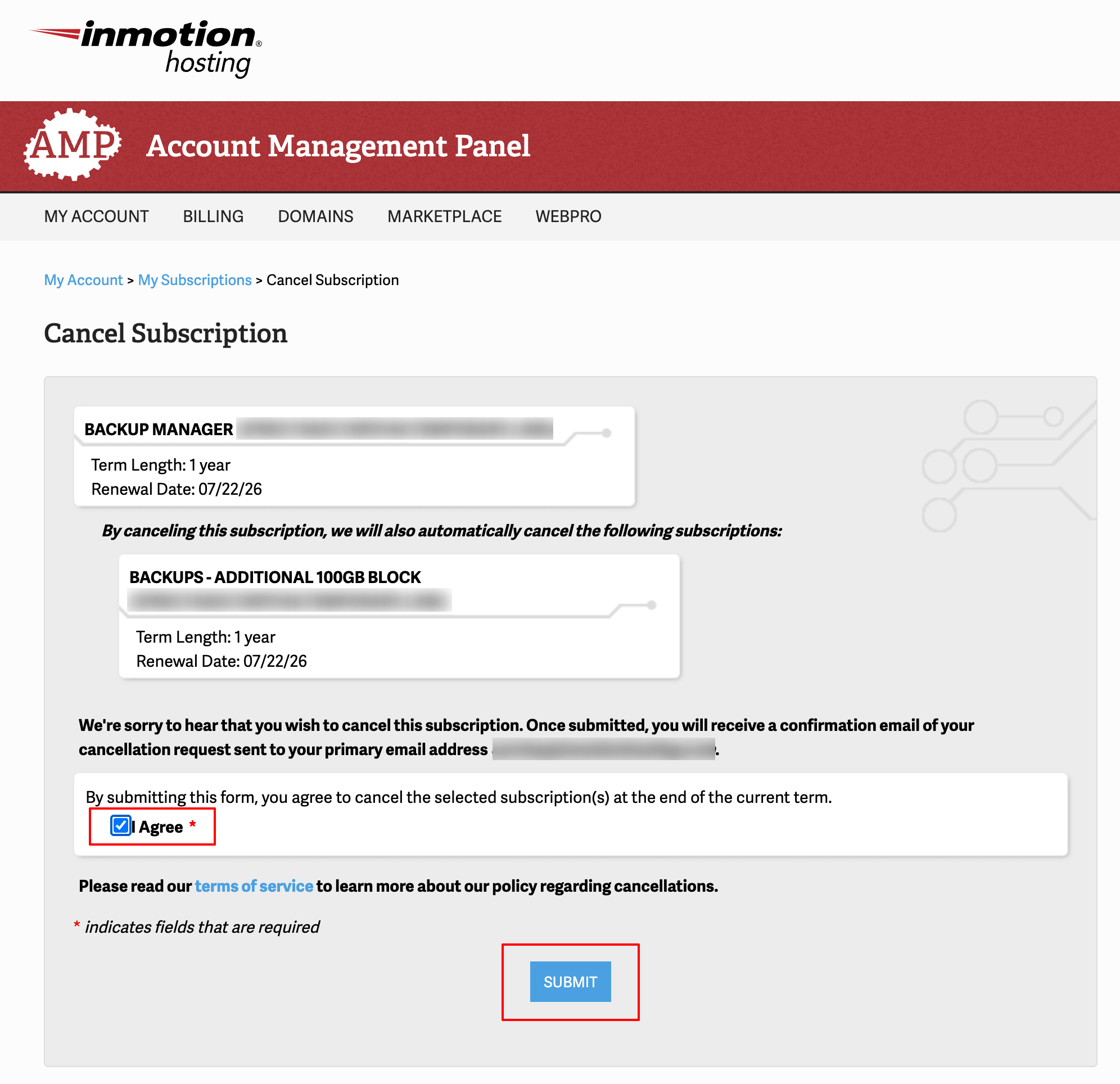
- Click the Submit button to finalize your cancellation.
Important: Once the cancellation is complete, the Backup Manager option located in cPanel will only include cPanel Backup and Backup Wizard options.
To learn how to cancel your hosting account, please check out How Do I Cancel My Hosting Account?