You have two ways to cancel hosting account service in the Account Management Panel (AMP): turn off Auto-Renew so the plan stops renewing on its own, or cancel the product now and set it to expire. Either path keeps your account active for the time you already paid for, so nothing shuts off immediately unless you ask Customer Service to cancel right away. This guide covers both options and what happens after you cancel.
How to Turn Off Auto-Renew in AMP
Turning off Auto-Renew stops future billing for that product without canceling it right away, so you keep full access for the rest of the term you already paid for.
- Log in to AMP at secure1.inmotionhosting.com/amp. See How to Log in to AMP if you need help.
- Click Billing in the top menu. The My Subscriptions page opens. It is also the first item in the Billing menu.
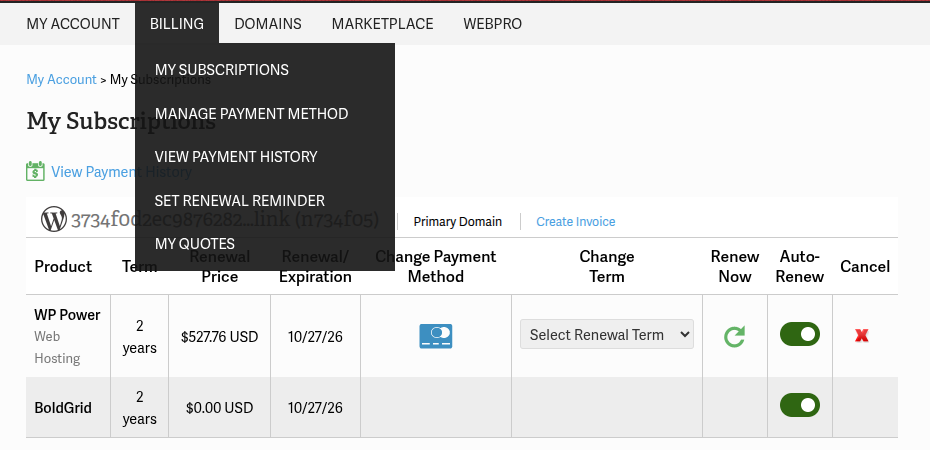
- Find the product row for the plan or service you want to stop renewing. Subscriptions are grouped by primary domain.
- In that row, switch the Auto-Renew toggle off.

Once Auto-Renew is off, the product keeps running normally. It will not renew or bill again when the current term ends. If you no longer need the product at all, cancel it outright instead.
How to Cancel Hosting Account Services in AMP
Canceling a product sets it to expire instead of renewing, and the steps start on the same My Subscriptions page.
- Log in to AMP and click Billing to open My Subscriptions.
- Find the product row for the plan or service you want to cancel.
- Click the red X in the Cancel column of that row.
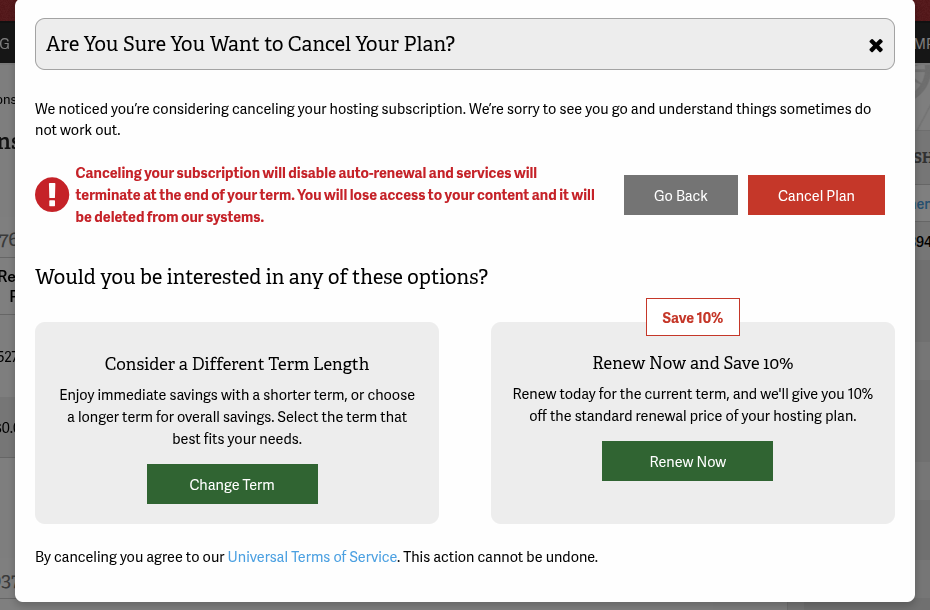
- Read the Are You Sure You Want to Cancel Your Plan? dialog. It warns that canceling turns off auto-renewal, ends the service at the end of your term, and deletes your content from InMotion Hosting’s systems at that point. It may also offer alternatives, such as changing your term length or renewing now at a discount.
- Click Cancel Plan to continue, or Go Back to keep the plan as it is.
- Complete the short cancellation survey and click Submit. AMP confirms that your cancellation request was submitted, and the product row shows Set to Expire.
Note: Some products, such as VPS plans, show Contact Us in the Cancel column instead of the red X. Those plans are canceled by Customer Service. See Cancel Immediately or Reactivate a Plan below for how to reach them.
What Happens After You Cancel
- The product is set to expire and stays active until the paid term ends.
- It will not renew, and InMotion Hosting will not bill you again for it.
- When the term ends, you lose access to the content on that plan and it is deleted from InMotion Hosting’s systems. Download any files, email, and databases you need before the expiration date.
Note: The money-back guarantee period depends on your plan and billing term. Check the InMotion Hosting guarantee page and the legal page for the terms that apply to your plan.
Cancel Immediately or Reactivate a Plan
If waiting for the term to expire is not fast enough, if your plan shows Contact Us in the Cancel column, or if you already set a plan to expire and now want to keep it, contact InMotion Hosting Customer Service. Ask the team to cancel the plan right away, or to reverse a scheduled cancellation before it takes effect.
Note: Chat and ticket support are available 24/7. Phone support for account and billing questions runs Monday through Friday, 9 AM to 9 PM ET, at +1-757-416-6575. You can also email [email protected].
See Contact Us at InMotion Hosting Customer Service for every way to reach the team, including live chat.
If you are canceling because you need hands-on help running your site or server rather than hosting itself, InMotion Solutions may solve the problem without canceling your account. Otherwise, whether you turn off Auto-Renew or cancel hosting account services outright, your data stays in place and accessible until the paid term ends.