
Your hosting plan is coming up for renewal, and you want to pay before it lapses. This guide shows you how to renew your current plan in AMP, InMotion Hosting’s Account Management Panel, whether you pay by credit card, PayPal, or check.
Renew Your Current Plan in AMP
Bill items in AMP auto-renew by default for accounts with an active credit card on file. AMP sends an email notice 30 days before your renewal date so you have time to update a payment method or change your term before the charge processes.
Log in to AMP and click Billing in the top menu. This opens the My Subscriptions page, which lists each hosting account by its primary domain in a table showing the product, term, renewal price, and renewal or expiration date. Each row also has action controls: Change Payment Method, Change Term, Renew Now, an Auto-Renew toggle, and Cancel. A View Payment History link sits above the tables.
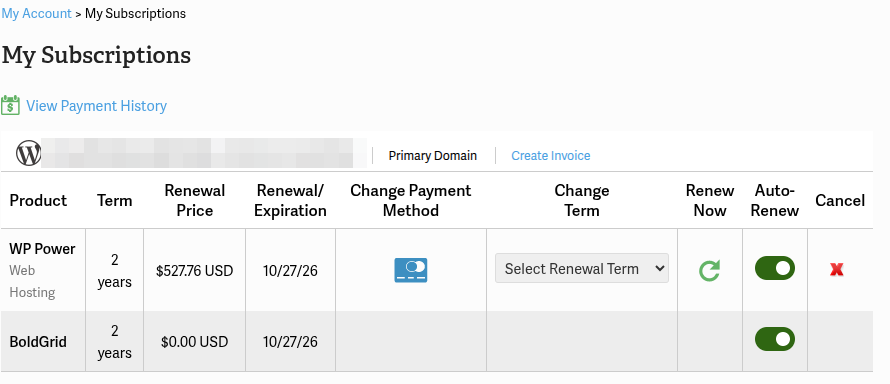
The Auto-Renew toggle sits on the same row as the product, so you can turn automatic billing on or off for that product.
Changing Your Subscription Length
If you want to switch from monthly to annual billing, or extend an existing term, use the Change Term dropdown on the My Subscriptions page instead of canceling and repurchasing. Each term option lists its own price, so you can compare before you choose. For more on changing your subscription length, see our guide to upgrading or downgrading a hosting plan.
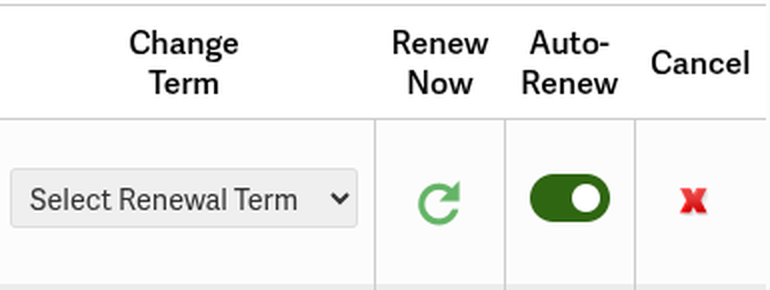
- On the My Subscriptions page, find the product you want to change.
- Open the Change Term dropdown, labeled Select Renewal Term. Each option shows its own price.
- Select the term you want to use for your next renewal.
Note: If your account is suspended for non-payment, use the same Renew Now steps described in the Renewing / Paying with a Credit Card, PayPal, and Check sections.
Renewing / Paying with a Credit Card
Use this method if you want to pay with a saved card or add a new one at checkout.
- Log in to AMP at https://secure1.inmotionhosting.com/amp and click Billing to open My Subscriptions.
- Find the product you want to renew and click the green circular-arrow Renew Now icon in that row.
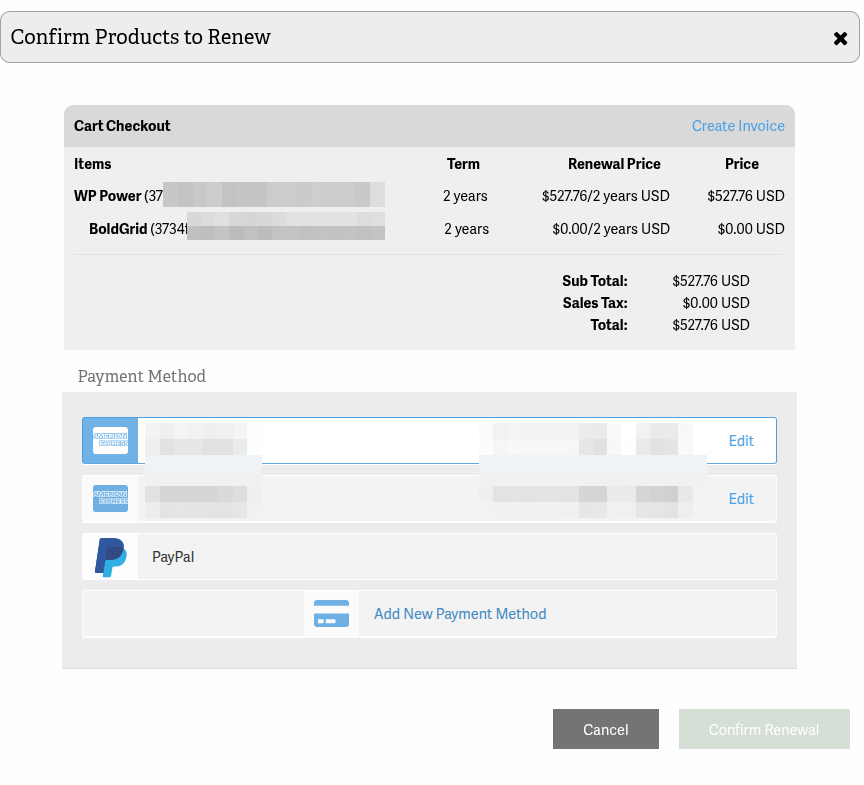
- AMP opens the Confirm Products to Renew popup on the same page. The Cart Checkout table lists the product and any bundled add-ons, along with the term, renewal price, subtotal, sales tax, and total. The popup also includes a Create Invoice link at the top right of the cart and a Cancel button.
- Under Payment Method, select an existing card, or click Add New Payment Method and enter the Name on Card, Credit Card Number, and Expiration Date.
- Click Confirm Renewal. The button activates once a payment method is selected. AMP processes the payment and displays a confirmation once the renewal completes.
Renewing / Paying with PayPal
PayPal uses the same Renew Now flow. The only difference is which payment method you select in the popup.
- Log in to AMP and click Billing to open My Subscriptions.
- Click the Renew Now icon for the product you want to renew.
- In the Confirm Products to Renew popup, review the cart total, then choose PayPal under Payment Method.
- Click Confirm Renewal. AMP completes the renewal through PayPal.
Renewing / Paying with a Check
InMotion Hosting accepts physical checks from customers in the United States. Write your primary domain name or cPanel username in the memo line so the payment is applied to the correct account, then mail the check to:
InMotion Hosting
2 Constitution Drive, Suite 101
Virginia Beach, VA 23462
InMotion Hosting emails a confirmation receipt once the payment is applied to your account. Mailed checks can take up to 14 days to arrive and process, so send your payment well before your renewal or expiration date to avoid a service interruption.
Troubleshooting
Confirm Renewal button stays grayed out
The Confirm Renewal button in the Confirm Products to Renew popup activates only after you select a payment method. Choose an existing card, click Add New Payment Method and enter your card details, or choose PayPal, and the button becomes clickable.
The renewal payment does not go through
Check that the card saved in AMP is current. You can add or change a credit card in AMP, then return to the Confirm Products to Renew popup and select a different saved card, add a new payment method, or choose PayPal. If the payment still does not complete, contact InMotion Hosting support.
Account still shows suspended after you pay
If you paid by check, allow up to 14 days for the check to arrive and process. If you renewed by credit card or PayPal and the account still shows suspended, contact InMotion Hosting support and reference your payment confirmation.
Conclusion
You now know how to renew your current plan in AMP through the My Subscriptions page, whether you pay by credit card, PayPal, or check. With auto-renew enabled and a current card on file, AMP bills the renewal for you. If you would rather manage payment methods directly, use the Change Payment Method icon on the My Subscriptions page to add or change a credit card before your next renewal.