
If you have a web designer and they are designing your website with a content management system (CMS), the designer may need access to the databases. Until now, the easiest solution was to provide them with the cPanel username and password to access phpMyAdmin. For security purposes, this may not be the best solution since this would allow the third party complete access to your cPanel account, including email, add-on domains, and other files / databases you may have.
You can install phpMyAdmin on your server in a few easy steps that will eliminate the need to provide your designer with cPanel access.
Installing phpMyAdmin on Shared Hosting Packages
- Download the zip file of the latest version of phpMyAdmin at phpMyAdmin.net.
- Once you download the zip file, you’ll need to upload the file via an FTP program or by using cPanel File Manager. We recommend FileZilla for FTP.
- Once in File Manager, upload the package you downloaded to the public_html folder.
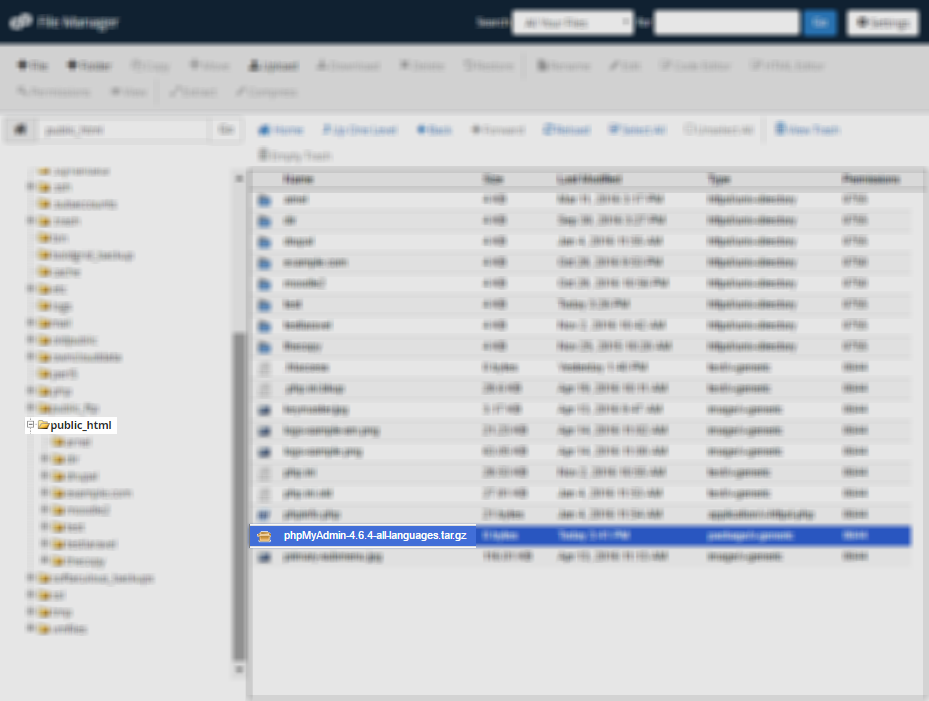
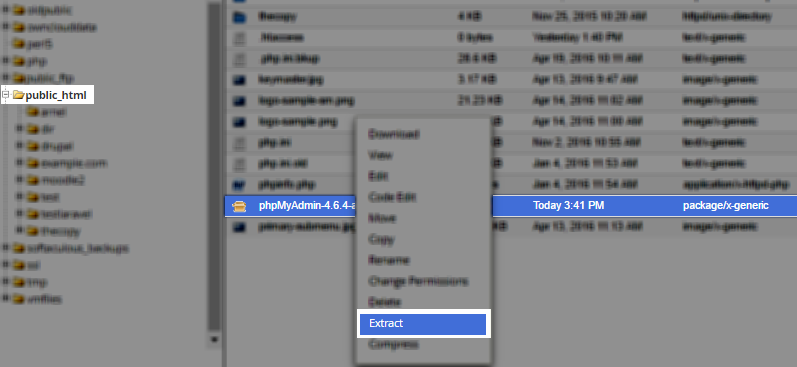
- After uploading the file, uncompress it. To do so, right-click the highlighted file and select extract.
- Once the file is extracted, you will notice there is a file folder created. Rename the folder “phpMyAdmin-5.2.1-all-languages.zip” to “phpmyadmin” or similar for additional security.
- Visit the folder in your web browser, e.g. https://example.com/phpmyadmin/setup.
- You will need to create a config.inc.php file. You can do this on the setup screen, download the file, and upload it into the /phpmyadmin directory or by copying public_html/phpmyadmin/config.sample.inc.php to config.inc.php.
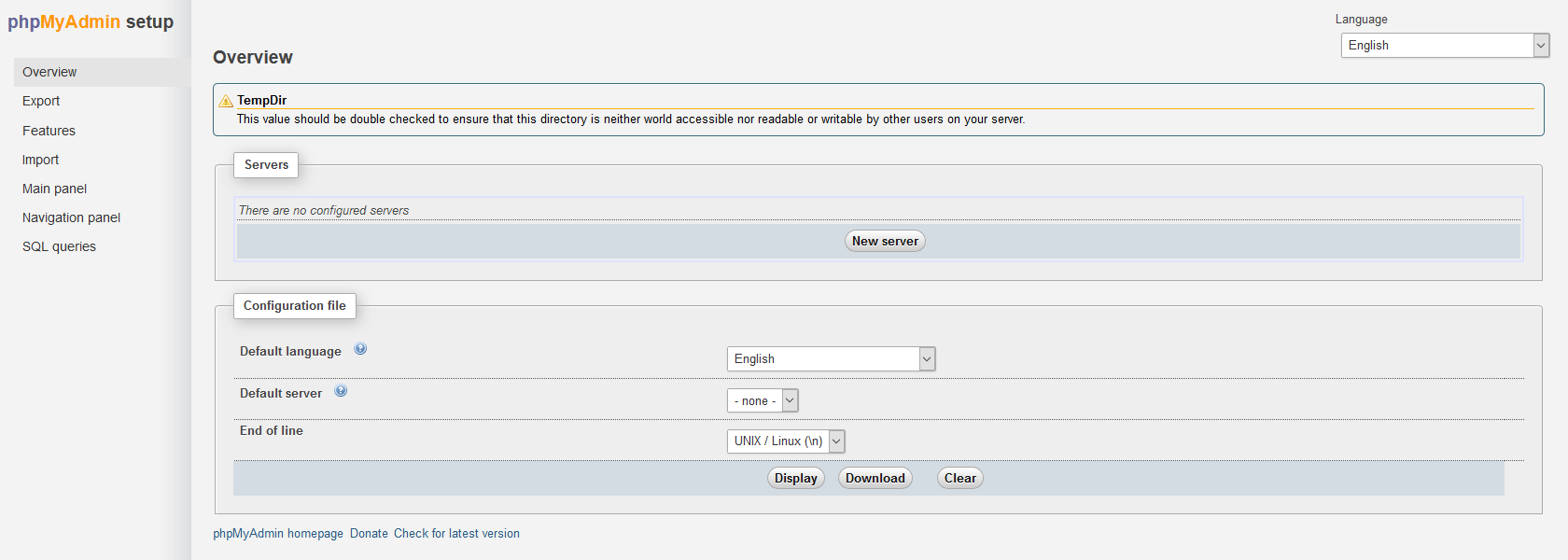 Note: Info on all options possible in the config file such as Authentication options is available in phpMyAdmin documentation.
 - Click New server and type your server hostname beside “Verbose name of this server“, easily found in your AMP Account Technical Details. Then click “Save”.
- You can now access phpMyAdmin without cPanel by visiting, e.g. https://example.com/phpmyadmin/index.php.



Note: If using SuPHP, make sure the .htaccess files do not have PHP settings.
Congratulations! You have successfully installed phpMyAdmin externally and you can access your databases without cPanel!
Installing phpMyAdmin using SSH
- SSH into your server.
- Enter the public_html folder:
cd ~/public_html
- Install the compressed file:
wget https://files.phpmyadmin.net/phpMyAdmin/5.2.1/phpMyAdmin-5.2.1-all-languages.zip
- Unzip the compressed file:
unzip phpMyAdmin-5.2.1-all-languages.zip > /dev/null
- Assign the correct file permissions:
chown -R $USER:$USER phpMyAdmin-5.2.1-all-languages*
- Move the files to the appropriate place:
mv phpMyAdmin-5.2.1-all-languages phpmyadmin
- Copy the file and rename the config.inc.php file:
cp -p phpmyadmin/config.sample.inc.php phpmyadmin/config.inc.php
- Set a random string to the “blowfish_secret”:
<?php
// use here a value of your choice at least 32 chars long
$cfg['blowfish_secret'] = '1{dd0`<Q),5XP_:R9UK%%8\"EEcyH#{o';

$i=0;
$i++;
$cfg['Servers'][$i]['auth_type']     = 'cookie';
// if you insist on "root" having no password:
// $cfg['Servers'][$i]['AllowNoPassword'] = true; - You can now access phpMyAdmin by visiting, for example, https://example.com/phpmyadmin/install.
Refer to phpMyAdmin’s Official Install Guide for additional installation methods and tips.
Note: If using SuPHP, make sure the .htaccess files do not have PHP settings.
Install phpMyAdmin in Softaculous
- Log into cPanel.
- Search and select the Softaculous button.
- From the left of the page, search and select phpMyAdmin under DB Tools.
- Select Install Now to begin with installation details.
- Specify the protocol, domain, directory, database host, and Softaculous backup location as needed before pressing Install.Note: You’ll receive the error below if the specified domain isn’t using PHP 7.1 or higher. You can check this via cPanel PHP Configuration (or MultiPHP Manager for VPS/Dedicated) or a phpinfo page– e.g. example.com/phpinfo.php.
- Select the checkbox in the warning to update the specified domain (or subdomain) to PHP 7.1 or edit it manually from the cPanel PHP Configuration (MultiPHP Manager for VPS/Dedicated).
Congratulations. You can now access phpMyAdmin using your specified domain.