You can upload and install a theme you downloaded from the internet to your Zencart installation on your server. In this tutorial we are going to install the Bask Black theme. Below are the steps to install and activate a custom theme in Zencart.Below are the steps to install and activate a custom theme in Zencart.
Important! Make sure you Backup all your Zencart files and database. This is to prevent loss of data from a failed theme installation.
Steps to change the Zencart theme
- Upload the theme zip file to your Zencart installation directory.
- Log into your Zencart dashboard.
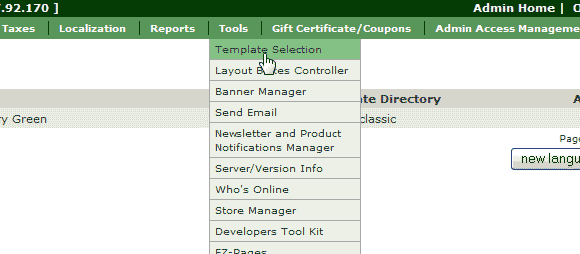
Go to Tools > Template Selection.
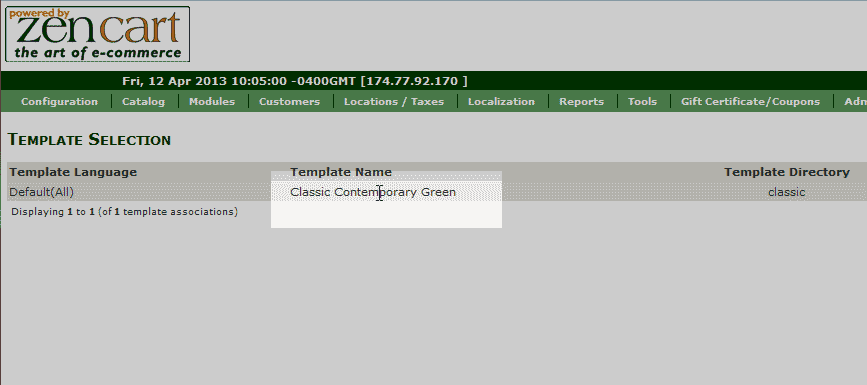
Click the name of the “Classic Contemporary Green” template.
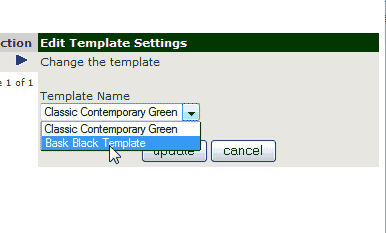
The template settings will load on the right in the “Edit Template Settings” box. Select the template from the “Template name” drop box.
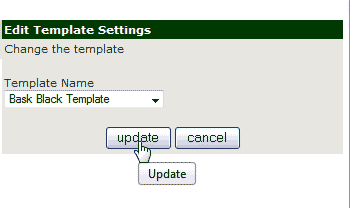
Click the Update button.
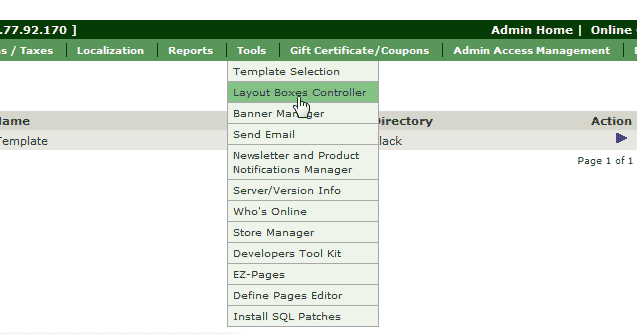
Go the Tools > Layout Boxes Controller.
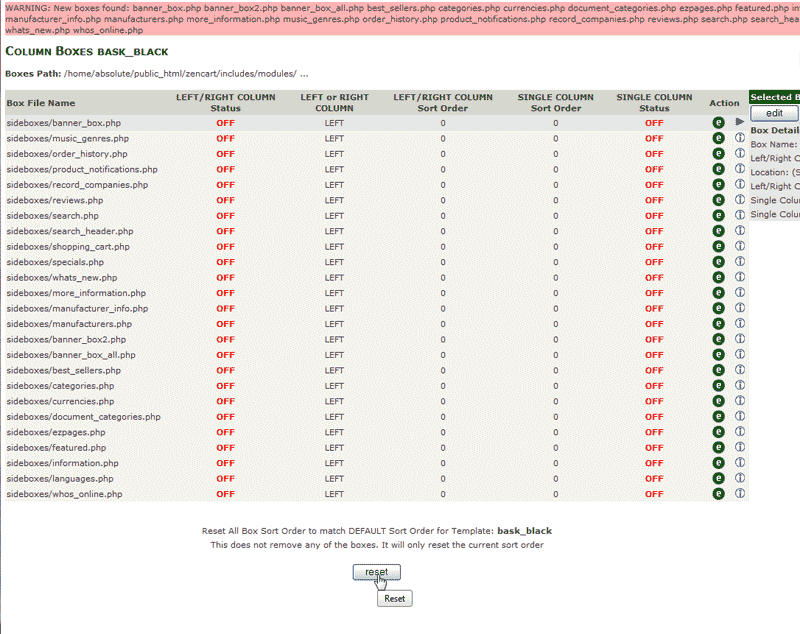
Click the Reset button at the bottom of the page.
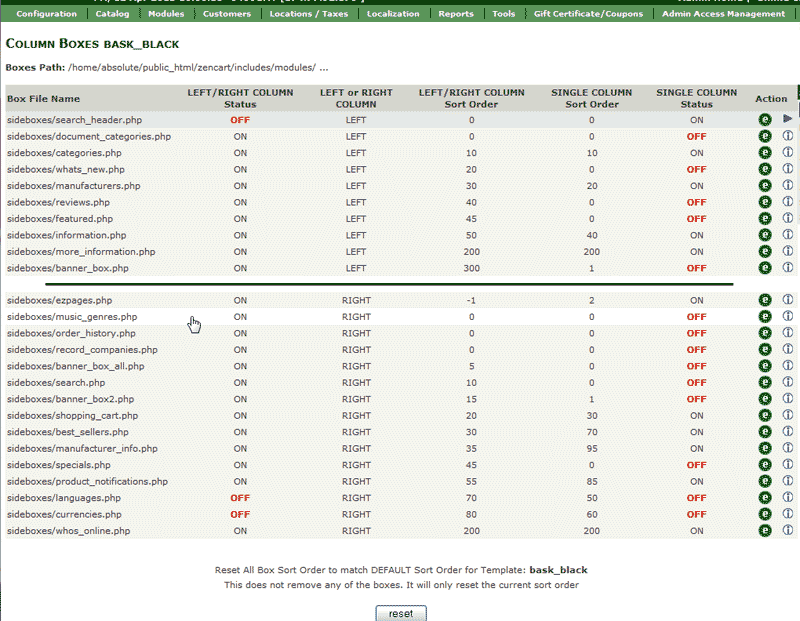
The column boxes will show in green that they were successfully activated.
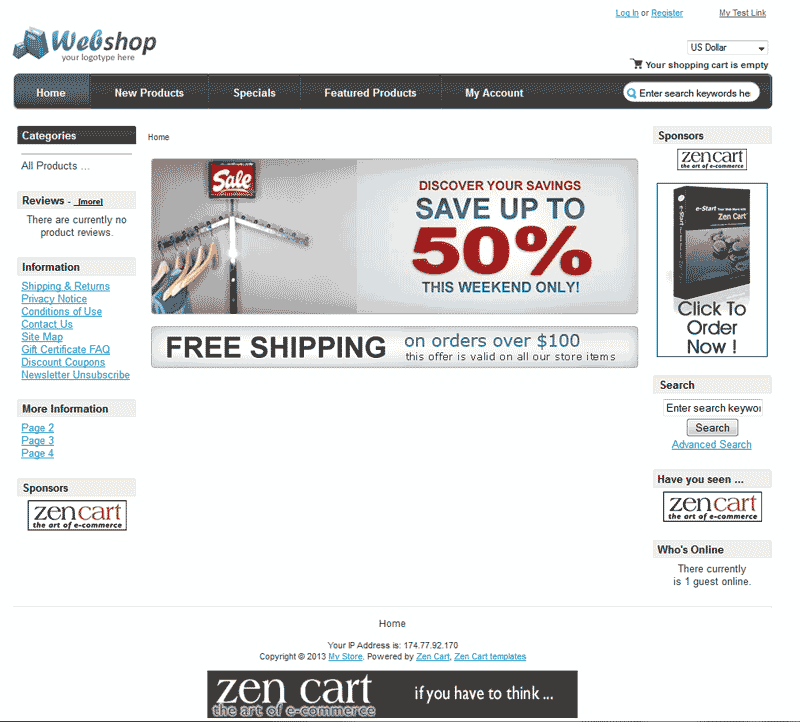
Visit your Zencart website. You should see the theme changed like the snapshot to the right.







