In this lesson, we will show you how to migrate our WordPress website. In this fictional tutorial we will migrate a your-wordpress-site.com from HostABC to InMotion Hosting. As to provide no downtime during the migration process , we will not update the nameservers for your-wordpress-site.com, so the hosting will remain pointed to the previous host, in this case HostABC. Once we have performed the migration and tested the site, we will then update the domain’s nameservers and point them over to InMotion Hosting.
Please note, since 2021, we recommend using Total Upkeep to easily migrate your site. See our WordPress Migration Guide that includes Total Upkeep and many other popular plugins that easily migrate WordPress.
Exporting a Backup of your WordPress Database
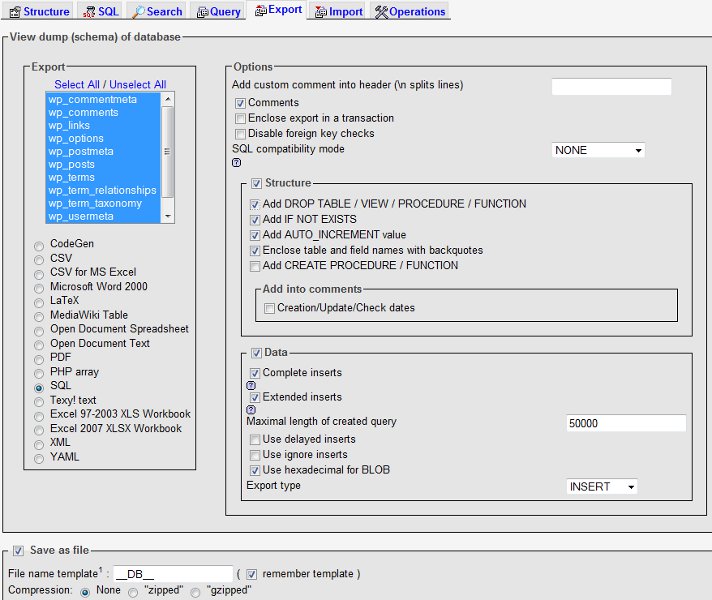
The way WordPress works is all of your content that you have written for your website is stored in your database. phpMyAdmin is a hosting industry standard for managing MySQL databases, and many hosts provide this tool for their users to use. Since this tool is widely available, we will show you how to use phpMyAdmin to downlaod a backup of your existing database.
|
|
This is prompt you to download the backup file.
Creating a NEW MySQL Database
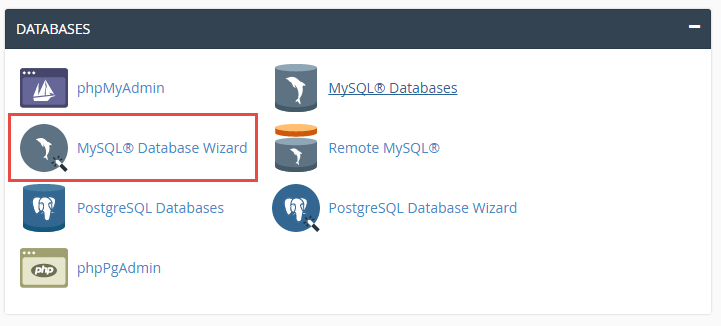
To be able to import the database you just exported from your previous host, you will first need to create a blank database.
|
|
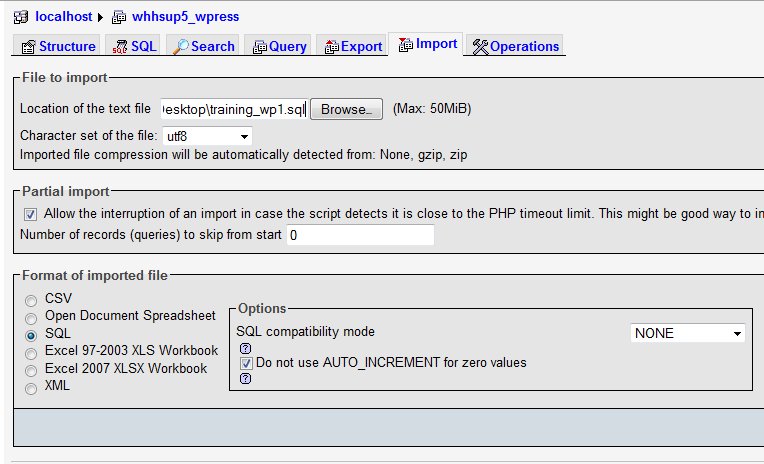
Importing the Backup you Created
|
|
You have now completed migrating your WordPress database, congratulations! The next step in the process is to migrate your WordPress application files.
Please check the next article on Testing your WordPress website after Migration. If you missed our previous article, please see the Migrating WordPress Files tutorial. For more information on this course please visit Migrating your Existing WordPress site to InMotion Hosting.