This tutorial will assist you with publishing your website using Dreamweaver CS5.
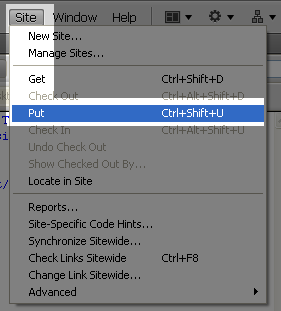
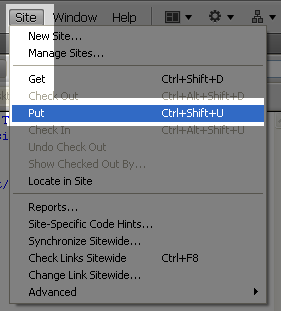
After you have opened your site within Dreamweaver, click “Site” – “Put“
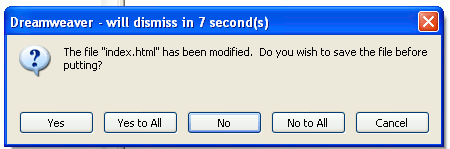
It is a good idea to save your work after making changes, so if you’re prompted to save modified files, we recommend that you do.
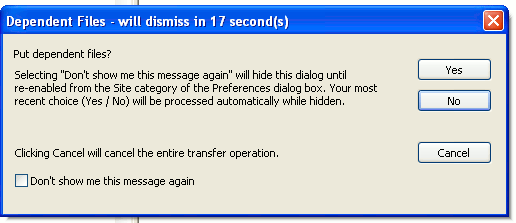
If the pages that you’re publishing reference other files, such as images or css files, Dreamweaver will reference these as “Dependent Files” and ask if you want to publish those as well. If this is your first time publishing your files, or if you’ve previously published but have made changes to any of those external pages, you’ll want to select “Yes” to publish the dependent files.
Once you’ve published your website, you should be able to see the changes immediately. If you’ve made and published changes but are unable to see them on your site, your browser most likely is caching the older versions of the pages. Clearing your browser’s cache or refreshing the page should resolve this problem.