
This article will assist you with configuring your server settings in Dreamweaver CS5.
Add New Server
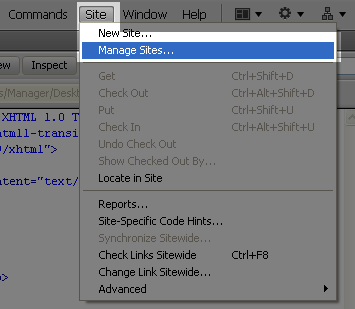
- Open your current site by clicking Site and then Manage Sites…
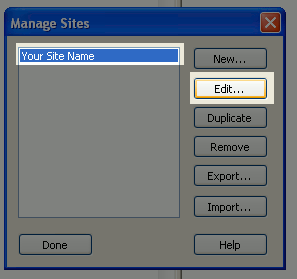
- Choose your site from the list, and then click “Edit”
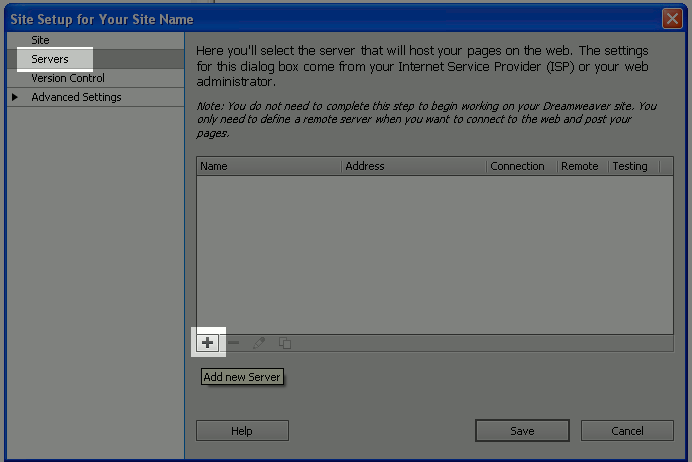
- If you don’t already have a server configured, click “Servers” and then click the plus + sign to add a new server. If you already configured a server, choose the server from the list and click the pencil icon to modify it.
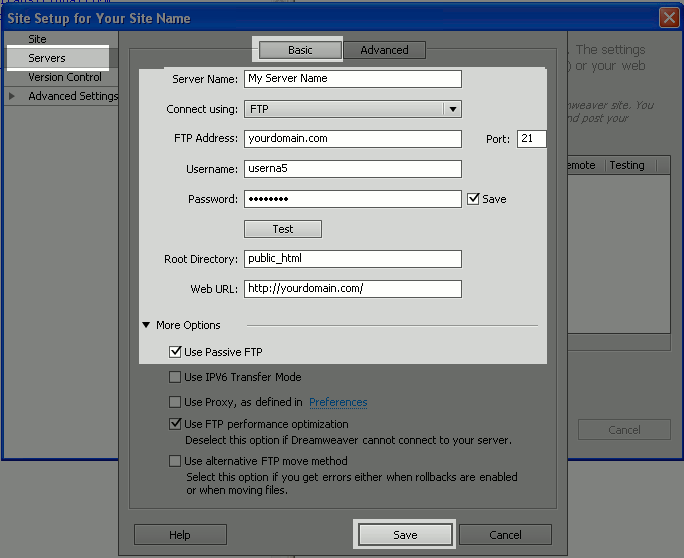
Basic Server Settings
Fill out the Basic server settings as described below, and then click “Test“
- Server Name: Enter a name for this server
- Connect using: Choose FTP
- FTP Address: Enter your domain name here
- Username and Password: Enter your cPanel username and password
- Root Directory: If you are setting this up for your main domain, enter public_html
- Web URL: This will auto fill in for you when you enter a root directory. Please be sure to remove “public_html” from the Web URL so that it only reads https://example.com
- More Options – Use Passive FTP: Select “Use Passive FTP”
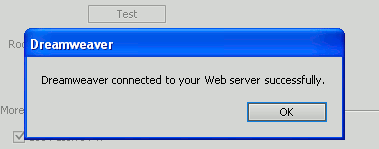
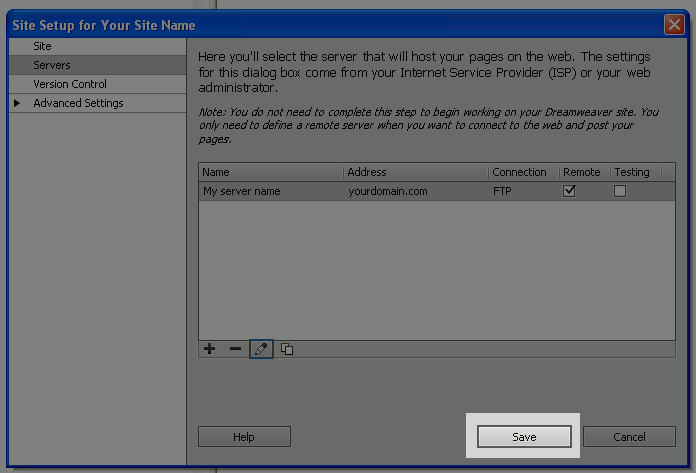
When your server settings test was a success, click “OK” and then click “Save“
After you have properly configured your server, click “Save“
Congratulations, now you know how to configure server settings For Dreamweaver CS5!