In this guide, we will show you how to compress a file or folder into a .zip file. Sometimes referred to as “zipping” a file, it is a good way to “package” multiple files into one. This is recommended before transferring files over the internet to ensure it is not corrupted during the transmission. It can also allow you to deliver files successfully if an email filter is blocking your file extension, since .zip files are typically allowed.
For this tutorial we will be using 7zip, it is free open-source software and you can download 7-zip here. Follow along and learn how to zip a file.
Don’t have time to read the article on how to compress a file? Watch our walk-through video.
How to Compress a File
- Open the 7-Zip File Manager.
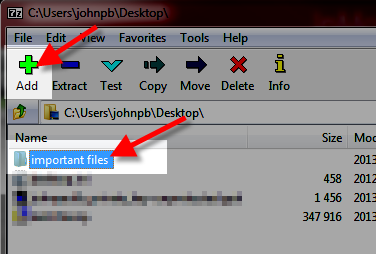
- Click on the file or folder you want to compress then click Add.
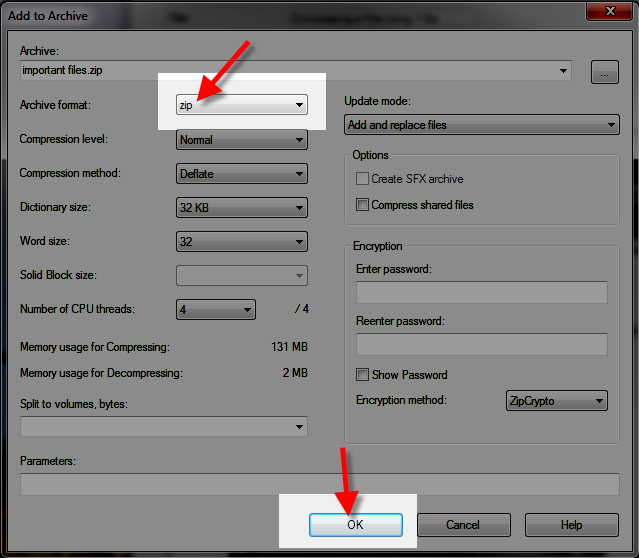
- The Add to Archive window will pop up, make sure the Archive format is set to zip, and click OK to proceed.
The file will be compressed into a zip file located in the same place as the original file.




Congratulations, now you know how to compress a file into a .zip format using 7-Zip!
Premium Hosting That Delivers Results
Your website is your business foundation. Our hosting platform delivers the performance, security, and reliability that growing companies require to compete effectively online.
 99.99% Uptime 24/7 Expert Human Support 100% Money-Back Guarantee