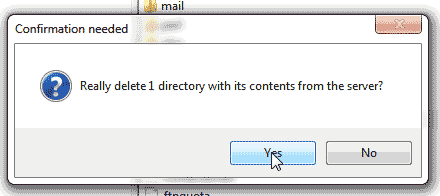
When you are managing your files on your server, you may need to delete files off the server. You can delete files several different ways from your server. You can connect with an FTP program like FileZilla and delete files, or you can Use your cPanel File Manager. Below are the steps to delete a file from your server using File Manager and FTP.
How to delete a file through File Manager
You can use the cPanel file manager to delete files from your server. Below are the steps to delete a file from your server using the File Manager.
- Login into your cPanel
- Go to the File Manager, Select your domain where you want to delete the files and click Go.
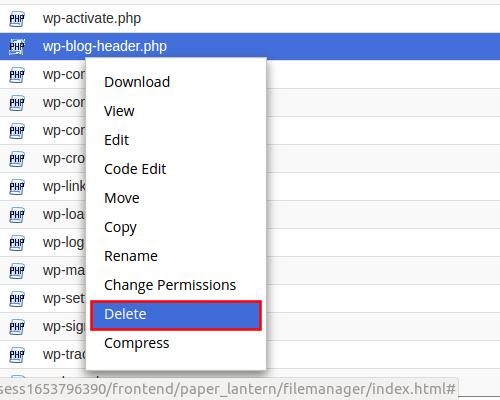
- Navigate though your files to locate the file you want to delete. Right click the file and select Delete from the pop up menu.
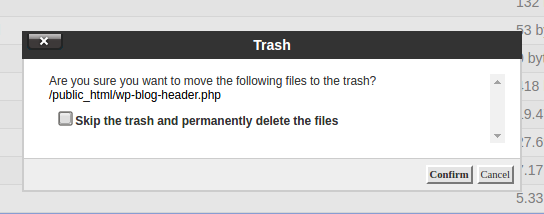
- Confirm the file is deleted. Now the file will be gone from the server..


How to delete a file through FTP
To delete files using FTP, you can follow the steps below. This will only explain how to delete through FileZilla. Other FTP clients should work basically the same.
- Open FileZilla and connect to your server.
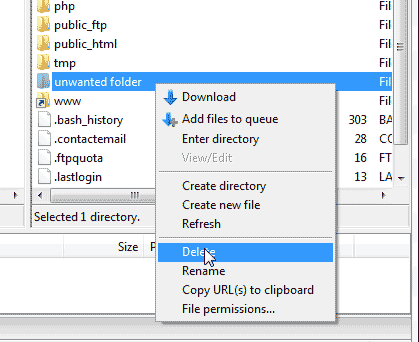
- Navigate to the file you want to delete on the server. Right click the file and select delete.
- Click OK to confirm the delete Now your file is no longer on the server.