

It is helpful to have a visual representation when designing a database. MySQL Workbench allows you to create entity relationship diagrams (ERDs) with relationships between the tables (one to one, one to many) and rearrange them as needed. Below we cover how to create an ERD from a downloaded SQL file.
Create a Diagram from a SQL File
- If using a database on your server, download the SQL file using cPanel Backup Wizard or phpMyAdmin.
- Download MySQL Workbench for free at dev.mysql.com and install it on your local machine.
- Open MySQL Workbench.
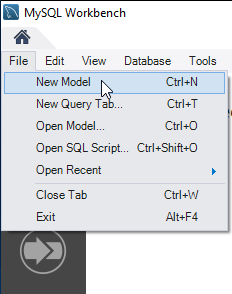
- Select File and New Model from the top menu.
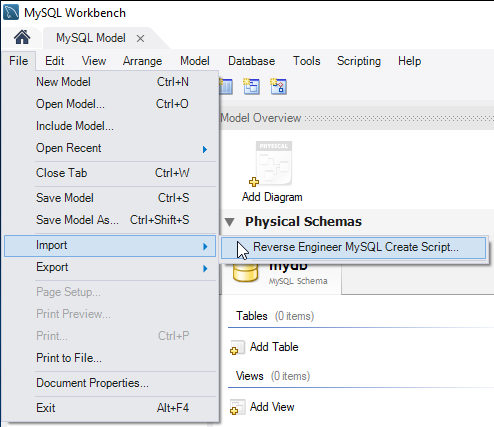
- Select File, hover over Import, and press Reverse Engineer MySQL Create Script….
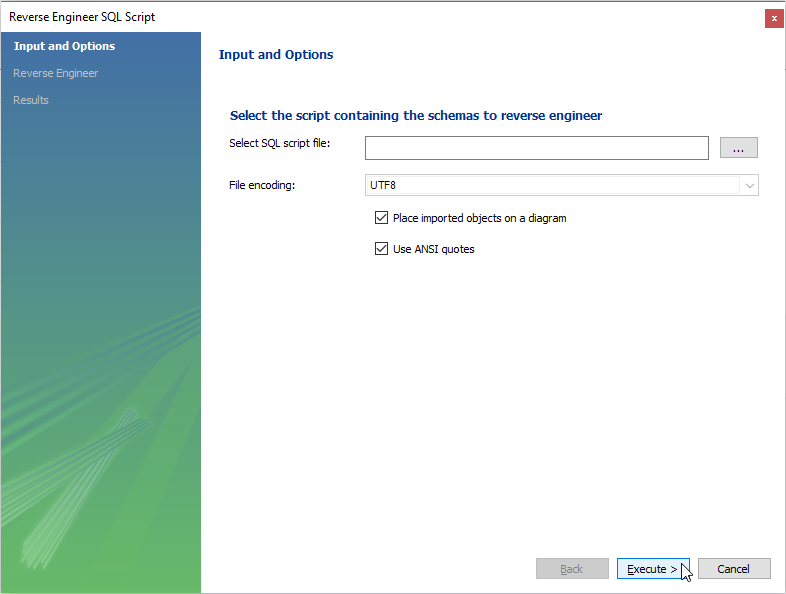
- Specify the SQL file needing a diagram. Press Execute, Next, and then Finish.
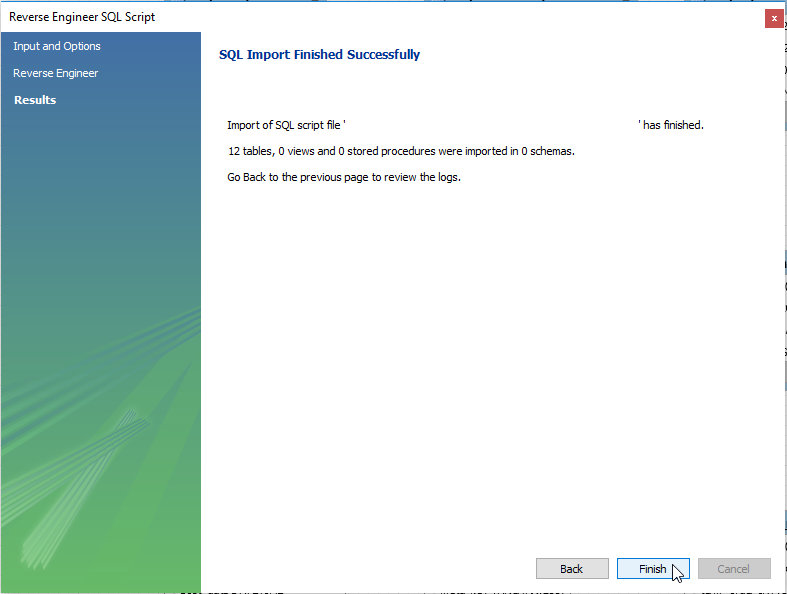
- At this point, you can rearrange and connect tables using the options on the left.
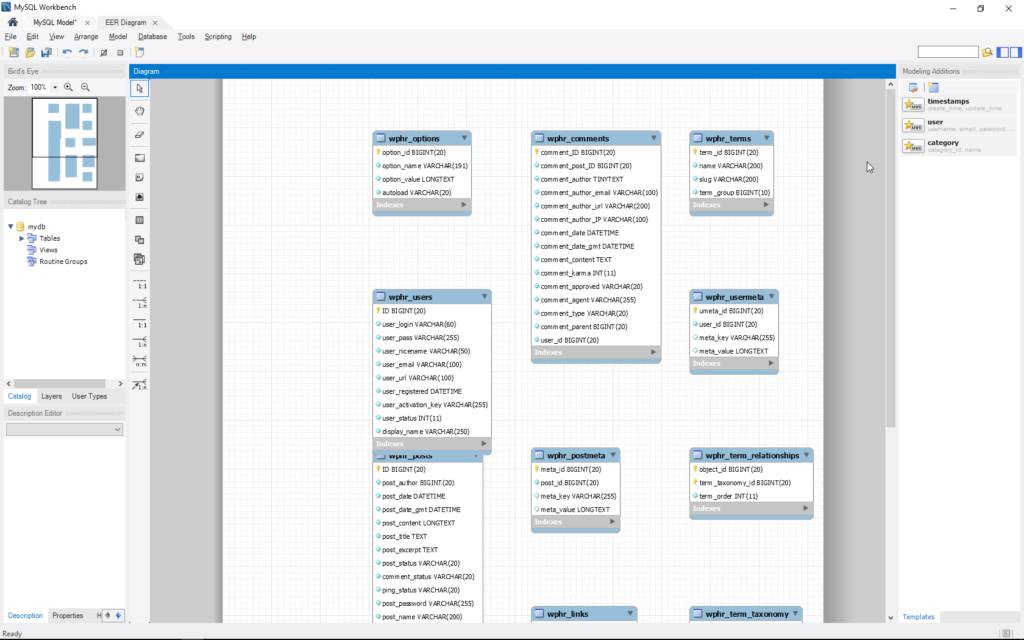
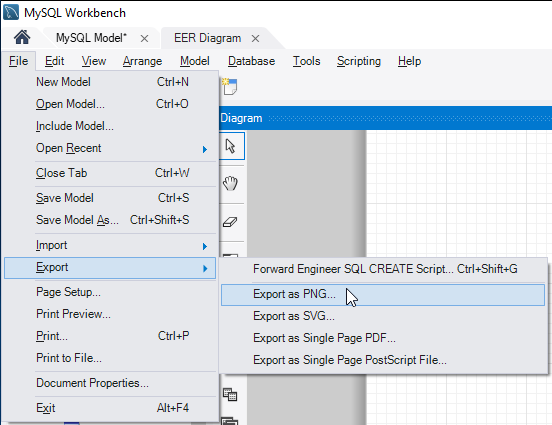
- Once you’re done editing, you can export the diagram as PNG, SVG, PDF, or postscript file.
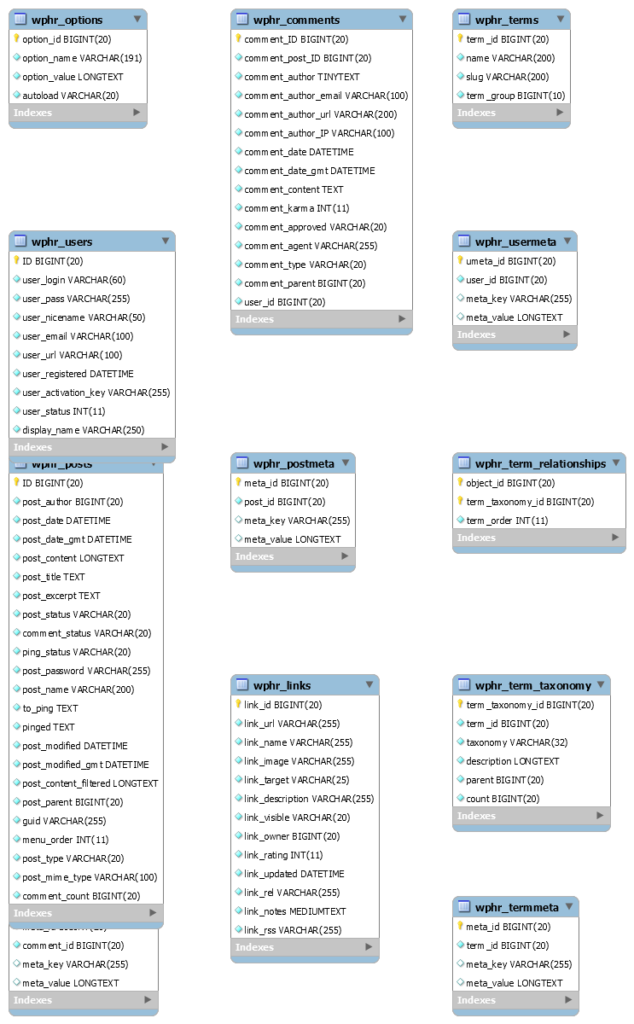
- View the exported image to check results.
To create a diagram for a database directly from cPanel, you’ll need to connect MySQL Remote Workbench to your server and ensure port 3306 is open.