When working with databases, you can use the phpMyAdmin tool to create database, tables, and add content. Along with normal data addition, you may also need to reorganize the way your data is stored. This may involved removing data, or even deleting tables from you databases. This tutorial will guide you on the process of dropping a table within the phpMyAdmin database management tool.
Note that when deleting or dropping a table, the data will be removed permanently. Please ensure that you do not need the data for any program before dropping the table.

Deleting or dropping a table in phpMyAdmin
- Log into your cPanel interface.
- From the main cPanel screen, look for the Databases category and click on the phpMyAdmin tool icon.
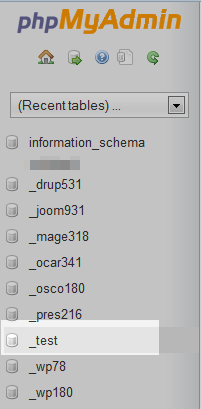
Once you are in the phpMyAdmin tool, find and click on the database name that contains the table you want to drop.
 After clicking the database name, the tables will be listed in the right hand panel. Locate the table you want to drop and select the Drop link.
- You will receive a popup. Click the OK button to confirm the delete.
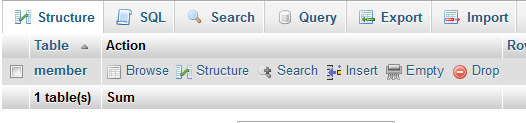
- You will receive a deletion success message and see your table disappear from the list. Below is a quick before and after shot of the table list for a successful deletion.
Before After 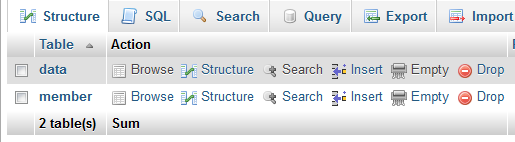

 After clicking the database name, the tables will be listed in the right hand panel. Locate the table you want to drop and select the Drop link.
