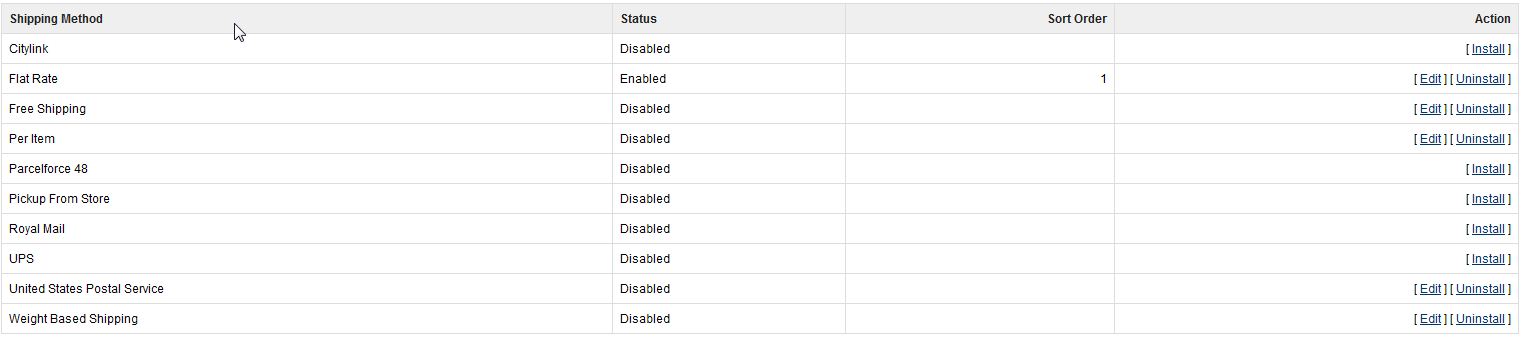
Setting up Flat Rate Shipping for Testing Purposes Updated on August 16, 2021 by Carrie Smaha 0 Minutes, 37 Seconds to Read When you go to test that your shopping cart functions properly you’ll want to set up a shipping option for $0.01 to minimize the total transaction cost. This can easily be accomplished by modifying the “Flat Rate” shipping option. Log into your OpenCart Dashboard Go to Extensions> Shipping Click “Edit” on the right side column for “Flat Rate” (If you have not installed it yet, you can click “install”) Adjust the “Cost” field to 0.01 (if you have not enabled this shipping option, you can enable it here as well) Click “Save” Be sure to change the shipping price back once you are done testing the website. If you need further assistance please feel free to ask a question on our support center website. Share this Article Carrie Smaha Senior Manager Marketing Operations Carrie Smaha is a Senior Marketing Operations leader with over 20 years of experience in digital strategy, web development, and IT project management. She specializes in go-to-market programs and SaaS solutions for WordPress and VPS Hosting, working closely with technical teams and customers to deliver high-performance, scalable platforms. At InMotion Hosting, she drives product marketing initiatives that blend strategic insight with technical depth. More Articles by Carrie Related Articles Intro to Migrating your WordPress Site Data Migrating your WordPress Database Migrating WordPress Files Configuring WordPress After a Migration Testing your WordPress website after Migration How to Move WordPress from a Subfolder to the Root Directory What to expect during a mass server migration Move Your WordPress Site to a New Server Moving Websites Built with Older Technology into WordPress How to Export Your WordPress Sites