Crawlers drive search visibility, but they can also overload your server if left unchecked. This guide shows you how to use robots.txt to take control. Learn how to block low-value directories, protect essential assets that Google needs to render your site, manage crawl rates with delays, and defend against bandwidth-heavy AI bots. You’ll get practical examples, real-world use cases, and best practices for combining robots.txt with server rules. Strategic crawler management improves site speed, reduces hosting costs, and ensures search engines focus on your most important content.
Search engines discover your content by sending automated crawlers, often called bots or spiders, that scan your pages and index them. This process is essential for visibility in Google or Bing, but if left uncontrolled, bots can overrun your server and slow down performance.
That’s where the robots.txt file comes in. It’s one of the simplest yet most powerful tools for directing how search engines interact with your website. With a few lines of text, you can tell compliant bots what to explore and what to leave alone.
Whether you’re running a high-performance WordPress site, managing multiple client websites, or scaling an e-commerce platform, controlling crawler access protects your infrastructure and keeps your site running at peak speed.
However, not all crawlers play by the rules. A growing wave of AI-driven bots are consuming massive amounts of bandwidth without contributing to your SEO visibility. Knowing how to manage both traditional and modern crawlers is now part of maintaining your site’s speed, stability, and search performance.
What Robots.txt Really Does (and What It Doesn’t)
Before you begin blocking or allowing crawlers, it’s important to understand what this small file actually controls. Many site owners assume robots.txt is a universal shield, but it’s more of a polite request that good bots usually respect. Understanding its limits helps you set realistic expectations and use it strategically.
When a search engine visits your site, it first looks for a robots.txt file in the root directory (for example, https://example.com/robots.txt). The file tells the crawler which parts of the site it can or cannot access.
For example:
User-agent: *
Disallow: /private/This directive tells all bots to avoid the /private/ directory.
But it’s important to understand what robots.txt does not do:
- It doesn’t physically block access to a page; it simply requests that compliant bots avoid it.
- It’s not a security tool, anyone can view your robots.txt file in a browser.
- It doesn’t guarantee exclusion from search results; pages may still appear if other sites link to them.
For total exclusion, combine robots.txt with a noindex meta tag or server-level access restrictions.
When you see robots.txt as a guidance system rather than a gate, you’ll start using it with more precision. The next step is knowing when crawl control helps your site, and when it might hurt your SEO.

When You Should Block Crawlers
Knowing when to block bots can make your website faster and your crawl allocation more efficient. Search engines give each site a limited amount of crawling time. Essentially, how many pages they’ll check during each visit. When you guide crawlers away from low-value pages, they can spend more time indexing the content that matters.
There are legitimate reasons to limit crawling. Doing so can conserve resources, improve SEO efficiency, and protect non-public sections of your site.
Common Reasons to Block Crawlers:
- Private or administrative areas: /wp-admin/, /cgi-bin/, /tmp/
- Temporary or duplicate environments: staging or test directories
- Dynamic URLs that generate endless combinations: filtered search or parameter-based pages
- Resource-heavy files: large PDFs, feeds, or scripts that don’t need indexing
Here’s an example:
User-agent: *
Disallow: /cgi-bin/
Disallow: /private/
Disallow: /tmp/This keeps crawlers focused on your high-value content, protecting your server resources while improving crawl efficiency.
Blocking isn’t just about defense, it’s about clarity. The right disallow rules tell search engines exactly where to focus, helping them crawl your site faster and more effectively. But remember, blocking the wrong resources can do more harm than good.
When Blocking Crawlers Hurts Your SEO
While blocking crawlers can protect performance, doing it carelessly can cause major SEO damage. It’s easy to overlook which assets are essential for rendering your site, especially if you’re managing multiple themes or plugins. When search engines can’t see how your site actually loads, they may misjudge quality or relevance.
Blocking crawlers without strategy can backfire. If essential assets (like CSS or JavaScript) are blocked, Google can’t render your site correctly, which may affect rankings.
Avoid blocking:
- /wp-content/ (theme images, scripts, styles)
- /wp-includes/ (WordPress core functionality)
- Category or tag pages that provide navigation structure
In 2015, Google began rendering pages like a modern browser. If CSS or JS files are blocked, Google might see a broken layout, slow load time, or missing interactive elements. All of these can damage your Core Web Vitals and ultimately hurt your visibility.
A good rule of thumb is this: if a file affects what a human visitor sees or interacts with, don’t block it. Once you know what to keep open, you can start fine-tuning how bots behave to protect your performance without hurting SEO.
The Performance Side of Crawl Management
Performance and crawl control are closely connected. Every bot request uses server bandwidth, and too many at once can push your resources to the limit. Understanding this relationship helps you avoid technical slowdowns that look like SEO problems but are really traffic management issues.
Uncontrolled crawler activity doesn’t just clutter search results, it can overload your hosting account. Even a few bots can generate the resource impact of thousands of human visitors.
Unlike people, bots don’t pause between clicks. They request every linked page in rapid succession, which can:
- Spike CPU and RAM usage
- Exhaust your bandwidth quota
- Trigger account throttling or even suspension on shared hosting plans
A single misbehaving bot can cause temporary outages or performance degradation, especially when it crawls large archives or resource-heavy pages.
Keeping performance steady isn’t just about hardware. It’s about setting healthy boundaries for automation. The next section shows how to slow crawlers down safely using the crawl-delay directive.
Controlling Crawl Rate with Crawl-Delay
Once you’ve identified aggressive crawler behavior, you can manage it without outright blocking. The Crawl-delay directive gives you fine-tuned control over how often bots make requests. By pacing the crawl rate, you reduce stress on your server while maintaining accessibility for legitimate search engines.
If your site has hundreds or thousands of pages, even legitimate bots like Googlebot can cause strain when they crawl too quickly. You can slow them down using the Crawl-delay directive.
For example:
User-agent: *
Crawl-delay: 30This tells all bots to wait 30 seconds between requests.
A 30-second crawl delay on a 1,000-page site allows indexing in about 8 hours instead of minutes, keeping your server responsive for real visitors.
However, note that Google ignores Crawl-delay in robots.txt; it must be adjusted within Google Search Console’s crawl settings instead.
Crawl-delay is a balance between visibility and performance. When used correctly, it keeps your site fast while giving search engines the time they need to explore. Next, let’s look at how to set up and manage this file in your hosting account.
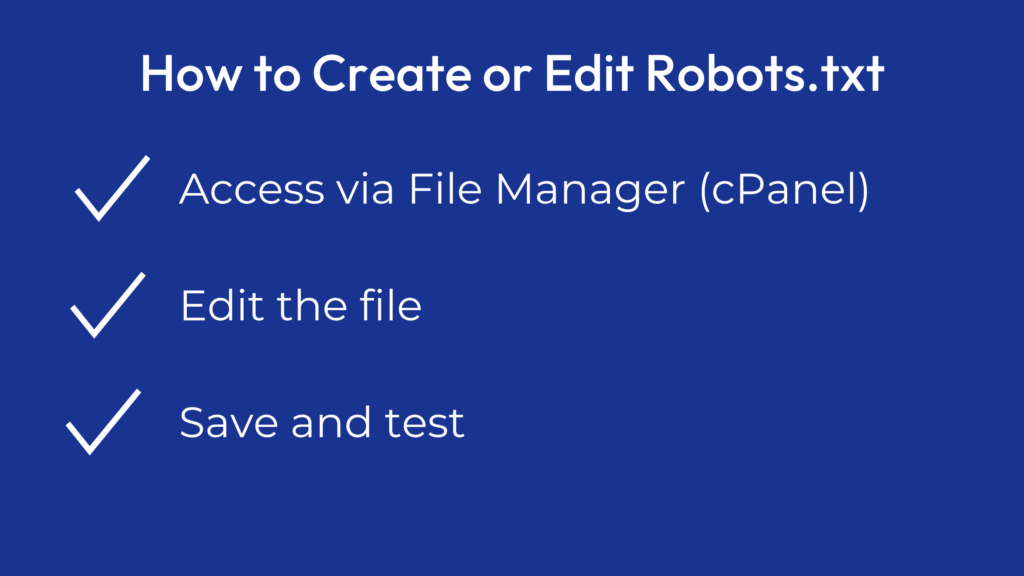
How to Create or Edit Robots.txt
Once you understand the logic behind your crawl rules, adding them to your website is straightforward. Most InMotion Hosting users can manage robots.txt through cPanel or an SEO plugin without touching the command line. The key is to keep the file accessible and accurate.
You can manage your robots.txt file directly from your hosting account:
- Access via File Manager (cPanel):
- Go to your site’s root directory, usually
/public_html/. - If the file doesn’t exist, create a new plain-text file named
robots.txt.
- Go to your site’s root directory, usually
- Edit the file:
- Open it in the built-in editor or use FTP to modify it.
- Paste in your desired rules, such as:
User-agent: *
Disallow: /private/
- Save and test:
- Visit
https://yourdomain.com/robots.txtto confirm the file is live. - Use Google Search Console’s “robots.txt Tester” to validate your syntax.
- Visit
For WordPress users, SEO plugins like Yoast SEO or All in One SEO include tools for editing robots.txt safely from the dashboard.
Maintaining an accurate robots.txt file gives you direct control over what bots see. But the landscape of crawlers is changing quickly, especially with AI systems entering the picture. Let’s explore what that means for your performance strategy.
Modern Crawl Challenges: AI and LLM Bots
The rise of AI crawlers has changed what “bot management” means. Traditional SEO bots helped your site appear in search results; AI bots extract massive amounts of text to train models. Managing this traffic is no longer optional, it’s a key part of protecting your bandwidth and brand.
A new class of crawlers (AI and Large Language Model (LLM) bots) has emerged. These bots, such as GPTBot, ClaudeBot, and PerplexityBot, harvest large amounts of web data to train AI systems.
AI crawlers can cause massive traffic spikes:
- GPTBot generated 569 million requests in one month on Vercel’s network.
- One site owner reported 30TB of bandwidth consumed by AI crawlers in a single month.
- Over 35% of the top 1,000 websites now block GPTBot with robots.txt (PPC Land, 2024).
Unlike Googlebot, AI crawlers often:
- Ignore crawl delays or bandwidth-saving standards
- Request content in large bursts
- Provide no SEO benefit
If your analytics show unexplained bandwidth surges or CPU spikes without a rise in human traffic, AI crawlers may be the culprit.
These bots won’t disappear anytime soon, so adapting your robots.txt strategy now will save headaches later. The next section covers exactly how to do that.
Blocking AI Crawlers with Robots.txt and LLMS.txt
When performance and data ownership are at stake, blocking AI crawlers can make an immediate difference. The good news is that many reputable AI providers follow robots.txt directives. Extending your existing rules is a simple way to control this traffic.
Most major AI providers, including OpenAI and Anthropic, respect robots.txt rules. To block their crawlers, add specific disallow directives:
User-agent: GPTBot
Disallow: /

User-agent: ClaudeBot
Disallow: /For emerging AI bots, check their published user-agent strings. You can also maintain a separate list for quick updates.
A newer complementary standard—llms.txt—is gaining traction. While not officially standardized, it allows site owners to express whether their content can be used for AI training.
Example:
User-agent: GPTBot
Disallow: /
AI-Policy: disallowTogether, these tools let you maintain visibility in search engines while protecting your site from excessive AI scraping.
With your crawler rules in place, the next level of protection comes from your hosting environment itself, starting with server-level automation.
| Feature | robots.txt | llms.txt |
|---|---|---|
| Purpose | Tells search engines what they can crawl. | Tells AI crawlers how they can use your content. |
| Used By | Googlebot, Bingbot, and other search bots. | GPTBot, ClaudeBot, and other AI crawlers. |
| Standard | Long-established and widely supported. | New and still developing. |
| Location | yourdomain.com/robots.txt | yourdomain.com/llms.txt |
| Affects SEO | Yes, it controls what gets indexed. | No, it focuses on AI data use, not rankings. |
| Main Benefit | Saves crawler allocation and improves performance. | Reduces unwanted AI scraping. |
Advanced Control: Combining Robots.txt with Server Rules
Even the best robots.txt file can’t stop bots that ignore it completely. For these rogue crawlers, the solution lives at the server level. Combining robots.txt with .htaccess rules gives you enforcement power rather than polite requests.
While robots.txt works for compliant crawlers, rogue bots often ignore it. For those situations, you need stronger enforcement at the server level. Your .htaccess file (a configuration file that controls how your web server handles requests) can physically block unwanted bots before they ever reach your site.
Example:
<IfModule mod_rewrite.c>
RewriteEngine On
RewriteCond %{HTTP_USER_AGENT} (AhrefsBot|MJ12bot|Baiduspider) [NC]
RewriteRule .* - [F,L]
</IfModule>This blocks unwanted user agents at the server level before they consume resources.
Server-level rules require careful testing. If you’re not comfortable editing .htaccess directly, contact your hosting provider’s support team. Your hosting support experts can help implement these rules safely, ensuring you block the right bots without affecting legitimate traffic.
InMotion Hosting’s infrastructure supports both .htaccess rules and firewall configurations, letting you manage good and bad traffic efficiently without downtime.
Once your defenses are set, it’s helpful to see how these techniques work in practice. The following section explores a few real-world scenarios that illustrate the balance between visibility and protection.
Real-World Use Cases
Theory only goes so far, seeing how these rules apply in real scenarios brings them to life. Whether you’re running an e-commerce store or preparing for a redesign, knowing how to control bots in context makes your strategy stronger.
1. Website Redesign
Before launching a redesign, use robots.txt to block crawlers from the staging version:
User-agent: *
Disallow: /Then remove the rule immediately after launch to restore indexing.
2. E-Commerce Filtering Pages
Retail sites often generate duplicate URLs from filtering options (e.g., /shirts?color=blue). Use robots.txt to prevent crawlers from indexing duplicate variations.
3. Content Migration
During content audits or CMS transitions, temporarily block old directories to avoid index bloat, then reopen access once redirects are live.
Each example helps maintain SEO integrity while keeping crawl efficiency focused on high-value pages.
Now that we’ve seen these examples in action, let’s cover the mistakes site owners make most often and how to avoid them.
Common Mistakes With Robots.txt
Every webmaster makes at least one crawl control mistake. Most are easy to fix but can be costly if left unchecked. Being aware of these pitfalls early helps you catch issues before they affect traffic or visibility.
Accidentally blocking your entire site:
User-agent: *
Disallow: /- Always verify before publishing.
- Using robots.txt for privacy: Anyone can view it at /robots.txt. Never rely on it to hide sensitive data.
- Leaving staging rules in production: Double-check after launches or migrations.
- Blocking assets: Ensure your site’s design and JavaScript remain accessible to Googlebot for accurate rendering.
Avoiding these common traps keeps your crawl rules clean and effective. Once you have a stable configuration, the next step is ensuring your hosting setup can handle the traffic that does get through.
Performance and SEO Implications
Good crawl control doesn’t just organize bots, it protects your performance metrics. Every second saved on server response time contributes to better user experience and stronger search visibility.
By combining robots.txt control with performance-optimized infrastructure (like NVMe-powered servers and dedicated hosting) you protect both user experience and SEO outcomes.
We found that websites on dedicated environments recover up to 60% faster from crawler-related slowdowns compared to shared hosting setups.
Performance and SEO go hand in hand. When you reduce bot overhead, you improve everything else that matters to your users. Let’s close with a few habits that keep your crawl strategy strong over time.
Best Practices for Ongoing Crawl Management
Long-term success with robots.txt depends on maintenance. As new bots and technologies appear, your file should evolve to reflect them. Treat it like any other system configuration. You’ll need to review, test, and update regularly.
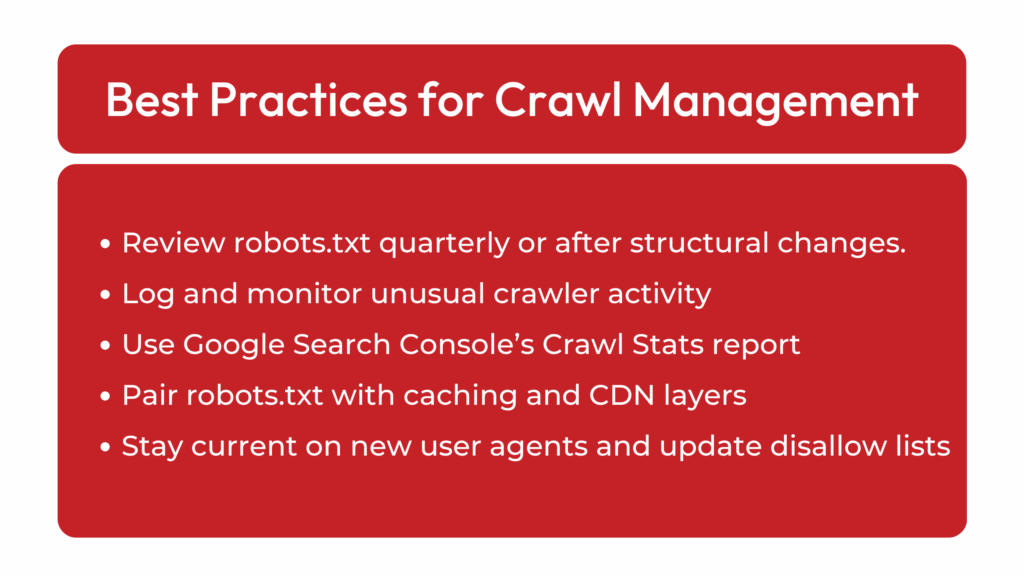
- Review robots.txt quarterly or after structural changes.
- Log and monitor unusual crawler activity in analytics or server logs.
- Use Google Search Console’s Crawl Stats report to track patterns.
- Pair robots.txt with caching and CDN layers for optimal speed.
- Stay current on new user agents and update disallow lists as needed.
Crawl control isn’t a one-time fix, it’s an ongoing practice that supports the health of your entire site. When paired with reliable hosting and regular reviews, it keeps performance stable and SEO strong.
Last Thoughts
robots.txt gives you the power to direct how bots interact with your website. This includes improving SEO focus, conserving server resources, and protecting performance. By using it strategically alongside tools like .htaccess and emerging standards such as llms.txt, you can maintain visibility where it matters and safeguard your hosting environment from wasteful traffic.
Managing crawl access is part of modern website hygiene. It balances discovery with control, helping your business stay fast, visible, and secure as the web evolves. With thoughtful configuration and the right infrastructure behind you, your site will always be ready for whatever bots come next.