Our last report was about the Best Customers report. This one continues along that line so next in our Working With Product Stats course is the Best Categories report. This report shows data based on the best selling categories in your store. Follow below for access information and explanation of the report.
Accessing the Best Categories report in PrestaShop 1.5
- Log into your PrestaShop 1.5 admin dashboard.
- Using the top menu bar, hover over the Stats tab and click on the Stats option.
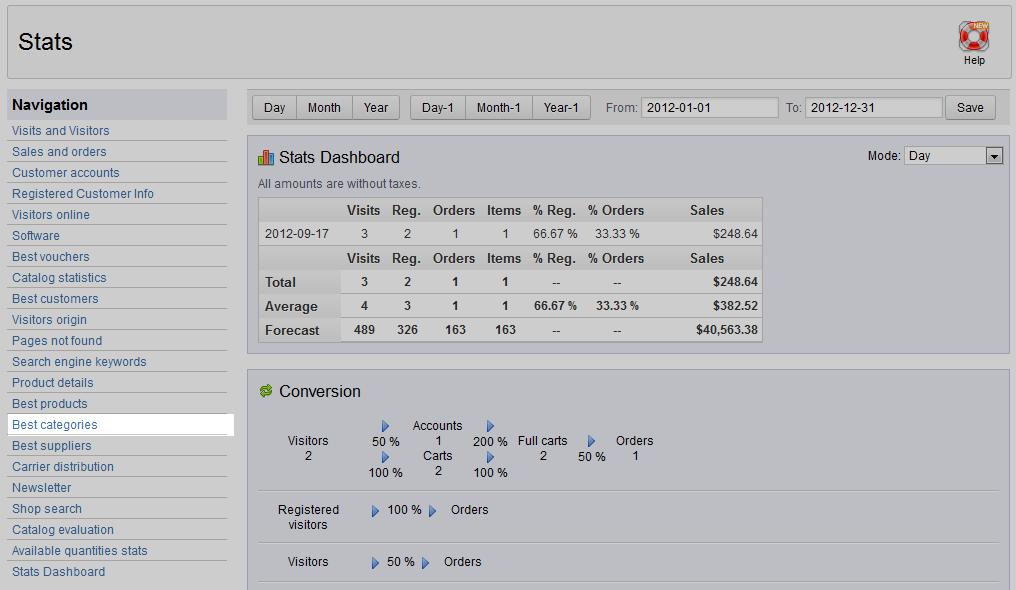
- This will bring you to the Stats page. On the left hand sidebar is a list of all the statistical reports. Click on the Best Categories link.
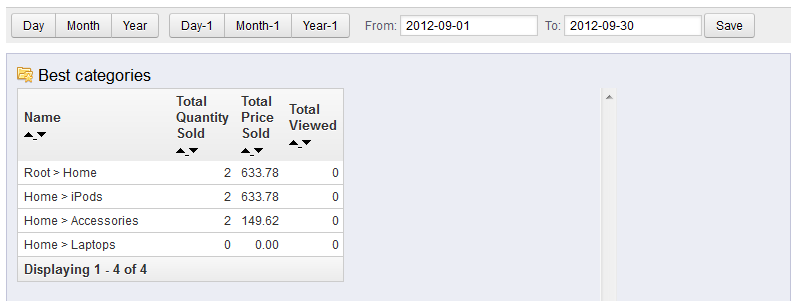
- The Best Categories report displays information based on your best selling categories. The report is set as a table that shows you basic metrics for these categories. These numbers can change based on the time frame entered at the top of the page.
Name Category Name Total Quantity Sold Number of products sold within the category Total Price Sold The price at which the products are sold Total Viewed Total views for that category

Continue with our series of product stats reports by taking a look at our Best Suppliers article.