After you have created attributes and added values to them, they are ready for use with your products. Adding attributes can be confusing at first as there is no tab named Attributes like there is for Features. Attributes are added via the Combinations tab found on the left hand sidebar of your Products editor.
This allows you to add different attributes that will combine for many different variations of your product. For example, if you have a shirt that comes in two colors and three sizes, after adding the attributes, the combinations editor generates a total of 9 variations, all three sizes with each of the three colors. If you have only one attribute, such as size, then you will have a ‘combination’ of only those values (small,medium, large).
Below are some instructions that walk you through setting up a combination for your products in PrestaShop 1.5
Setting up Attribute Combinations in PrestaShop 1.5
- Log into your PrestaShop 1.5 admin dashboard.
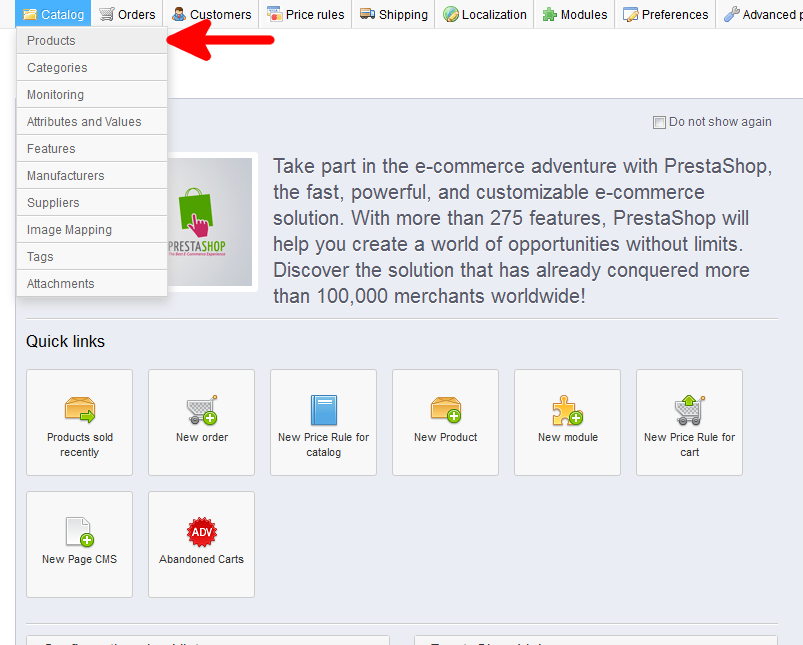
- Using the top menu bar, hover over the Catalog tab and click on the Products option.
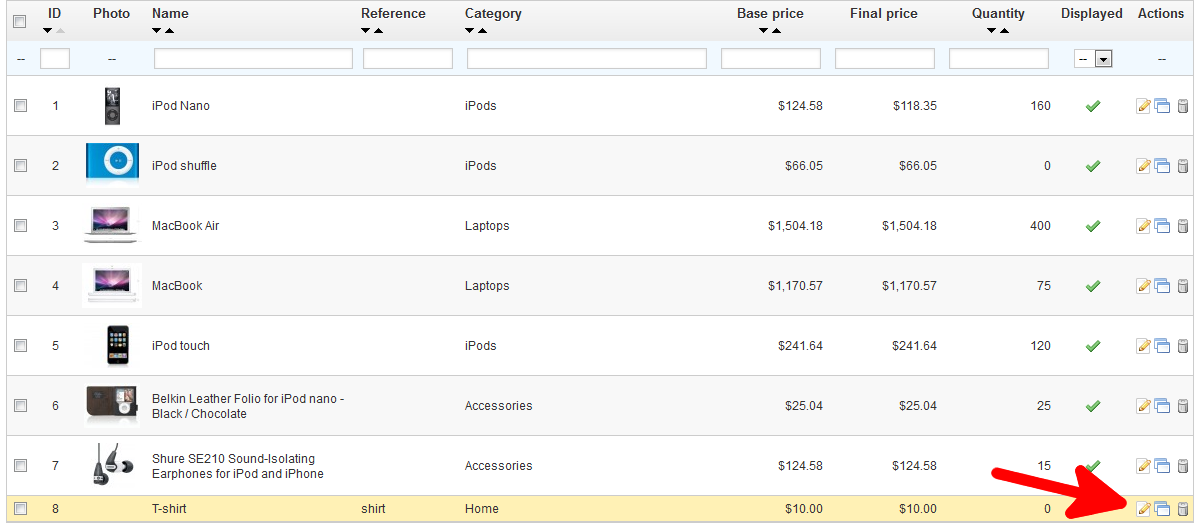
- This brings you to the Products page. Find the product you want to work with and locate its edit button on the right hand side of the screen. It looks like a pencil and paper. Click that to go to the next screen. For this example, we will work with the T-shirt product we added.
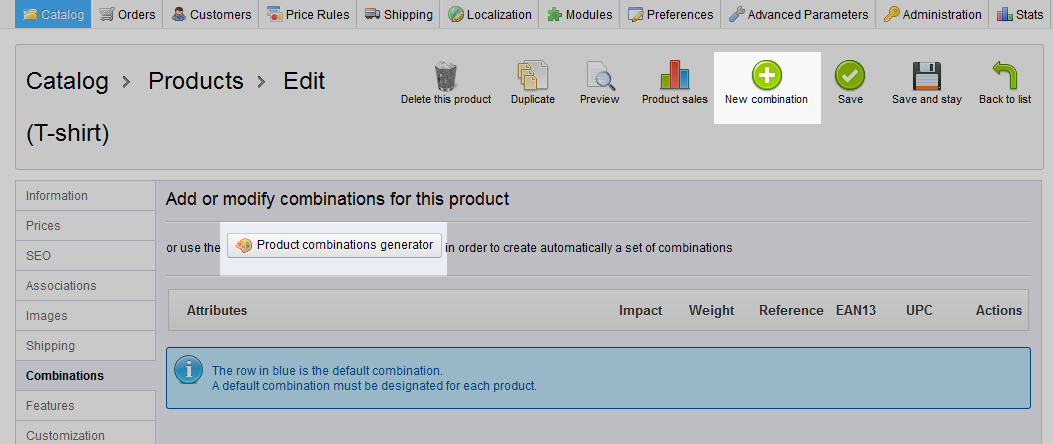
- You are now on the product edit area, find and click the Combinations tab on the left hand side of the screen. This will bring you to the Combinations screen. Although currently empty, this will list any combinations you have created for your product. To create and add more, click on either the button labeled Product Combinations Generator or the green New Combinations button in the upper right corner of the screen. Be advised that you will lose any unsaved data for your product as it switches over to the generator, so save all changes first.
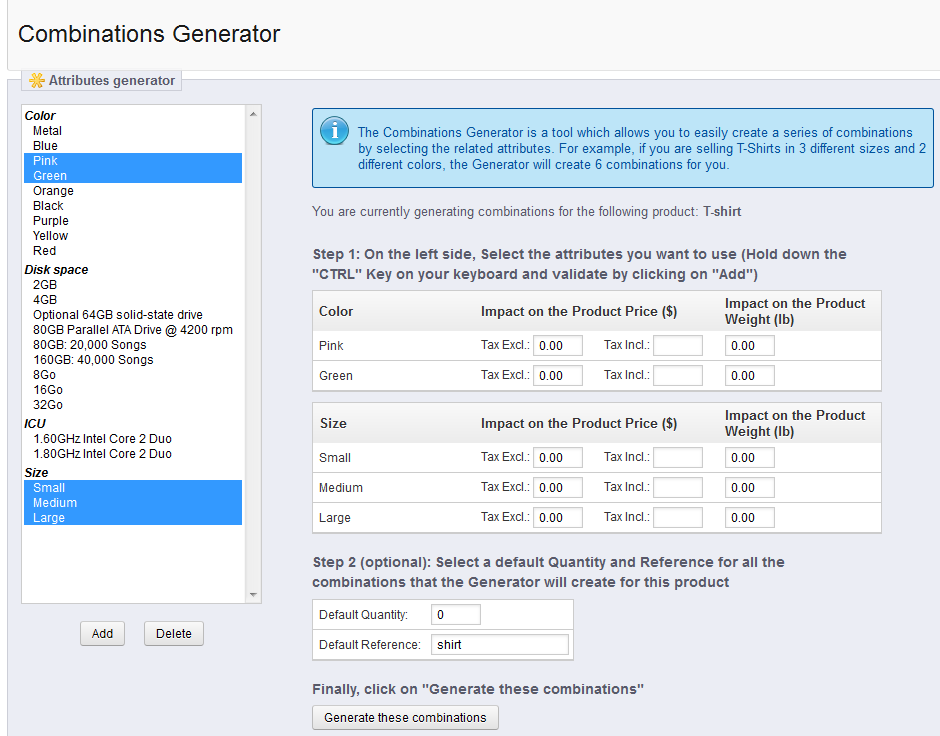
- This is the Combinations Generator. On the left hand side you will see the master Attributes list. To add an attribute value, simply highlight and it and click the Add button at the bottom. You can add more than one attribute to the combination by holding ctrl while clicking them. You can also add them one at a time if you prefer. As you add them, the values appear on the right hand side of the screen under their respective Attributes.
To make a combination, you need to select at least one value. A product can have zero combinations, however, if it has no options. For example, if you have one type of 12″ hammer, it would need no combinations (or values) to choose from. If you had a 12″ hammer with different handle types (wood and fiberglass), then you may need a combination for handle grips so the customer can choose.
In our example, we selected three sizes for the T-shirt and 2 different colors. You can also add any changes on the price each value may have. For example, if a large shirt raised the price of by fifty cents, you would add .50 to the Impact On Product Price field. Once you are finished, click on the Generate These Combinations button.
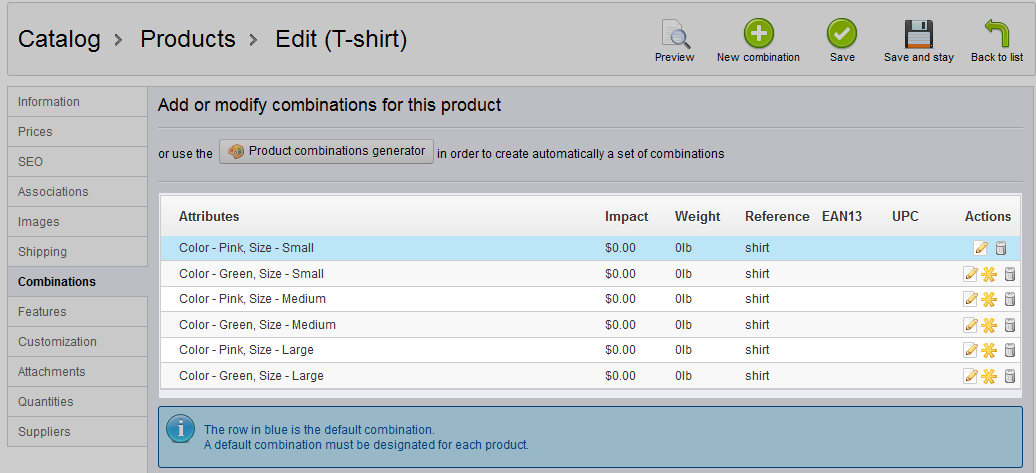
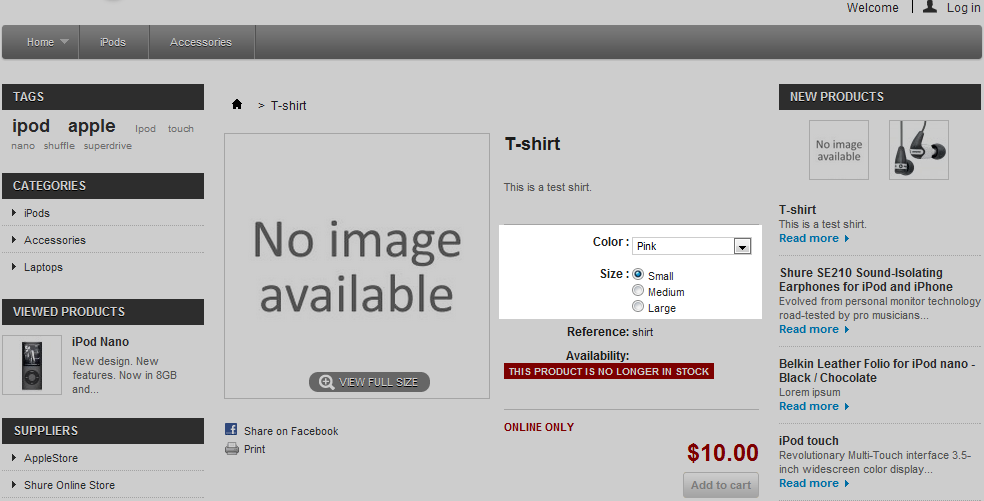
- You will be taken back to the Combinations screen where you can see the combinations generated for your product. Viewing the product on the storefront, you can also see the different selections for the product. Our shirt, for instance, now has color and size options.