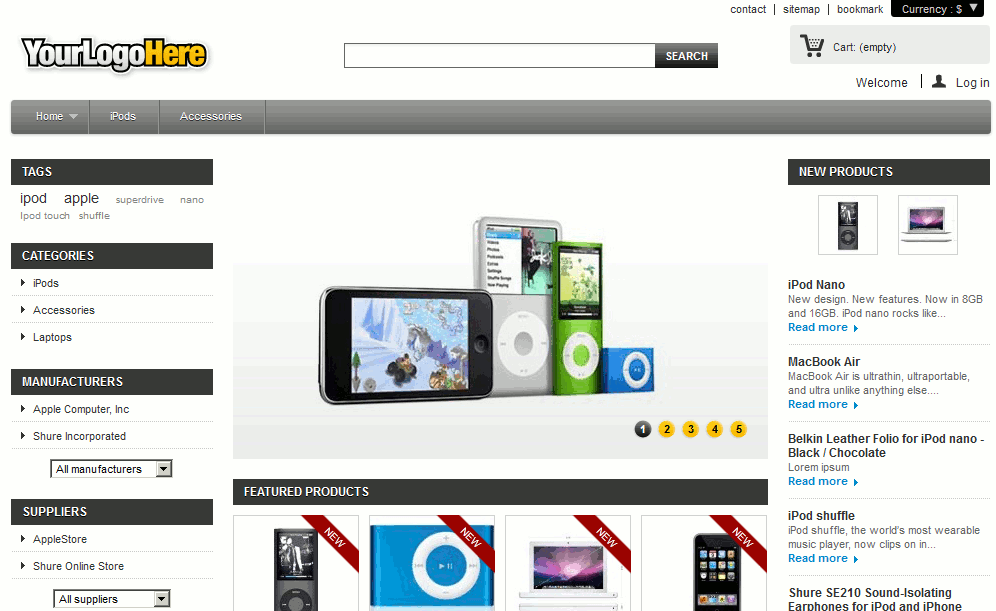
Prestashop 1.5 is an online shopping cart that can be installed on most web hosting accounts. You can install PrestaShop 1.5 to run an e-commerce website and sell both tangible products and downloadable products. It’s relatively new in the e-commerce world, but over the last few years PrestaShop has made quite a name for itself. In this PrestaShop 1.5 tutorial, we’ll walk you through the steps on how to manually install Prestashop 1.5.
Manually installing PrestaShop 1.5
- Visit the PrestaShop Download page and click on Download Now
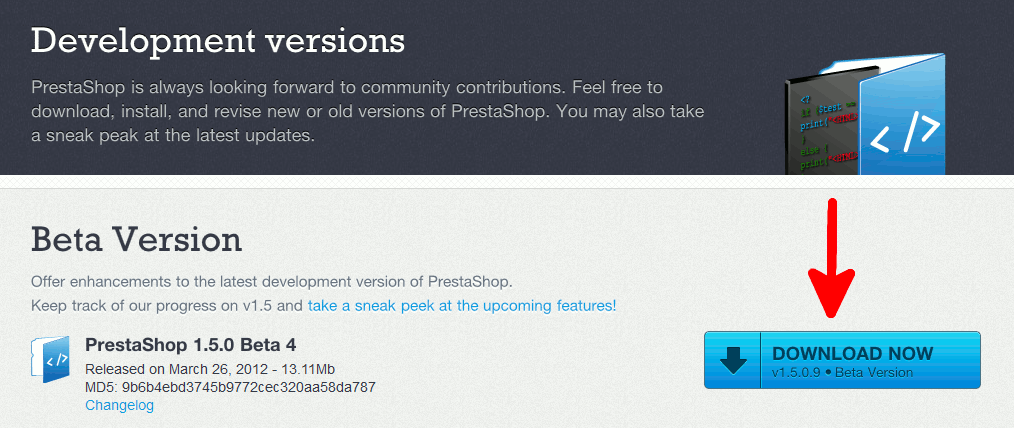
- Extract the file you just download – prestashop_1.5.0.9.zip
- When you extract the files, you will see a folder named prestashop_1.5.0.9 and within that another named prestashop. Open the “prestashop” folder and upload to your server all the files within that folder (do not upload the folder itself).
- PrestaShop requires a database in order to run, so you’ll want to make sure you have a database setup. If you are an InMotion Hosting customer, use the MySQL Database Wizard. Please be sure to keep note of your database name, username, and password.
- Access the PrestaShop Wizard Installer by Visiting the URL you uploaded the PrestaShop files to. In our testing here, we visited prestashop.inmotiontesting.comStep 1: Welcome
On the “Welcome” step, choose your installer language, read and accept the terms and conditions, and then click NextStep 2: System Compatibility
The next step will check to ensure your server is compatible with PresaShop 1.5. InMotion Hosting’s default server setup will pass the minimum requirements, so simply click Next.Step 3: System Configuration
Update your Database name, Database login, and Database password with the MySQL credentials you created above. For most servers, you can leave the other settings to their default. Click Verify Now, and if your settings pass, click NextStep 4: Shop Configuration
On this page, enter the basic details about your shop. If you’re new to PrestaShop 1.5, we recommend choosing the option to install the sample data as well. Click Next to continue.Step 5: Installation process
At this time, you will see a progress bar on the screen. It should take less than 1 minute as the Prestashop installer configures your database and the rest of your shop. When the installer is complete, you will see a success message:Your installation is finished!
You have just finished to install and configure your shop, thank you for using PrestaShop!
WARNING: For security purposes, you must delete the “install” folder. - As per the installation instructions, delete the install folder. After deleting the install folder, you have successfully installed PrestaShop 1.5! Visit your website and you should see PrestaShop installed, as per our screenshot below: