Arguably the most popular payment gateway in the world, Paypal can help you take payments from your customers. The Paypal module allows you to choose whether to add PayPal as an option in addition to any other gateways you may be using, or as a master gateway on its own by accepting all major credit cards via your account. Below are the instructions on installing and configuring the PayPal module for your PrestaShop 1.5.
How to install and configure the PayPal gateway Module in PrestaShop 1.5
- Log into your PrestaShop 1.5 dashboard.
- Using the top menu bar, hover over the Modules tab and select the Modules option
- From here you can select the module by scrolling until you see the PayPal module. You need to ensure you are using the latest version of the module.
If you have automatic module updates enabled, the module listed will be the latest version. Simply click on the Install button to have the module enabled.
If you do not have that activated, you will want to go to https://addons.prestashop.com to find the module and then follow the third party module installation steps.
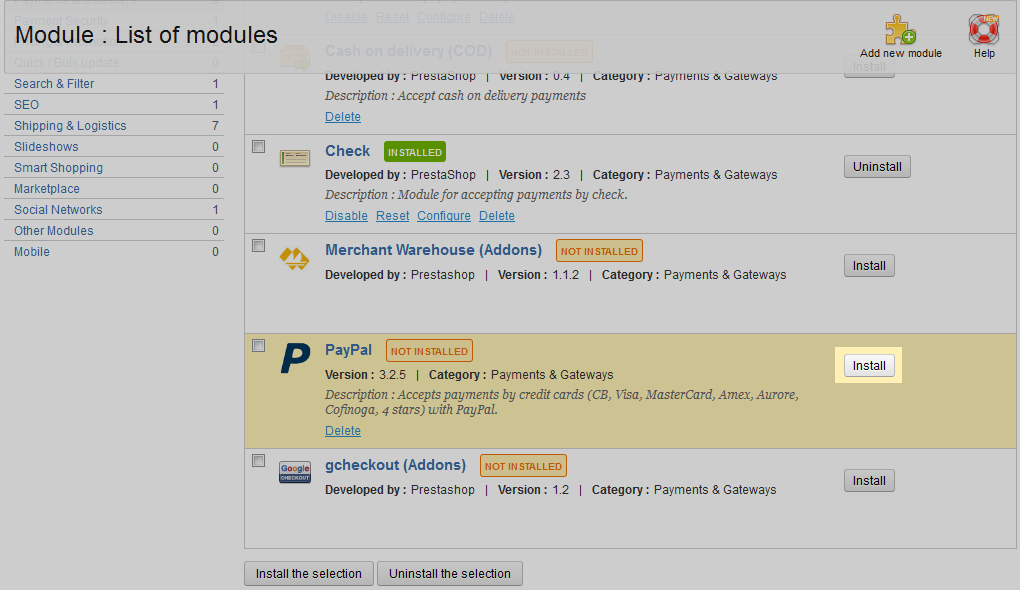
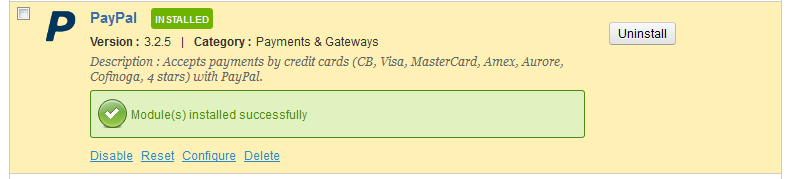
- You will see an install completion message once the module is installed. Next, click on the Configure link to proceed to the configuration page.
- You are now on the PayPal module configuration screen. There are a few steps to configure the module. Initially you will see the screen below where the module assumes you need to create a PayPal business account. If you already have one, select the Yes radio button for the Already have a PayPal business account? question.
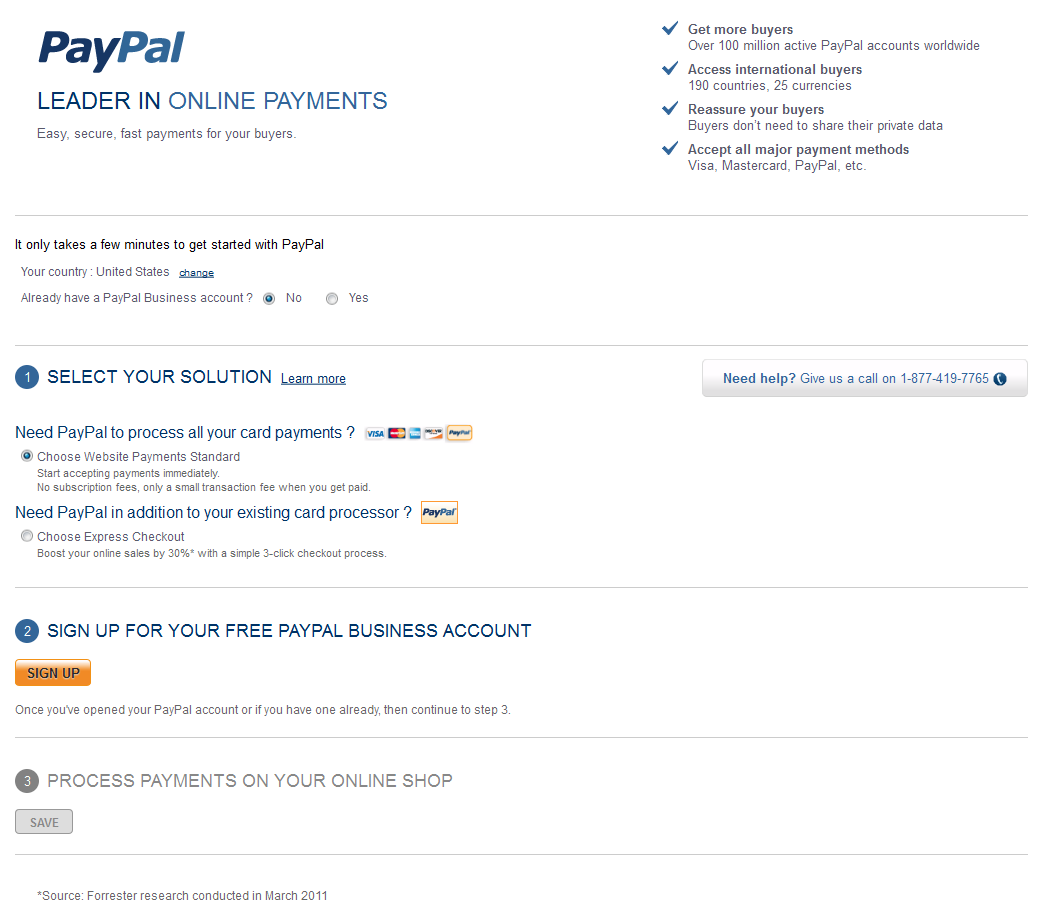
- Next, follow the three steps to be able to accept payments via PayPal.
Step 1 – Select Your Option
Need PayPal to process all your card payments? This enables PayPal to be your sole processor. Need PayPal in addition to your existing card processor? If you already have another gateway, this adds Paypal to the list of options while keeping your other gateway for credit cards. Step 2 – Sign Up For Your Free PayPal Business Account
If you do not have an account, click on the Sign Up button to create one.Step 3 – Process Payments On Your Online Shop
This step is only enabled after you have established a PayPal business account.API Username Your PayPal account username. API Password Your PayPal account password. API Signature Your PayPal account signature. Express Checkout Shortcut Select whether you wish to offer your customers the 3-click checkout. Use a Sandbox Set up a test area for your PayPaly account. This is for developers. Payment Type Select whether you want automatic or manual authorization. 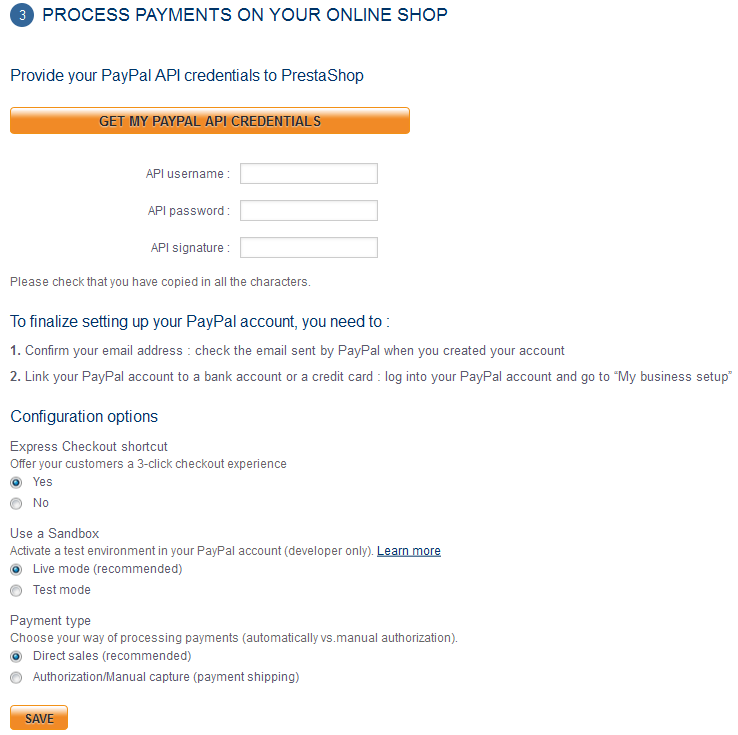
- Click on the Save button at the bottom of Step 3 to save your PayPal gateway module configuration.



