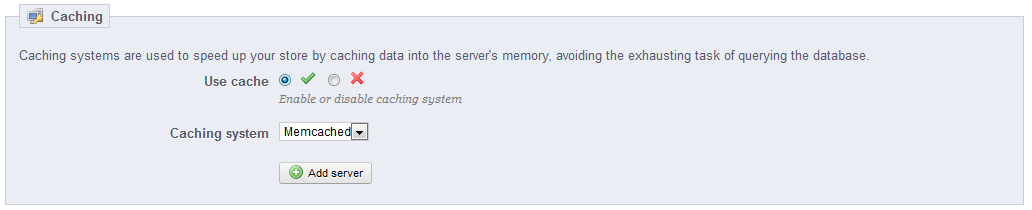
Another step to increasing your PrestaShop 1.5 performance is to install a serverside caching system. Caching holds frequently searched pages in a memory to reduce load on the server that is used to create the pages for visitors to view on demand. It also reduces the load placed on the database as each page has to make several calls to it whenever it is constructed. A copy is kept in memory for a certain amount of time and anyone who needs to see a page that has previously been viewed will see that copy. This helps your site run faster and is good for both your server and your customer.
Memcached is one such option and is ready to be used by PrestaShop. This particualr caching systems is free and easy to use. It is also used by other major players on the web such as Craigslist and Wikipedia. Below is a set of instructions on enabling a caching system for your PrestaShop 1.5 store.
Note that adding additional caching systems as described in this article can only be performed on a VPS or Dedicated server.
Improving performance by enabling a caching system in PrestaShop 1.5
- Log into your PrestaShop 1.5 dashboard.
- Using the top menu bar, hover over the Advanced Parameters tab and select the Performance option.
- From the Performance settings screen, scroll down until you find the Caching section. This is the next to last section on the screen. From there you will see two settings. Make sure you select the green checkmark for the Use Cache field and then select the caching system type from the dropdown. In this example, we selected Memcached.

Memcached This caching system can be used with multiple servers. It has a requirement as listed in the warning above, so be certain that requirement is met. You will need to enter server information when using this option. 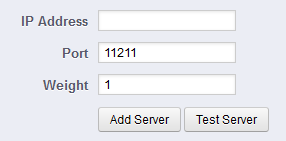
APC APC is Alternative PHP Cache, and can be used with a single server. This one also has a prerequisite addressed above in the warning image. Xcache While an option for non-Apache servers, this cannot be used on InMotion Hosting servers. File System A basic system, it has no prerequisites. File System caching creates files and saves them on your server. - Click on the green Save button at the top of the screen to save the caching configuration.