When you no longer want a product in your store, you have two options. You can either disable the product or delete it from your database entirely. Disabling products is usually the best option as it preserves the data integrity of your site. If you need to get information for a product that a customer purchased long ago that you no longer carry, it will be there. Deleting a product outright, on the other hand, will cause that information to not be found.
Still, if you have products that are most certainly not going to be used, such as test products, you may want to permanently remove them from your store. The instructions below will guide you on how to delete a product from your PrestaShop 1.6 store.
How to delete a product in PrestaShop 1.6
- Log into your admin dashboard.
- Using the left hand menu, click on the Catalog and then Product options.
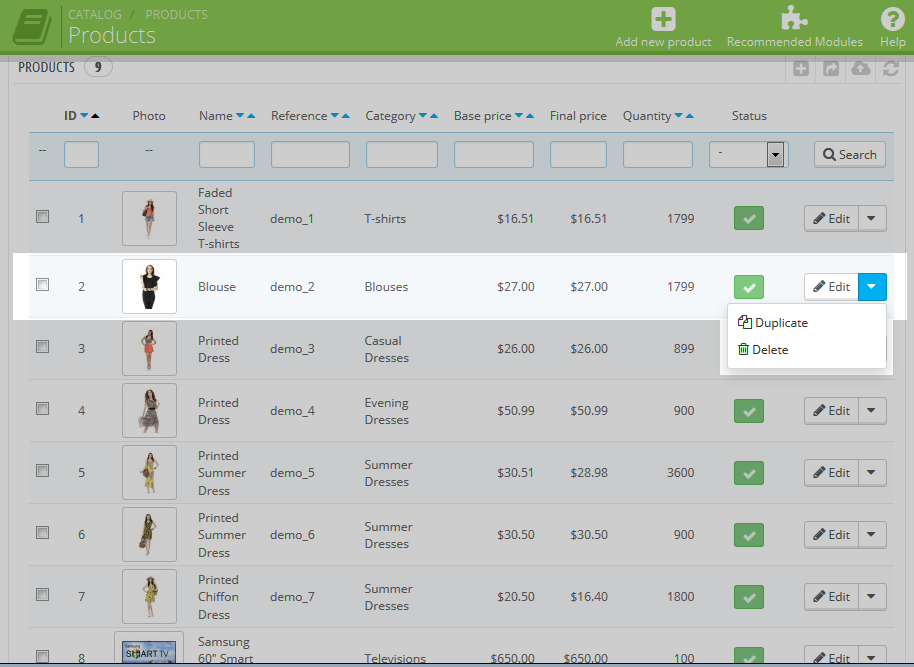
You are now on the main Product list page. Look at the list and find the product you wish to delete. In our example, we will delete the Blouse product. Look to the right side of the row and click on the Delete option from the dropdown.
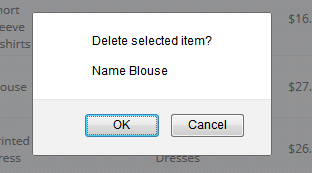
You will receive a confirmation popup. Click on OK in order to complete the deletion.
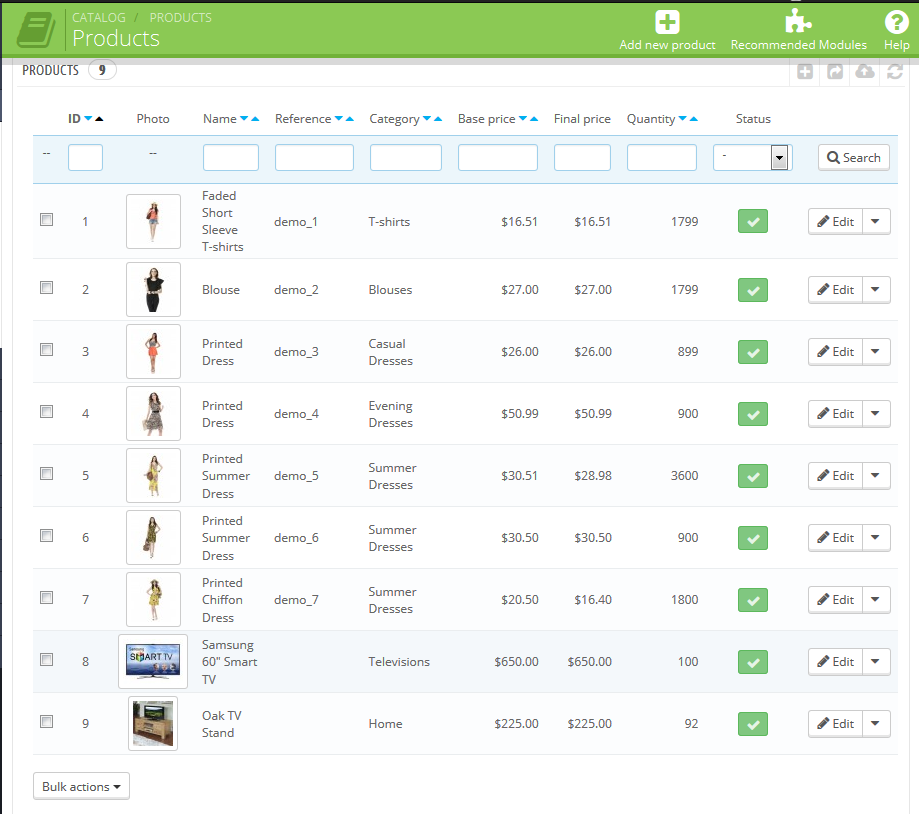
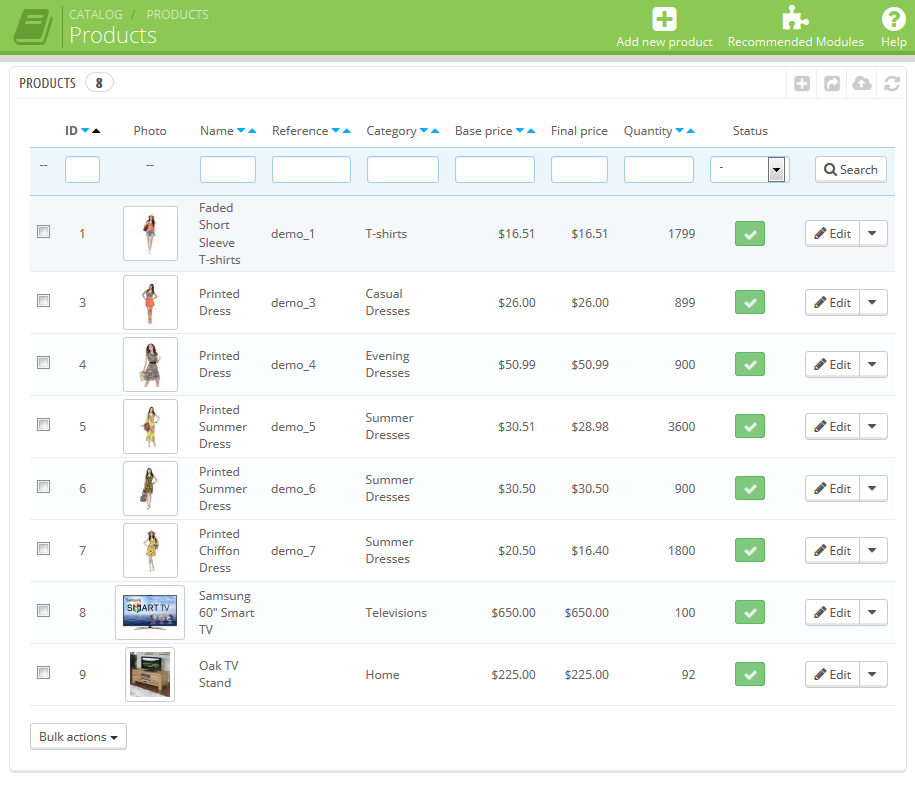
Now that you have deleted the product, you can return to the Products list page and see that it no longer appears. It has been completely removed from your store.
| Before | After |
|---|---|
|
|