Modules are attachments to the core Prestashop files that can enhance the performance and features of your store. The modules API is a feature designed to make module management easier and more efficient. As part of the tutorial series for working with modules, this article shows how to install one of the stock modules. To learn how to install a module in PrestaShop 1.5 simply follow the instructions below.
Installing a module in PrestaShop 1.5:
- Log into your PrestaShop 1.5 dashboard.
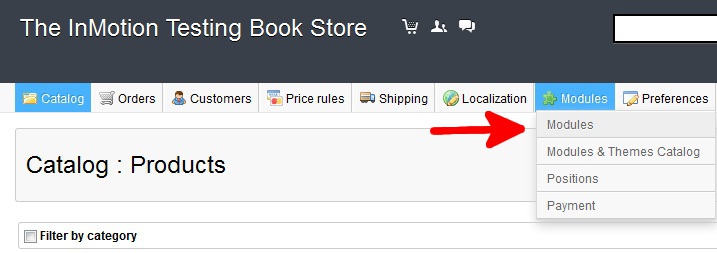
- Using the top menu bar, hover over the Modules tab and select the Modules option
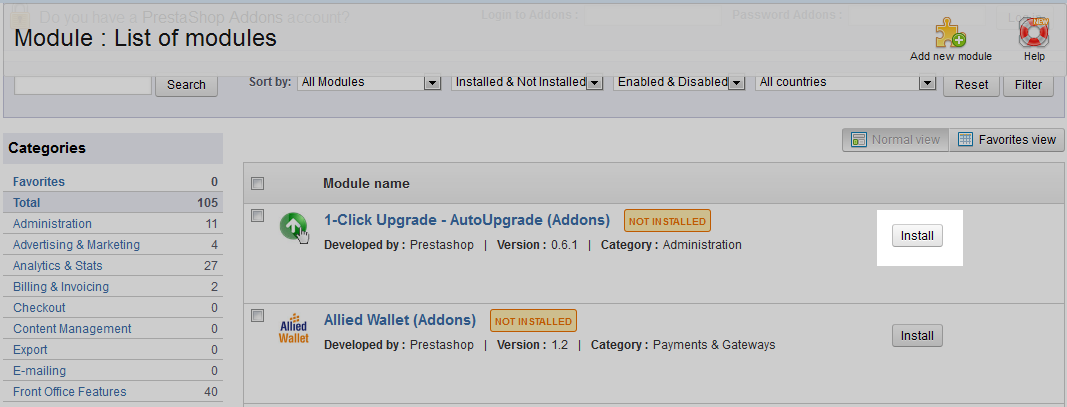
- From here you will see the a list of the available modules for your store. For this example, we chose the “1-Click Upgrade – Autoupgrade” module. To install it, simply select the Install button just to the right of the module.
- The module installs itself and once completed has two buttons to the right: Update and Uninstall. It is always a good idea to Update the module so that it is set to the most up to date version. Do that by clicking the Update button.
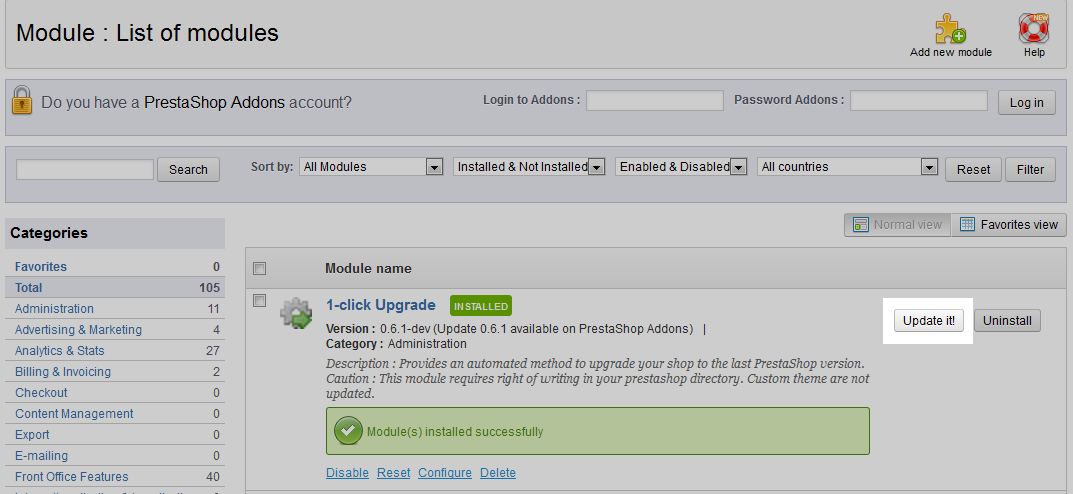



From there the new module is installed and will appear in its appropriate place within the tabs and menus.